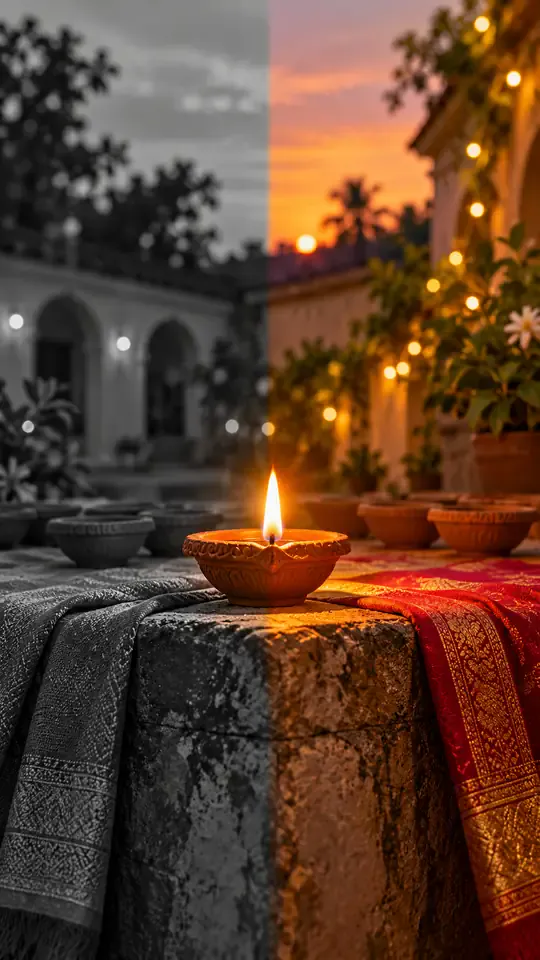
One Photo, One Reveal
Upload a picture from your camera roll. The tool stages the whole transition, so your only real choice is the outfit that waits on the other side of the diya glow.
Seen the black-and-white to color Diwali reveal everywhere? Upload one portrait and this diwali ai transformation video tool shows you in a plain everyday look, lights a small diya, then turns the scene into color with a festive outfit. Every diwali ai transformation video starts from your own photo, not a stock clip, so the reveal feels personal. You get a 15-second vertical clip, sized for the phone you already use. Start with one clear photo where the face is sharp and the light is even, because the face carries the whole reveal from the first frame to the last.
1Add your photo
2Quality & length768p · 15s · 9:1660 credits
No subscription · Ready in about 3 minutes · Not charged if it fails
Only upload photos of yourself or people who clearly said yes.
Trend Background
A diwali ai transformation video is a short before-and-after reel. The diwali black and white to color trend starts with a person in a plain everyday outfit, often shown in black and white, holding a small clay diya. Then the light brightens the courtyard, the frame fills with warm gold and red, and the everyday clothes give way to festive clothing such as a saree, a kurta or a lehenga. Creators post it as a one-take reveal with string lights, a calm camera and a steady pace, so the viewer can read the change in a single second. This diwali ai transformation video page turns your own portrait into the same reveal, using the same beats in the same order, so the finished clip keeps your face from the first frame to the last. The format fits festival week well: families send one reel to the group chat, the courtyard is lit with rows of clay lamps, and marigold garlands and rangoli sit at the edge of the frame. Because the reveal is short and bright, the clip works as a greeting for relatives who live far away, and it can be posted with a line of thanks, a sweet-shop photo or a family portrait from the same year.
Create My ClipThree Steps
Upload one clear portrait with your upper body visible and even light on the face. Making a diwali transformation from a photo needs only that one picture, with no keyframes and no second image. Use a photo you have permission to edit, and skip busy backgrounds so the reveal is easy to follow from the first frame.
Choose the red-and-gold saree, the ivory kurta with gold embroidery or the jewel-tone lehenga for your diwali ai transformation video. The clip always starts in a plain everyday look in black and white, then turns to color with the outfit you picked. The button shows the exact credit price before anything is charged, so you know the cost of the clip before you commit.
Press Create My Clip and keep this page open for a few minutes while the clip is filmed. When it finishes, download your diwali ai transformation video as a vertical MP4 with no watermark and post it wherever you like. If a system error stops the clip, your credits are returned automatically, so you only keep credits for clips that finish.
The Straight Story
A plain list, so nothing surprises you after you press the button.
The Trend
The Diwali AI transformation format took over feeds because the before-and-after reads in one second. You do not need editing software or a film crew to take part. This tool takes an ordinary portrait, starts it in black and white, lights the diya and reveals the festive look in color, with a diwali transformation video that is easy to share. It is an independent tool, not affiliated with any creator who posted the trend.
Upload a picture from your camera roll. The tool stages the whole transition, so your only real choice is the outfit that waits on the other side of the diya glow.
Every diwali ai transformation video uses the flame of a clay diya as the transition cue, so the color change lands on a clear beat instead of a random cut.
The diwali ai transformation video file is a clean vertical video that drops straight into a story, a reel or a family group chat during the festival week.
Browse all
Turn one photo into the sit-to-recline reel
Turn two photos into a Your Dinner Is Ready clip
Turn two photos into the cliff plank prank
Put your photo in the lead spot of the schoolyard dance
Turn one photo into a convertible city-cruise clip
Turn one or two photos into the slow mo dance entrance
Turn your pet into a gym one-more-rep clip
Put your photo in the arms-up street routine
Put your photo in the two-pose dance meme
One photo, the singing car meme
Baby sips, sways and points from one photo
Two pets behind the counter, one pot and one mug
One photo into a slow overhead chair spin
Two people, one spilled coffee, one straight face
Print your profile as a receipt clip
Turn one portrait into a moonrise first-bite clip
Turn one photo into a walk across a marigold bridge
Turn car photos into a moon-to-headlight night loop
You in a retro chocolate ad, one photo
Turn one pet photo into a barn full of dancing parrots
One photo into the tilting green-chair clip
Take the mic in front of the roar of a stadium crowd
Turn one photo into the 15-second dance routine
One photo, a staged slap, then tears
Copy the angry dance with your photo
Turn one photo into the phone-flip hotel dance
Copy the full cover routine from one photo
Turn one photo into the salute and spin clip
Turn one photo into the Pick It Up bounce, arms-up and turn
Turn one photo into the cap-and-hood stare clip
Turn one photo into the Tarantino dance cover
Turn one photo into the routine clip
Dance on the platform from one photo
Turn two photos into the hoodie duo dance
Your dog or cat at a studio mic in headphones
Turn one photo into the fuzzy dream dance clip
Turn one photo into the sway clip from the feed
Toddler you, headphones on, at a studio mic
One baby photo, a mustached newborn clip
Grandma at her own party, from one photo
Turn one photo into a rap freestyle clip
Run up a golden stairway through the clouds into a hug with a loved one.
Turn one photo into the Rio charme dance
Turn one photo into the cash-toss video
Turn one photo into the caught-at-the-window clip
Turn two photos into the crying meme
Red eyes and a smirk from one photo
Make a short birthday greeting for Mom from one photo.
Sunglasses off, building on fire, from one photo
Your photo in a 15-second Christmas scene
Moonwalk-style dance from one photo
Your photo bouncing to a Jersey Club beat
Full glam on his photo, step by step
Mouth a love song from one photo
Shiny tears slide down your own selfie
Head bobs and bounces from one photo
Put your photo in the high-kick line
Make a miniature-to-full-size car reveal from one photo.
You screaming on a night rooftop from one photo
One photo, one pink Y2K dancer
One flash puts your photo in a balaclava
Your dog whimpers, then grins
A giant jet sweeps low over you at sunset
Turn one photo into the horse dance video
Turn one photo into their send-off clip
Turn one photo into the slide and arm-point routine
Turn one photo into the concert-stage lead
Turn one photo into the wooden guy's dance
Put one photo of you on the train, eyes shut, on the big note
Make your own cat stand up and clap for you
Your dog's birthday party from one photo
Your cat's birthday party from one photo
Turn into the turkey, or let your pet crash dinner
A video card with you at the dinner table
Line up, swim the arms and dive onto the mat
They threw stones, you build a castle from one photo
Turn one photo into a Christmas clip with Santa
Put the birthday person in a skydive or a lion-back cake ride
Walk your pet home to a candlelit altar
Karate-kick the bottles from one photo
One photo of someone you miss, one gentle 15-second clip
Turn one family photo into dancing Christmas elves
Walk up from the gala and lift the golden ball
Dunk over a defender, then the finger at the camera
Put you two in the kick meme
Do the arm throws and knee lift from one photo
Santa on your own room's night-camera footage
A slow deadpan head shake from one photo
Skeleton dance from one photo, Halloween beat
Do the footwork routine from one photo
Do the club routine from one photo
Street party or tavern dance from one photo
Dance in a white spaceship and wag a finger
Ride a giant pig across the red light
Your pet at the wheel, eyes shut, paw to the ear
Turn one selfie into half black goo and fangs
Kneel on a sunlit path with three haloed shadows beside yours
Rap to the camera in a packed night crowd
Turn one photo into you, rapping at the mic
Mask on, spin, suit up from one photo
Flick a heart at each name from one photo
Walk someone you miss home along a marigold path
Do the horse dance from one photo
One photo of you and your kid, suited up on a rooftop
A black hand, a wipe, a moon witch
Sheet on, shades on, pose and peek
Kick, pitch and leap in the storm
Swagger down the mansion hallway
Your pet takes the mic
Get caught on the big screen
Hold up the red sign and jump
Take the cash, then hit the walk
Walk out to a crowd of fans
A ghost rises right behind them
Walked out by two officers, unbothered
Lean in, arms out, point on the beat
Serious game face, then the toy car
Snap the moon, reveal the witch
Your pet as the dancing cat trio
Float past the red light on a broom
Nod to the bass at the blue wheel
Do the duo intro from two photos
Your baby, a serious face, one photo
The flash step dodge, one photo
Ask the phone how to get rich, hear the answer
Your cat or dog stands up and dances
Wide squat, tiptoes, one-leg freeze
Swagger down the park path, point at the lens
Cup your ears and let the stadium roar
Walk the carpet, stop for the flashes
Bedroom horns, panels shut, night street
Tiny workers wash your truck until it shines
Fake the rabona, leave the defender on the floor
Rocket thrusters fire, your car lifts off
Set up a penny-farthing chase through a palace garden with a golden carriage.
Create a two-person autumn field bounce and finger-point dance.
Turn your photo into the Ozil goal: dribble, strike, turn and celebrate.
Turn photos into phonk head bop trend videos in minutes.
One photo, a camera orbit around your subject
One or two photos into the vertical sidewalk singing clip
Chandelier party video from your selfie photos
Turn any photo into the tiptoe trend
Create scream-and-swap pet dance clips
Turn your selfie into an animatronic jumpscare
Make your photo lead the 1983 zombie dance in 9:16 vertical video.
Turn one adult photo into a trending 9:16 lip-sync clip in seconds.
Turn one group photo into a crew that steps in sync in 9:16 vertical video.
Turn your photo into a 1980s retro dance video with custom themes.
Pop the bottle from one photo and freeze it black and white.
Turn your photo into a Bulin 47 AI doorway clip.
Do the Layoo dance from one photo with two friends behind you.
Turn your photo into the viral lean, swing and low bounce, friend watching.
Black liquid rebuilds your car from its badge
Put your photo on the red stage doing the 2008 electro arm dance.
Sweep the 2 and 4 cards, reveal a car
Deadpan sway clip from one photo
Costume walk clip from one photo.
Make your pet or baby scold the camera
Make viral sneaky tiptoe videos from photos
Walk out with two officers
Two photos turned into a drill rap video clip.
Turn your pet into a tiny knight in a storm
Turn photos into the hop and knock dance
Switch wardrobe under spinning fan blades
Turn portrait photos into video
Make the viral video from two photos
Turn one pet photo into the stage meme
Dusk road-trip clip from your photos
You and a friend trading bars on one mic
Turn their photo into a funny birthday prank video
One photo zooms out to Earth, Moon or galaxy
Laser eyes, car jumps, hugs and more from one photo
Turn one photo into a video with copies of you
Hug the kid you were in a short video
Turn family photos into a short video clip.
Turn your photo into a cinematic video with effects
Share an imagined hug with someone who passed away
Turn one or two photos into a dance video
Two solo photos, one orange booth, one mic
Sit still while a car flies over you
Turn two photos into a hug video
Turn one or two photos into a gentle memorial clip
Make people in old photos smile, wave or hug
One or two photos into the zombie love story video
Two photos into the viral Hotel Lobby video
Plain answers on photos, outfits, length and credits.
Create My ClipUpload one clear portrait, pick a saree, kurta or lehenga, then press create. A few minutes later you get a vertical 9:16 clip that starts in black and white, lights a diya and turns the scene into color with the outfit you chose. You never write a prompt or open an editor. For the wider trend and how people plan the reveal, read how to do the AI trend.
Yes. This diwali ai transformation video can carry a saree reveal. Choose the red-and-gold saree, and the clip starts with your everyday outfit in black and white, holds on the diya for a moment, then reveals the saree in full color when the flame brightens.
Every diwali ai transformation video clip is 15 seconds, and the create button shows the exact credit price before you pay. Credit plans and packs are listed in the pricing section of this page. Credits are charged only when you press create, so browsing the outfits costs nothing.
This diwali ai transformation video version is built for people. The reveal is set up around a person holding a diya, so a pet photo will not give the same result. Use a clear portrait of a person who said yes.
You can choose a red-and-gold saree, an ivory kurta with gold embroidery or a jewel-tone lehenga. Each diwali ai transformation video keeps the chosen outfit stable after the color reveal, with the same colors and fabric from the reveal to the last frame.
The diwali ai transformation video tool is built to keep your face, hair, skin tone and body proportions the same through the transition, but it is still generated video. Check the result before you post, and try a sharper, evenly lit photo if the face drifts.
Yes. Every diwali ai transformation video has a soft instrumental track with tabla, bansuri and light percussion. There are no lyrics and no spoken lines, so you can add your own caption or a song from your app after you download it.
Pick a single, sharp portrait with the upper body visible, even light on the face and a plain background. Face the camera, and avoid sunglasses, heavy filters and group shots, because the reveal is built around one person. A diwali ai transformation video keeps your face, hair and skin tone from the first frame to the last, so a clear photo of you or someone who said yes gives the best result. If the first clip drifts, try a brighter photo taken near a window and run it again.
No. This diwali ai transformation video generator is an independent tool. It is not affiliated with any creator, platform or brand that posted the trend, and it uses the trend name only to describe the style. Read the consent line before you upload, and keep to photos you have the right to use.
Create My Clip
Create My Clip