Casual Social Media Posts
Make a lighthearted clip showing an ai video of yourself sharing dinner or walking down a sidewalk to share with friends. Generating an ai clone video takes only one portrait and needs no video editing skills.
Turn one clear photo into a 5 or 10 second ai clone video with multiple copies of you in a preset scene. This tool is not a talking avatar.
Only upload photos of yourself or someone who gave you permission.
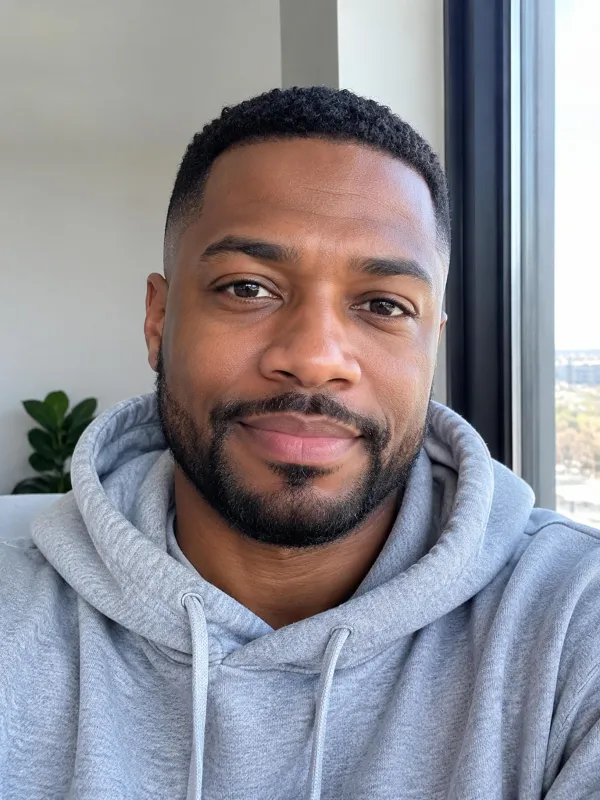 Output Video Preview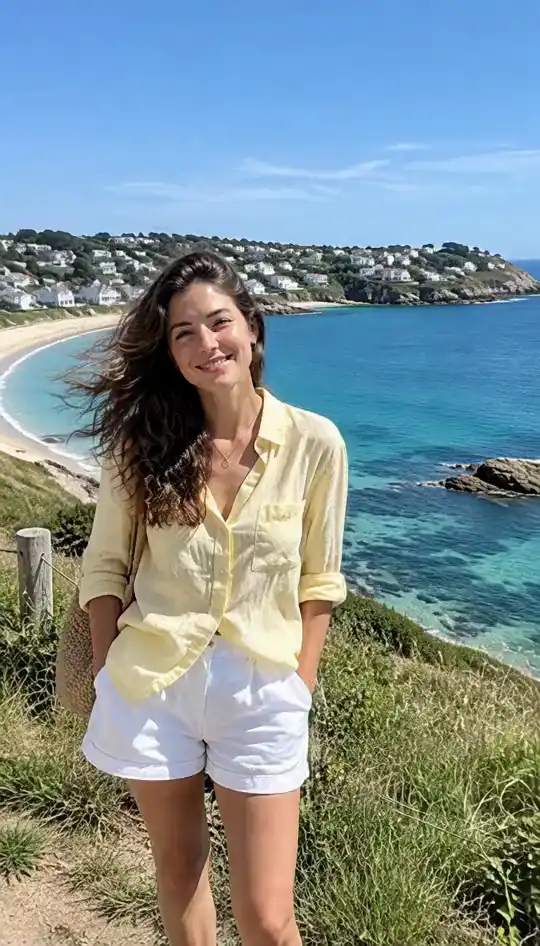
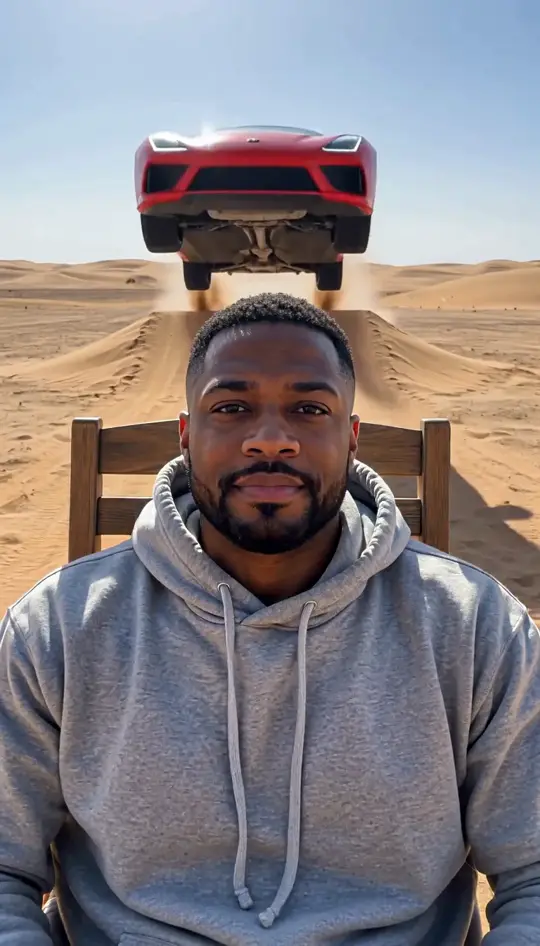
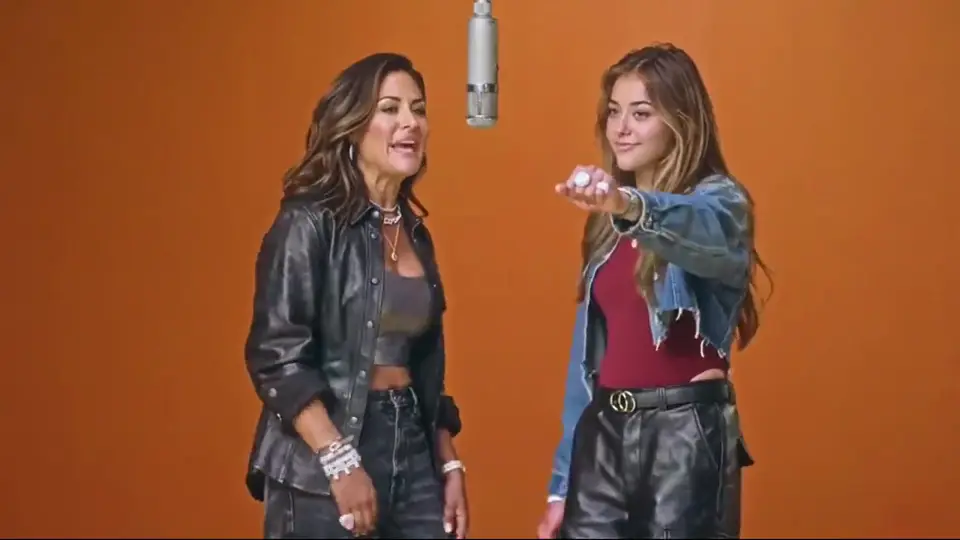
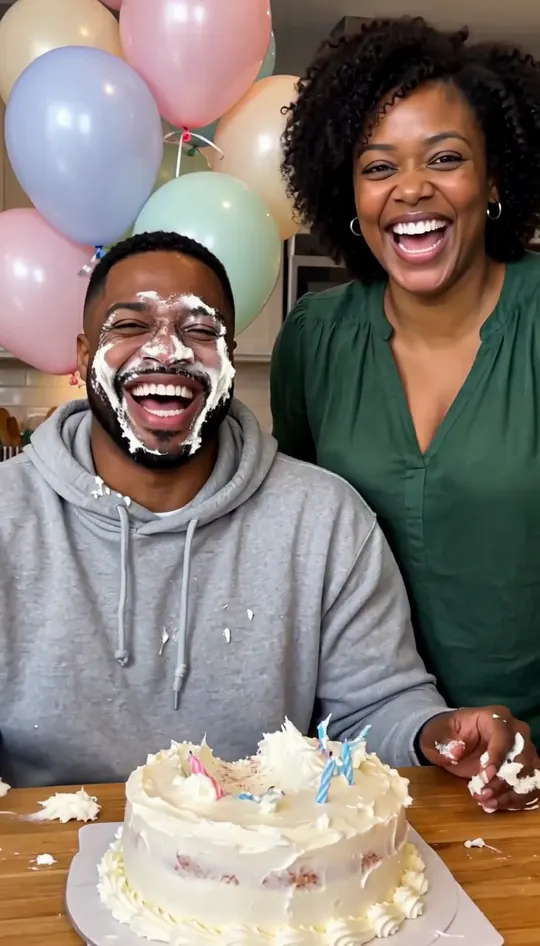
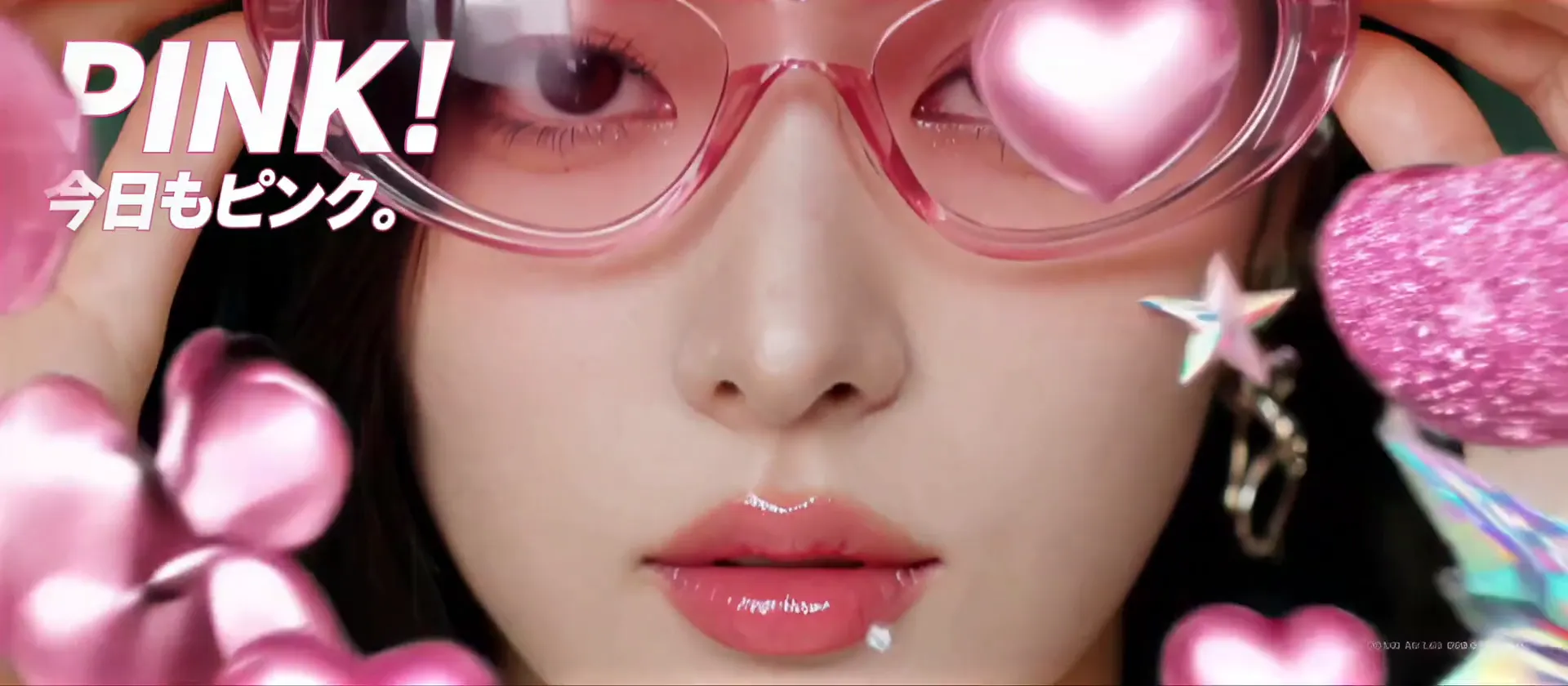
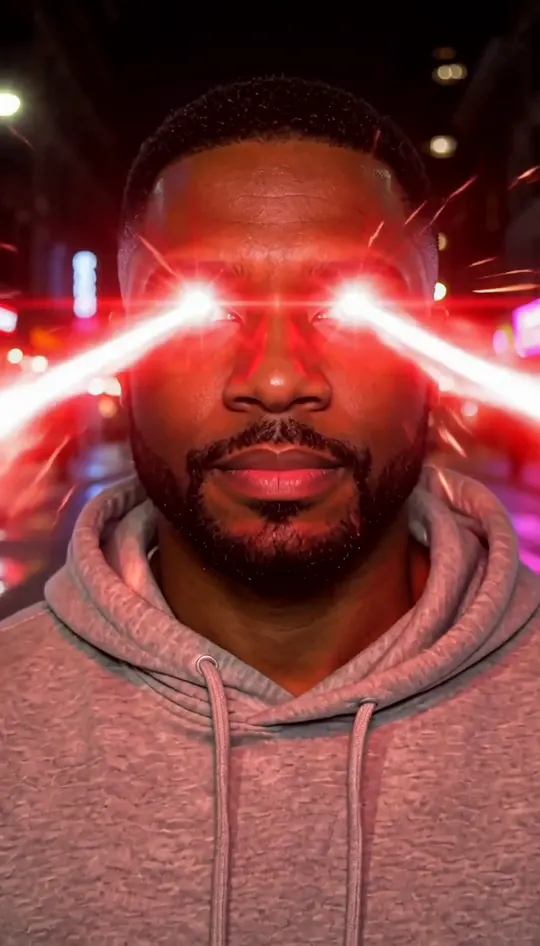
Browse all
Video Examples
An ai clone video is a short clip where two or three copies of one person, or two copies each of two people, share a single frame, generated directly from a still photo. It is not real camera footage, and it is not a talking avatar. The first six clips below were created on this page from photos of fictional people with no extra editing. The last three were produced by other AI tools to show the difference.
Start Your VideoMade on This Page 01
This ai clone video uses one portrait photo of a red-haired woman. Two copies sit side by side at a kitchen table with plates of pasta. One drinks from a glass while the other eats, and both end by smiling at the lens.
Made on This Page 02
From a single photo, this ai clone video places three copies in a garage rehearsal space. One plays guitar, one plays bass, and one plays drums. The camera jumps to a close selfie frame where all three grin forward.
Made on This Page 03
A single photo turns into an ai clone video showing three copies in an office. One copy points at a whiteboard, another types on a laptop, and the third claps before all three turn to smile at the camera.
Made on This Page 04
This ten-second ai clone video shows three copies dancing in unison in a studio. The portrait showed only head and shoulders, so jeans and sneakers were added by the model. At the finish, each copy strikes a different smiling pose.
Made on This Page 05
Adding a second photo creates an ai clone video with four figures. In the dinner clip, two copies of each person eat and laugh together. In the sidewalk scene, four copies walk forward. In testing, the two distinct faces never mixed.
Made on This Page 06
A double-upload ai clone video can stage a synchronized studio dance or a four-piece band. Two copies of each subject take positions on guitars, drums, or the dance floor, finishing their clip by turning to smile at the lens.
Made by Other AI Tools
This clip from another platform shows a woman near a crosswalk backed by a crowd of copies before stepping forward. Unlike that tool, an ai clone video made on our page shows two to four people instead of a crowd.
Made by Other AI Tools
In this third-party clip, a van stops in a lot and a crowd of copies in red caps rushes out. We do not generate vehicle stunts or crowds. Every ai clone video here focuses on simple everyday indoor or walking scenes.
Made by Other AI Tools
This low-resolution external clip shows a couple where only the man is duplicated into a crowd behind them. On our site, an ai clone video using two uploaded photos always creates two copies of each person so both share the screen equally.
Real Applications
Make a lighthearted clip showing an ai video of yourself sharing dinner or walking down a sidewalk to share with friends. Generating an ai clone video takes only one portrait and needs no video editing skills.
Use the garage band or sidewalk scene to build an engaging intro showing three versions of you on screen. With this ai clone generator, an ai clone video gives creators a memorable visual hook without complex production.
The bright meeting room scene creates an ai clone video where one copy points at a blank whiteboard, one types on a laptop, and one claps. It is a humorous way to represent running your business as a team of one.
Upload two separate photos to place two copies of yourself and two copies of a friend or partner into a single scene. In our tests with this ai clone video setup, the two faces stayed separate.
Turn a single mobile portrait into a multi-figure dance routine or casual hangout without filming multiple takes. An ai clone video lets you participate in the trend directly from your browser.
Photo Guidelines
Responsible Creation
01
Using your own portrait to make an ai clone video is fine for fun posts and personal projects. You are simply creating playful clips of yourself to share with friends.
02
If you upload a second photo of a friend, sibling, or partner, always get their clear permission first. Never upload images of people who have not agreed to be included in the generation.
03
Do not use an ai clone video to deceive viewers or imply that an impossible real-world event took place. These preset clips are built for entertainment, humor, and creative visual projects.
04
Add a simple label mentioning that the video was generated with AI when posting it online. Transparent labeling helps audiences understand how the multi-character scene was assembled.
Scene Selection
Explore practical ways to clone yourself across five preset environments. In most scenes each copy does something different while the dance scene moves in sync, and each ai clone video ends with smiles toward the camera.
Three copies step out and walk forward together on a sunny street, making it a natural choice for an energetic social intro.
Two copies sit together eating pasta and drinking at home, which works well for a lighthearted casual post.
Three copies play guitar, bass, and drums under string lights, giving musicians and hobbyists a fun one-person group visual.
Copies present at a whiteboard, type on a laptop, and applaud, offering solo founders a humorous way to display team discussions.
Three copies perform a synchronized routine in a bright dance studio, fitting creators who want a coordinated group movement clip.
Generate your ai clone video in vertical 9:16 for phones or horizontal 16:9 for widescreen displays across five or ten-second durations.
Underlying Technology
01
Every clip on this page is produced using the MiniMax H3 generative model. It generates character movement and spatial placement directly inside your selected scene.
02
The model extracts the facial features and hair from your uploaded photo and applies them across each duplicate character. In our tests, each figure maintained the look of the original portrait.
03
You select a scene chip from the menu, and the underlying system formats the generation parameters automatically. You never need to write or tune a text prompt to build an ai clone video.
04
Generations yield a 768p MP4 file in five or ten-second durations, framed in either vertical 9:16 or horizontal 16:9, complete with integrated background audio.
Cast Options
You can build an ai clone video using a single portrait or add a second person to share the scene. Here is how the participant count works for each setup.
Uploading one photo produces two or three copies of you depending on the chosen scene. It works well for a solo dance, a solo meeting, or a one-person garage band.
Adding an optional second portrait puts four people into your ai clone video, showing two copies of each person. In our tests, the two faces stayed completely separate and never blended together.
Pick one photo when you want a quick clip focused entirely on yourself. Choose two photos when you want a shared clip with a partner, sibling, or friend.
Distinct Tools
| Question | AI clone video on this page | Talking avatar tool |
|---|---|---|
| What you upload | One or two still photos | One photo or a video of a person |
| What you get | Several copies of you in a shared scene | One person speaking facing the camera |
| How many people | Two to four copies depending on upload | One single presenter |
| Do they talk | No talking or voice cloning | Yes, lips move in sync with speech |
| Script or prompt | None needed, pick a preset scene | You type or upload a written script |
| Length | 5 seconds or 10 seconds | Depends on the length of your script |
| Sound | Automatic background music included | Generated speech or cloned voice audio |
| Best for | Visual duplication and group scenes | Explainer videos and presentations |
If you require a digital twin that reads a typed script with lip sync, choose a talking avatar tool instead. Our tool also does not build a crowd of copies, keeping the group to two, three, or four people.
Start Your Video01
Add a clear portrait of yourself. You can optionally add a second person if you want both of you duplicated into the scene.
02
Choose one of five preset scenes, select a duration of five or ten seconds, and pick vertical or horizontal framing.
03
Start your ai clone video, wait roughly thirty seconds while keeping the page open, and download the finished clone yourself video file.
One balance, every model. Credits work across all 20 video models — no watermark, no tier-locked models, commercial use on every paid plan.
Save 30% billed annually
Flexible monthly subscription.
The lowest price to get started. Every model, a monthly budget to try things out.
$7.99/mo
Renews monthly, cancel anytime.
200 credits
≈ 0–10 videos, depending on the model
≈ 14–66 images, depending on the model
4.00¢ / credit
The cheapest way to start. Every model, a small monthly budget.
$12.99/mo
Renews monthly, cancel anytime.
400 credits
≈ 1–20 videos, depending on the model
≈ 28–133 images, depending on the model
3.25¢ / credit
Enough credits to try every model and finish a few clips each month.
$29.9/mo
Renews monthly, cancel anytime.
1,000 credits
≈ 3–50 videos, depending on the model
≈ 71–333 images, depending on the model
2.99¢ / credit
2 parallel tasks
Steady output for solo creators going pro — every model, a comfortable budget.
$49.9/mo
Renews monthly, cancel anytime.
2,000 credits
≈ 6–100 videos, depending on the model
≈ 142–666 images, depending on the model
2.50¢ / credit
3 parallel tasks
High-volume production for prolific creators and small teams.
$89.9/mo
Renews monthly, cancel anytime.
5,000 credits
≈ 15–250 videos, depending on the model
≈ 357–1666 images, depending on the model
1.80¢ / credit
5 parallel tasks
Pay yearly and save more.
Enough credits to try every model and finish a few clips each month.
$19.9/mo$29.9
Billed yearly at $238.8. Renews yearly, cancel anytime.
Save $120/yr vs monthly
12,000 credits
≈ 38–600 videos, depending on the model
≈ 857–4000 images, depending on the model
1.99¢ / credit
2 parallel tasks
Steady output for solo creators going pro — every model, a comfortable budget.
$34.9/mo$49.9
Billed yearly at $418.8. Renews yearly, cancel anytime.
Save $180/yr vs monthly
24,000 credits
≈ 76–1200 videos, depending on the model
≈ 1714–8000 images, depending on the model
1.75¢ / credit
3 parallel tasks
High-volume production for prolific creators and small teams.
$62.9/mo$89.9
Billed yearly at $754.8. Renews yearly, cancel anytime.
Save $324/yr vs monthly
60,000 credits
≈ 190–3000 videos, depending on the model
≈ 4285–20000 images, depending on the model
1.26¢ / credit
5 parallel tasks
Top up credits valid for 12 months.
One-time top-up — perfect for occasional needs.
$49.9
One-time purchase, valid 12 months.
1,000 credits
≈ 3–50 videos, depending on the model
≈ 71–333 images, depending on the model
4.99¢ / credit
Larger top-up with 20% bonus — best per-credit value for one-time buyers.
$198
One-time purchase, valid 12 months.
4,800 credits
≈ 15–240 videos, depending on the model
≈ 342–1600 images, depending on the model
4.13¢ / credit
5 parallel tasks
Common questions about photo requirements, scene mechanics, credits, and output formats.
Start Your VideoUpload one clear photo showing your face, choose one of the five preset scenes, and select your preferred duration and orientation. The system processes your selection and generates a finished MP4 clip showing several copies of you in about thirty seconds. If you want to explore more ways to create motion from still pictures, take a look at our guide on making an AI clone video alongside other trending formats.
A 5-second clip costs 20 credits, while a 10-second clip costs 40 credits. New accounts receive 20 credits once per device and network, which is enough to produce one 5-second clip. Ongoing subscription plans start at $7.99 a month for 200 credits, and any failed generations automatically return credits to your balance.
Yes, a single photo is all you need to generate a full clip. One uploaded image produces two or three copies of you depending on which scene you select. If your picture shows only your upper body, the model generates matching pants and shoes to complete each figure.
You do not need to record video clips or stand in front of a green screen. The entire generation runs from a single standard still picture taken on your phone or camera to produce a video of yourself. No filming experience or manual editing tools are needed to get your finished result.
The copies do not speak, lip-sync, or voice any dialogue. They perform physical movements within the chosen scene, such as playing instruments, typing, or dancing, and end by smiling at the camera. This tool is built for multi-figure visual scenes rather than talking avatar scripts.
Yes, you can upload a second portrait in the optional Photo 2 field to include a friend, partner, or sibling. Adding two photos creates four figures in total, placing two copies of each person together in the scene. The generator accepts at most two individual photos per run.
Each generated clip runs for either five seconds or ten seconds based on the duration setting you select before rendering. If you want a longer presentation, you can generate multiple clips across different scenes and stitch them together in a video editing app.
Using your own photo to make an ai video of yourself with this ai clone video creator is fine, but using someone else's photo requires their permission. Never use a clone to trick people or pretend a real event happened, and label it as AI when you post. This is not legal advice.
In our tests across nine clips, each copy retained the face and hair of the original uploaded photo, and no extra person joined the main group. Subtle details like hands or stray strands of hair can vary, and distant figures such as the drummer look less sharp. On outdoor sidewalk scenes, occasional tiny passers-by may appear far away in the background.
Every clip includes background music added automatically during generation. You cannot turn off the audio track or upload your own song inside this tool, but you can replace the sound in any standard video editor after downloading. The copies do not speak, so there is no vocal track or dialogue.
Most clips finish rendering in about thirty seconds during standard operating periods. When server traffic is unusually high, processing can take a few minutes. Please leave your browser tab open while the file processes so your download link appears as soon as it is finished.
You cannot use a group photo directly, so crop your picture to show only one person before uploading. The number of figures is fixed by the scene you pick, giving you two or three copies from one photo and four from two photos. The tool does not let you add extra figures or manually set the participant count.
Explore More Tools
Upload your portrait, choose a scene, and download your multi-character clip, usually ready in about thirty seconds.
Create AI Clone Video20 CREDITS FOR A 5-SECOND CLIP
Ready to Make an
Start Your Video