Smile and Blink
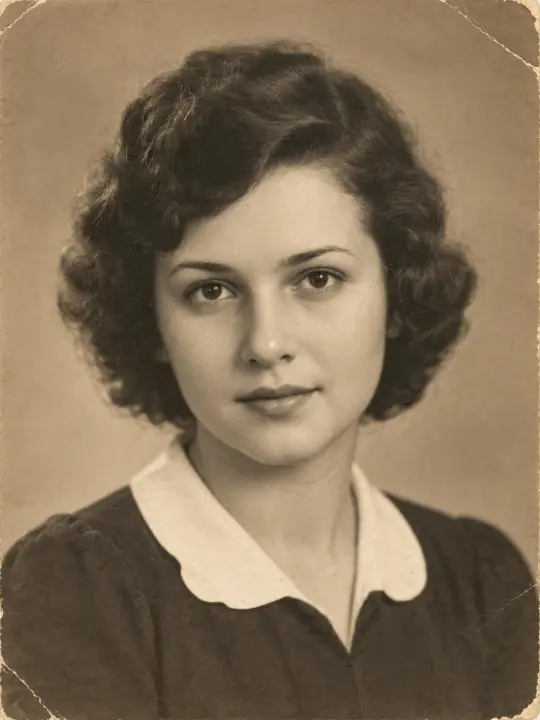
The subject gently smiles, blinks both eyes naturally, and subtly turns their head to one side. This move suits classic head-and-shoulders portraits and individual family snapshots.
Animate old photos easily right in your browser. Upload one photo, pick a subtle movement, and bring photo to life as a natural video clip.
Only upload photos you have the right to use, and be thoughtful with photos of people who passed away or their families.
 Animated result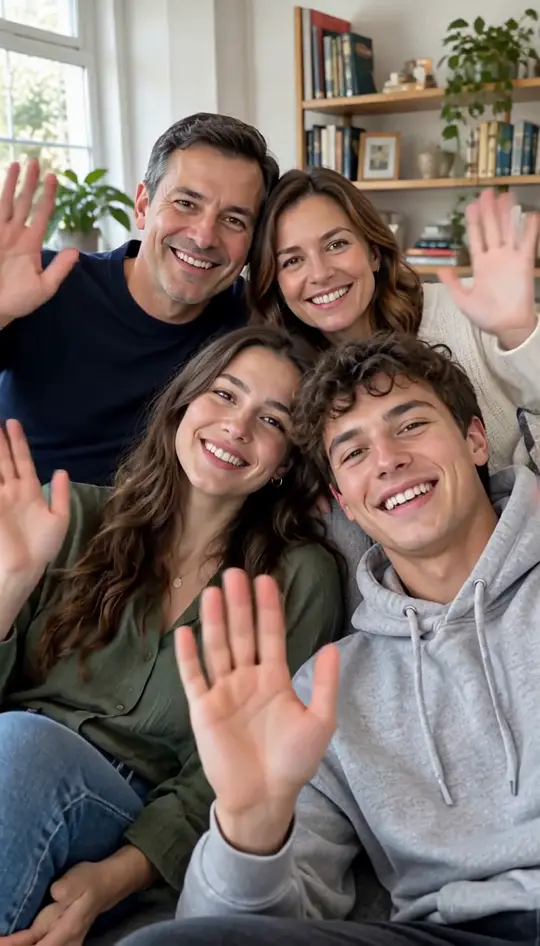
Browse all
Video Examples
Explore real output examples created when you animate old photos using our photo animation AI. Every sample below was made by our team using the exact same four movements and settings available on this page, starting from AI-generated old photos of individuals who never existed. No additional video editing was applied after generation. Each finished clip includes built-in wordless music.
Animate Old Photo NowExample 01
A 1940s black-and-white waist-up photo of a young woman standing on a porch. When you animate old photos using the Wave move for 5 seconds, she raises one hand and waves at the camera twice while smiling. The portrait video retains its original black-and-white aesthetic without color changes.
Example 02
A 1970s faded color head-and-shoulders photo of a young man with sideburns sitting on a sofa, featuring a warm orange cast. Set to Smile and blink for 5 seconds to animate old photos, he smiles, blinks once, and turns his head slightly. The faded orange color stays.
Example 03
A sepia studio portrait from around 1905 of a man with a moustache, high white collar, and dark suit, initially facing sideways. Choosing Look at the camera for 5 seconds lets you animate old photos so he slowly turns his head forward and offers a small smile.
Example 04
A 1920s sepia studio photo showing a young couple standing slightly apart, the woman in a drop-waist dress and the man in a suit. Selecting Hug for 5 seconds helps animate old photos as they turn toward each other and share a gentle hug with no extra figures added.
Example 05
A late-1950s faded color landscape snapshot of a family of four outside a home. Selected with Hug for 10 seconds to animate old photos, the parents lean down as all four share a group hug, then ease back and smile at the camera. The faded warm colors stay.
Example 06
A 1950s black-and-white photo of a beagle-type dog sitting on porch steps with its head turned. Applying Look at the camera for 5 seconds allows you to animate old photos of pets, turning the dog's head forward to open its mouth in a happy, panting look.
Optimization Guide
Motion Options
Select from four movement patterns designed to complement vintage portraits when you animate old photos without changing the original scene.
The subject gently smiles, blinks both eyes naturally, and subtly turns their head to one side. This move suits classic head-and-shoulders portraits and individual family snapshots.
The subject turns their head smoothly to face forward before giving a warm, quiet smile. It works for angled profile shots or side-facing studio portraits.
The person lifts a hand to wave twice toward the viewer while maintaining a gentle smile. This motion fits casual standing photos, holiday shots, and outdoor portraits.
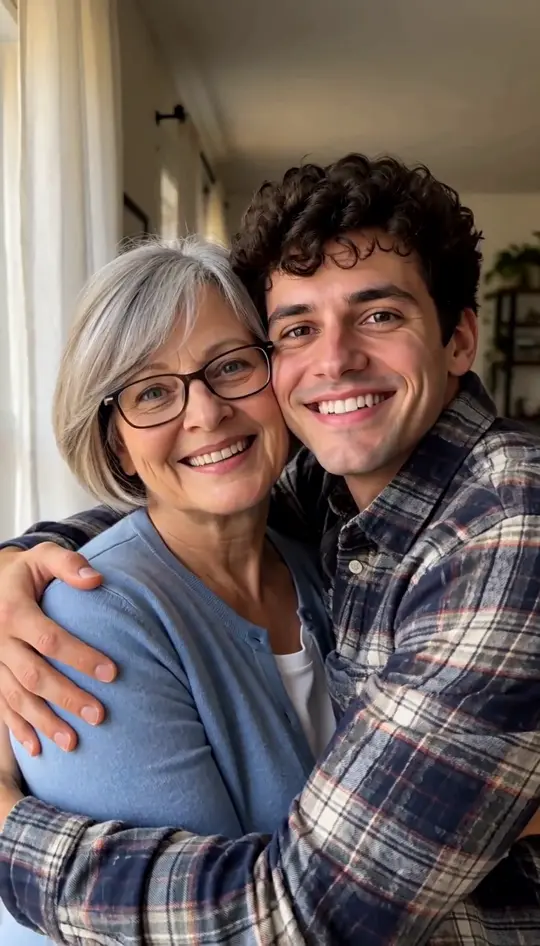
Two or more individuals in the picture turn toward each other and share a soft embrace. Use this motion exclusively for photos containing multiple subjects to keep the scene natural.
Pre-Processing
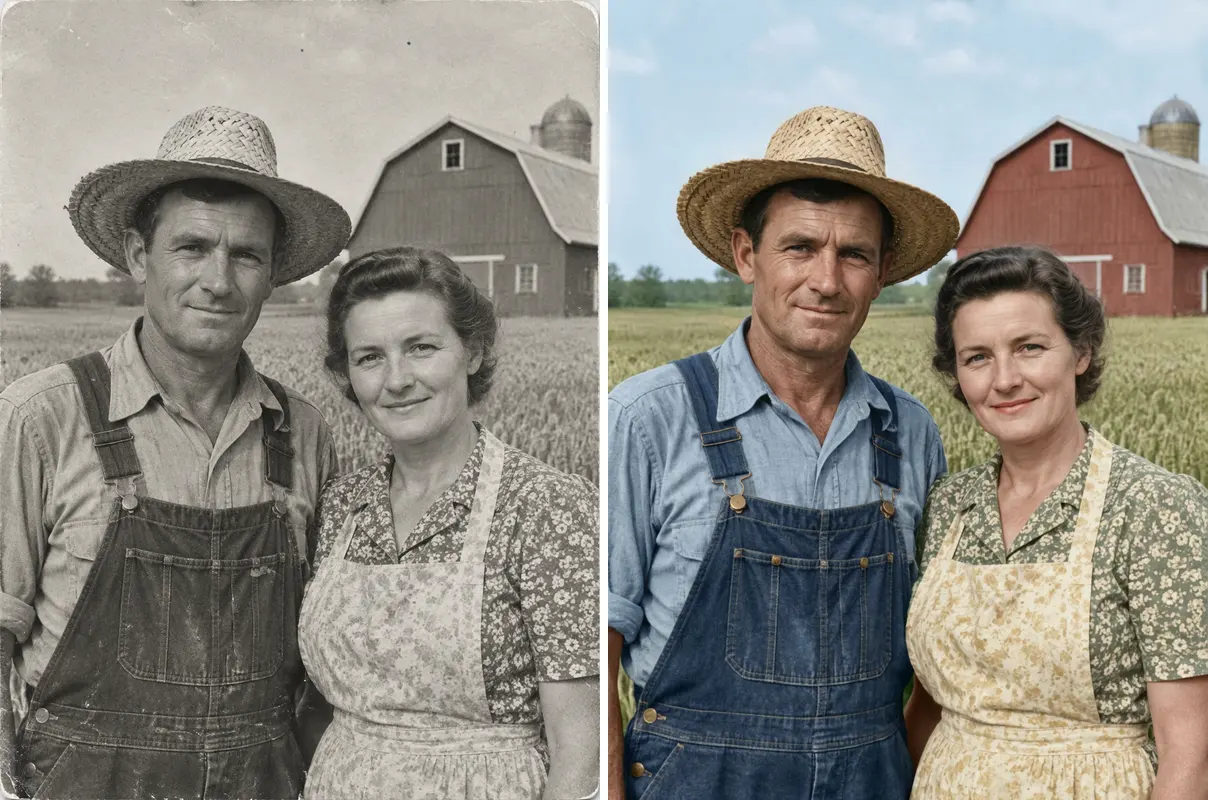
Our system keeps your source image as uploaded without repairing damage or adding color when you animate old photos. If your vintage picture has scratches, tearing, or heavy blur, we recommend processing it through our picture repair tool first.
Use this tool directly if your vintage picture is already clean and without major surface damage. When you animate old photos, the original lighting, color profile, and grain will carry over into the clip.
If your print has creases, water spots, severe fading, or blurriness, repair it first. The tool does not fix damage, so scratches, tears, and blur stay in the video when you make old photos move.
First, visit our repair tool to restore old photos and download the clean, refreshed image file. Next, return to this page and upload your restored file to complete the creation flow.
At a Glance
| Specification | Details |
|---|---|
| Input photo | Upload one photo (any image file) from phone or computer |
| Available moves | Smile and blink, Look at camera, Wave, Hug (2+ people) |
| Video duration | 5 seconds or 10 seconds |
| Output shape & quality | 768p MP4, matches original photo aspect ratio |
| Audio | Soft wordless background music built in |
| Credit cost | 5s = 20 credits, 10s = 40 credits |
| New account credits | 20 credits on new account sign-up (1 per device/network) |
| Wait time | Typically 1 to 2 minutes |
| AI model | MiniMax H3 |
| Watermark | No watermark on downloaded MP4 |
| Failed generation | Credits returned automatically on system errors |
| Speech capability | Does not talk, sing, or lip-sync |
01
Pick any image file from your phone or computer showing a clear face to animate old photos.
02
Select one of four movement options and set your video length to 5 or 10 seconds.
03
Sign in to start, wait a minute or two, and save your finished MP4 video.
One balance, every model. Credits work across all 20 video models — no watermark, no tier-locked models, commercial use on every paid plan.
Save 30% billed annually
Flexible monthly subscription.
The lowest price to get started. Every model, a monthly budget to try things out.
$7.99/mo
Renews monthly, cancel anytime.
200 credits
≈ 0–10 videos, depending on the model
≈ 14–66 images, depending on the model
4.00¢ / credit
The cheapest way to start. Every model, a small monthly budget.
$12.99/mo
Renews monthly, cancel anytime.
400 credits
≈ 1–20 videos, depending on the model
≈ 28–133 images, depending on the model
3.25¢ / credit
Enough credits to try every model and finish a few clips each month.
$29.9/mo
Renews monthly, cancel anytime.
1,000 credits
≈ 3–50 videos, depending on the model
≈ 71–333 images, depending on the model
2.99¢ / credit
2 parallel tasks
Steady output for solo creators going pro — every model, a comfortable budget.
$49.9/mo
Renews monthly, cancel anytime.
2,000 credits
≈ 6–100 videos, depending on the model
≈ 142–666 images, depending on the model
2.50¢ / credit
3 parallel tasks
High-volume production for prolific creators and small teams.
$89.9/mo
Renews monthly, cancel anytime.
5,000 credits
≈ 15–250 videos, depending on the model
≈ 357–1666 images, depending on the model
1.80¢ / credit
5 parallel tasks
Pay yearly and save more.
Enough credits to try every model and finish a few clips each month.
$19.9/mo$29.9
Billed yearly at $238.8. Renews yearly, cancel anytime.
Save $120/yr vs monthly
12,000 credits
≈ 38–600 videos, depending on the model
≈ 857–4000 images, depending on the model
1.99¢ / credit
2 parallel tasks
Steady output for solo creators going pro — every model, a comfortable budget.
$34.9/mo$49.9
Billed yearly at $418.8. Renews yearly, cancel anytime.
Save $180/yr vs monthly
24,000 credits
≈ 76–1200 videos, depending on the model
≈ 1714–8000 images, depending on the model
1.75¢ / credit
3 parallel tasks
High-volume production for prolific creators and small teams.
$62.9/mo$89.9
Billed yearly at $754.8. Renews yearly, cancel anytime.
Save $324/yr vs monthly
60,000 credits
≈ 190–3000 videos, depending on the model
≈ 4285–20000 images, depending on the model
1.26¢ / credit
5 parallel tasks
Top up credits valid for 12 months.
One-time top-up — perfect for occasional needs.
$49.9
One-time purchase, valid 12 months.
1,000 credits
≈ 3–50 videos, depending on the model
≈ 71–333 images, depending on the model
4.99¢ / credit
Larger top-up with 20% bonus — best per-credit value for one-time buyers.
$198
One-time purchase, valid 12 months.
4,800 credits
≈ 15–240 videos, depending on the model
≈ 342–1600 images, depending on the model
4.13¢ / credit
5 parallel tasks
Common questions about how to animate old photos with our AI motion tool.
Animate Old Photo NowIt means taking a static vintage photograph and transforming it into a short moving video clip using advanced AI models. The subject in the image performs subtle movements like smiling, blinking, looking toward the camera, or waving. The entire output preserves the original framing, texture, and visual character of your uploaded picture.
Creating a 5-second video costs 20 credits, while a 10-second video costs 40 credits. New accounts automatically receive a one-time bonus of 20 credits upon registration (only one bonus per device and network), which is sufficient for one short generation. Additional credits are available through monthly subscription plans starting at $7.99 per month for 200 credits.
The face and framing are kept by design, though results vary from photo to photo. A clear, front-facing face works best with our photo to life AI. The movement is AI-imagined and does not show how the person really moved.
You can animate black-and-white, sepia, or faded color pictures directly, as the tool strictly maintains the original color profile and tone. However, the system does not repair physical tears, heavy scratches, or severe blur on its own. For physically damaged pictures, you should restore old photos using our dedicated repair tool before uploading them here.
Yes, many users animate old photos of deceased family members to create quiet memorial keepsakes or share cherished memories with relatives. You are responsible for ensuring you have the necessary rights to upload and use the image. We encourage everyone to handle these personal images with care and thoughtfulness when sharing the final clips.
No, the motion seen in the output video is generated entirely by artificial intelligence and does not represent real footage of that person. When you animate old photos, the model estimates how the subject might move based on visual patterns in the photo. We recommend adding an AI label when sharing these generated videos on social media.
Yes, you can animate old photos containing multiple subjects by selecting our dedicated Hug motion designed specifically for two or more individuals. The subjects already present in the frame will naturally turn toward one another and share a gentle embrace. Do not use this specific option on single-person photos, as the AI will attempt to generate an additional subject.
Yes, you can upload vintage pet pictures, though results depend on the selected movement option. In our testing on a 1950s black-and-white photograph of a dog using the Look at the camera motion, the animal successfully turned its head forward and opened its mouth in a panting movement. The other three movement options were designed specifically for human subjects and have not been tested on pets.
You can choose a video length of either 5 seconds or 10 seconds before generating your clip. When you animate old photos, the final 768p MP4 video follows the shape of the photo: a portrait photo gives a portrait video, and a landscape photo gives a landscape video. The first frame of the generated clip is always your original untouched photograph.
Every generated video includes soft, wordless background music built directly into the file. There is no option to remove or turn off the sound directly on this web page. You can easily mute the audio or swap it for a different soundtrack inside social media apps after downloading the MP4.
No, this tool does not provide lip-syncing, voice generation, or speech capabilities of any kind. The movement is strictly facial and body motion such as smiling, blinking, waving, or hugging without vocal audio. Subjects in the photos will not speak, sing, or say any words.
No installation or mobile app download is required to use this service on your smartphone or desktop computer. The complete creation flow works directly inside any standard mobile or desktop web browser. You simply need to sign in to your account before pressing the generate button to process your clip.
The uploaded photo is only used to make the video. Videos are private by default for every account, free or paid, and are not shown in the public gallery; the owner can choose to share a video later.
Download the generated 768p MP4 directly to your phone's camera roll, then upload it into your TikTok or Instagram post as a standard video clip. You can use the built-in editor on those platforms to add trending audio, apply filters, or adjust the sound balance. Learn how to share your clips effectively by reading our guide on how to animate old photos and do the other AI trends.
Related Tools
Upload your vintage portrait now to animate old photos with natural old photo animation in minutes.
Animate Old Photo Now5 SECONDS · 20 CREDITS · NO PROMPT
Ready to
Animate Old Photo Now