Marketplace listing
Turn a phone snap into a square image that fits a product listing. The AI product photo generator keeps the real item visible instead of replacing it with a generic mockup.
Keep the product you already photographed, replace the messy setting and create a clean studio look without inventing a different item.
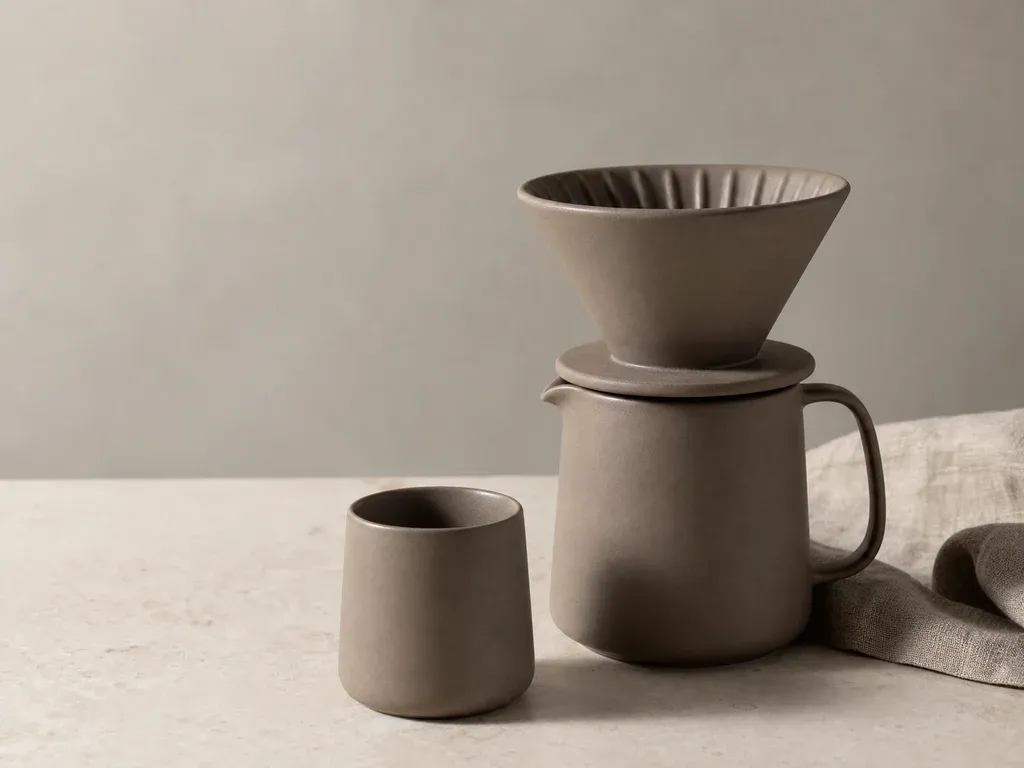
Each card shows what the AI product photo generator asks the model to change and what it must leave untouched.
Product Examples
An AI product photo generator is most useful when the product is real but the photography is not ready for a store. A small seller may have one phone shot taken on a kitchen table, a brand may need a matching set of images for a launch, or a maker may want to test a new background before booking a studio. This tool starts from the actual product photo and locks the shape, size, proportions, color, material, finish, seams, cap, handle and every visible label or printed word. It then changes the surface, background, camera framing and light around the item. The result can look like a professional studio image while still representing the product you uploaded. The AI product photo generator cannot fix a photo where the label is already unreadable or the product is mostly hidden. It also cannot guarantee tiny text at an angle, because generated text is less reliable than the physical label in the source. Use a sharp source image, choose a simple studio preset and inspect the final product before publishing it on a shop, marketplace or paid ad.
Generate My Product PhotoSmall tech
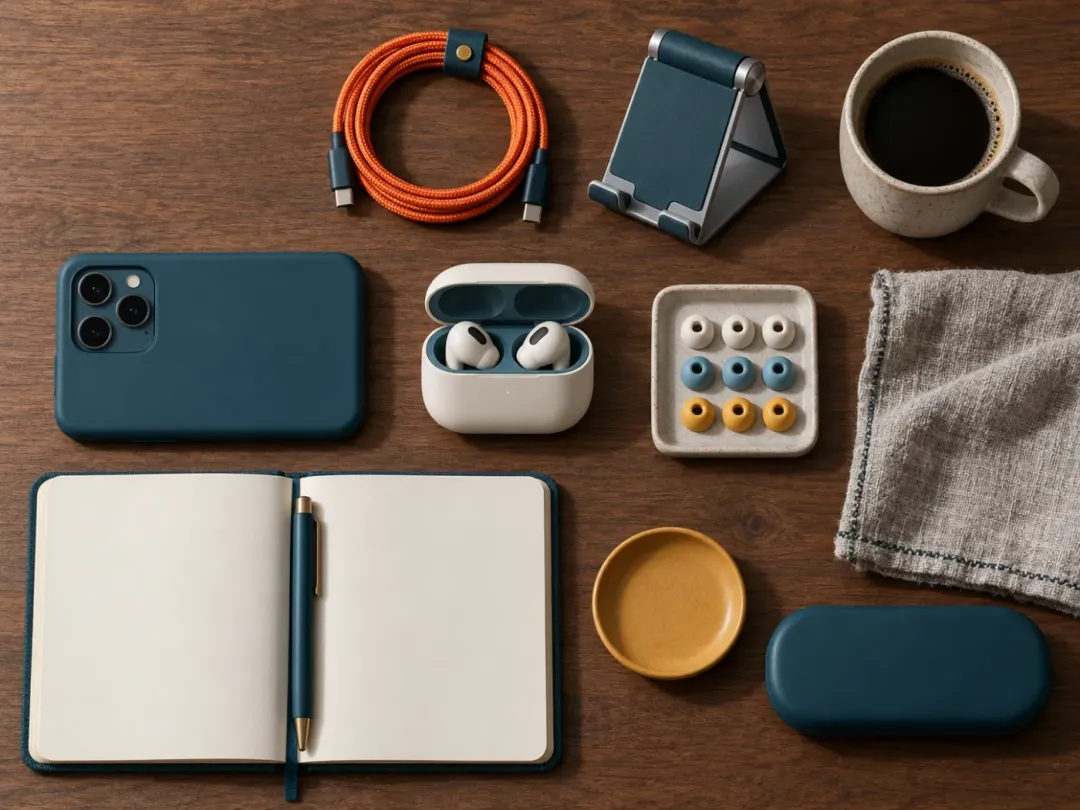
Earbuds and everyday accessories arranged into a clean flat lay.
A plain top-down photo of earbuds, a phone and small desk objects becomes a more controlled product scene. The useful part is not a dramatic new setting; it is the consistency of the object arrangement, the wood surface and the soft overhead light. This AI product photo generator example works best when every item has a clear outline and the label is large enough to survive the render.
Beauty shelf
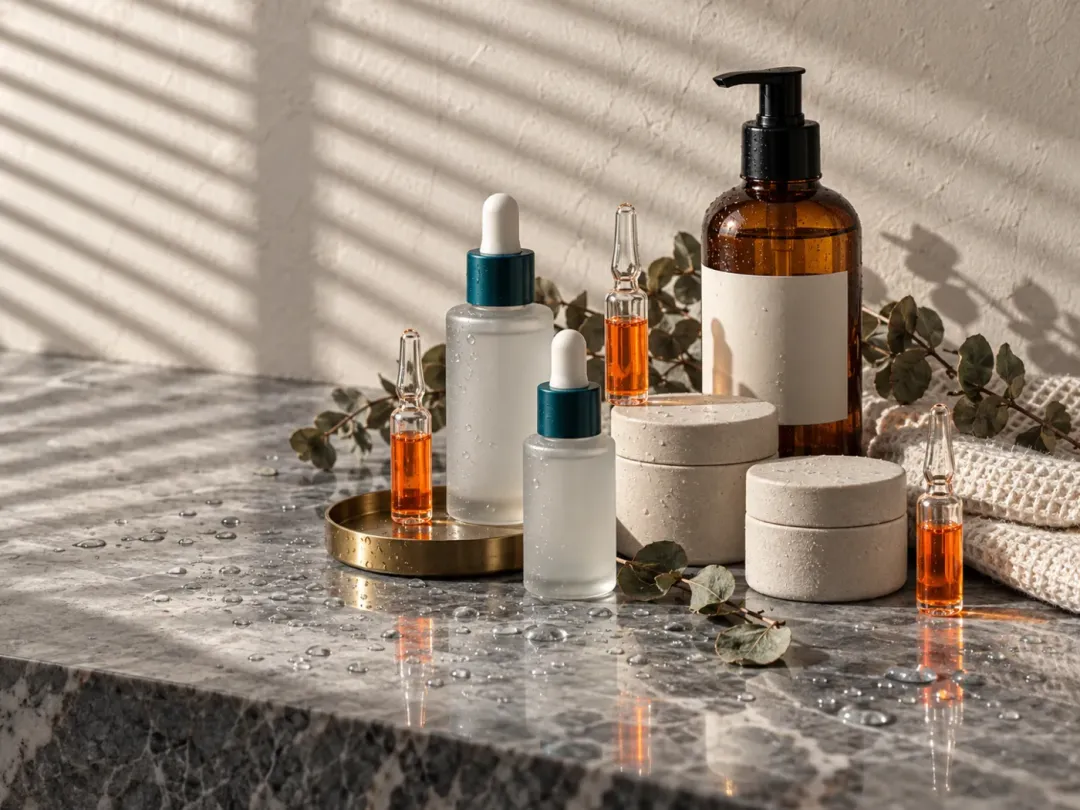
A small beauty set gets a brighter countertop scene.
This example places a group of skincare bottles on a marble surface with strong window stripes and clean shadows. The AI product photo generator keeps the bottle shapes and cap colors readable while the surface and light do the visual work. For a real product, check the front label after generation and keep the group small enough that every item remains distinct.
Turn a phone snap into a square image that fits a product listing. The AI product photo generator keeps the real item visible instead of replacing it with a generic mockup.
Create a wide crop with empty space for a headline or price block. Choose the gallery look when the page needs a quieter background.
Generate several visual directions from one product photo before spending on a full shoot. Compare which surface, light and crop makes the product easiest to understand.
Use the same studio preset for a small group of products so a shop page feels consistent. Check each label individually because the tool must not invent a new one.
Download the clean still, then use MiniMax H3 for a slow push-in or a moving highlight. The AI product photo generator gives the video a stable first frame.
The AI product photo generator can improve the set, but it cannot recover details the camera never captured.
A text-to-image model can invent a beautiful product that never existed. That is useful for a concept, but risky for a shop because the customer needs to see the actual item. The AI product photo generator here starts with the product photo and uses the model to change the set around it. The instruction is specific: preserve shape, color, material and labels; change the surface, background, camera framing and light. This makes the tool a middle ground between a basic background remover and a full studio shoot. It can add a floor, a wall and a believable contact shadow, but it does not promise a pixel-perfect cutout. The best workflow is to compare the generated image with the real product, keep the version that preserves the item and discard any render that changes a word, a seam or a cap. If the result looks like a different product, the image is not ready for a store.
Removes the old room but often leaves the product on a flat color. This AI product photo generator builds a surface, wall, light and shadow.
Creates an imagined object from a description. This page uses your uploaded AI product photo as the reference and asks the model to keep the real item.
Gives the most control over the physical product and label, but costs more time and money. The AI product photo generator is a fast first pass for simple products.
Very small text, transparent packaging, reflective foil and complex logos may still change. A second run or a new source photo can help.
01
The prompt tells the AI product photo generator to preserve the visible label, logo and printed words, and to leave an area untouched if the text cannot be kept.
02
Shape, color, material, finish and proportions are part of the lock sentence, so a candle does not become a bottle or a sneaker does not change style.
03
Switch between warm, gallery, dark and concrete looks without changing the source product photo or buying a second shoot.
01
Use a sharp image with one product and a readable label. Keep the full item in frame, including the cap, handle or box edges.
02
Choose warm limestone, gallery, dark material or concrete, then set a square, wide or vertical output for your store or ad.
03
Compare the label, color, seams, material and proportions with the upload. Each AI product photo generator run costs 8 credits and returns one 1K image.


Browse all
One photo into a natural new scene

One pet photo into a polished portrait

Two photos into one natural couple portrait

One photo into a professional headshot
Turn photo heads into pumpkins
See clothes on your own photo
One selfie into a new haircut, glasses, colors, beard or makeup
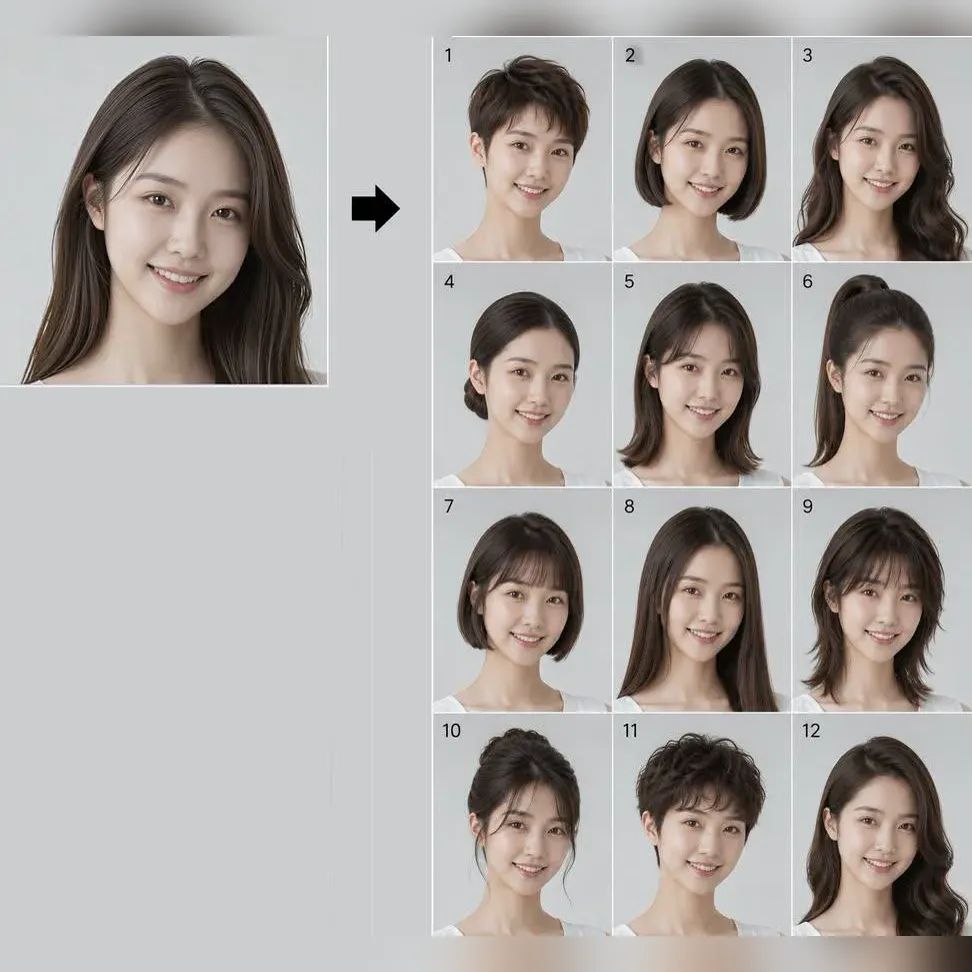
Try 34 haircuts and hair colors on your own photo

Two parent photos into one imagined baby photo
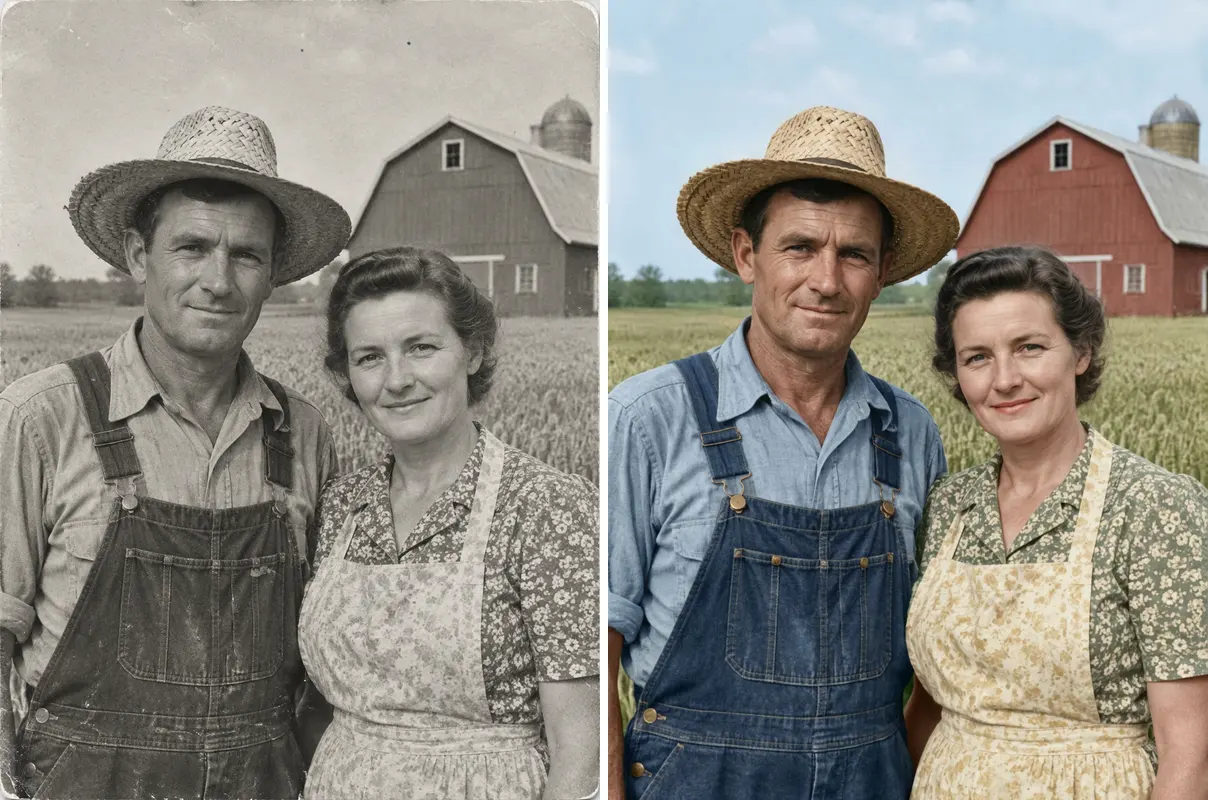
One old photo repaired, sharpened or colorized
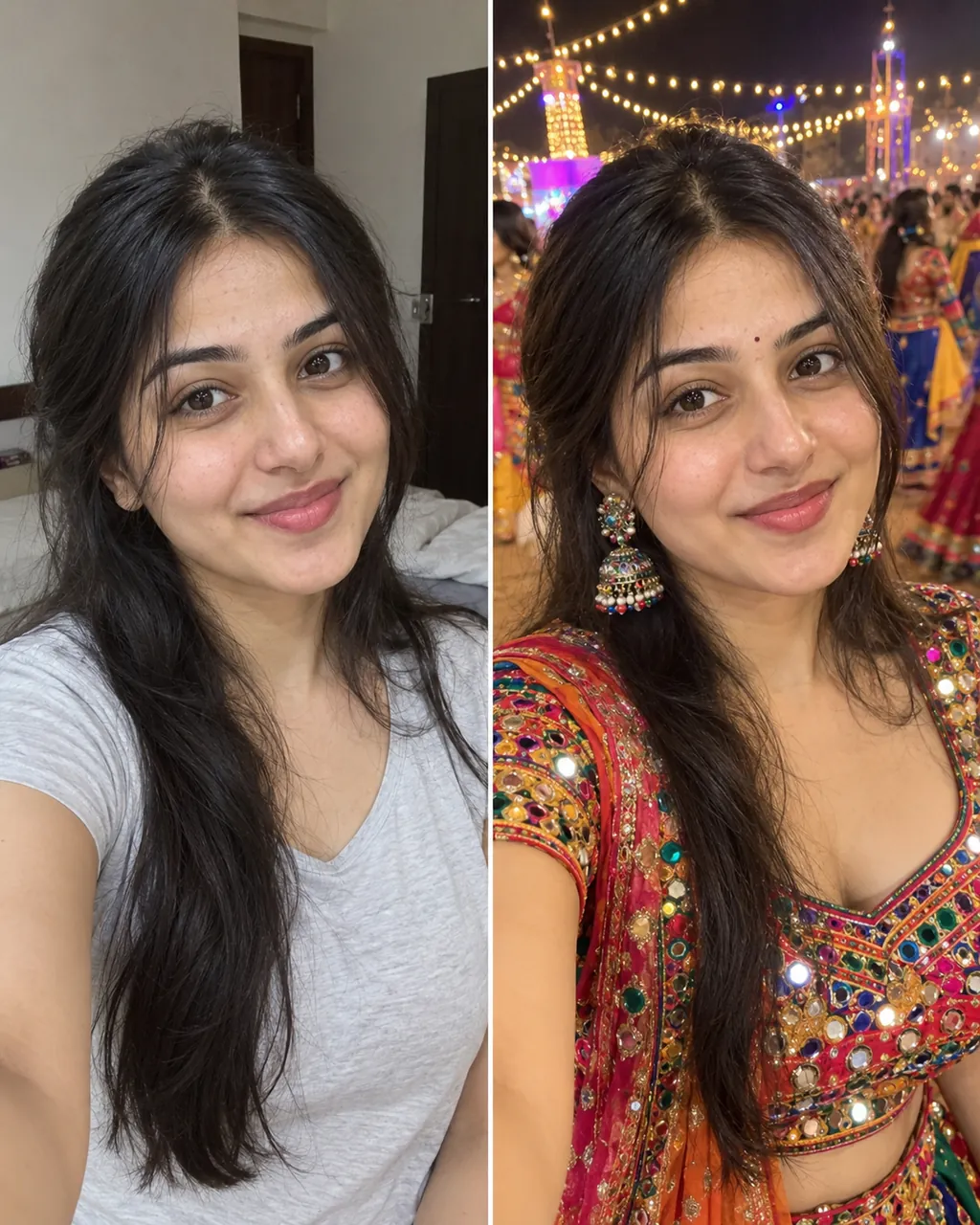
One selfie into a trending Instagram photo edit
Check a photo against official ID rules
What stays real, what changes and how to check a product image.
Generate My Product PhotoIt uses one product photo as a reference and creates a cleaner studio scene around the item. This AI product photo generator changes the surface, background, framing and light while asking the model to preserve the real product details.
The prompt tells the model to keep every visible label, logo and printed word unchanged. It also says to leave an area untouched rather than invent text, but you should still compare the final label with the original before publishing. Compare the final crop with the source at full size before you use it in a listing or ad.
Yes, if the result still represents the product accurately. Check the shape, color, material, size, quantity and label, and do not use an image that adds a feature the real product does not have. Keep the original photo as the reference and compare the shape, material and label before the image goes live.
Use one sharp, well-lit product with the full outline and label visible. A phone photo on a plain table is enough when there is no glare and the product is not blocked by hands or props. A plain table, even daylight and a front-facing label are usually enough for a usable studio result.
Each image costs 8 credits and is generated by Nano Banana 2 at 1K. New accounts receive 8 starter credits once per device and network, which covers one image; the pricing page lists larger plans. The tool returns one 1K image per run, and new accounts can use their starter credits for a first test.
The preset scenes use a wall and surface rather than a transparent cutout. If you need a transparent asset, start from a photo where the product is already cleanly isolated and keep a version that you have checked by hand.
Download the generated image and open it in the MiniMax H3 photo-to-video tool. A slow camera push or a narrow moving highlight usually works better than a large product rotation because it preserves the label.
Use warm limestone for candles and homeware, gallery for bags and larger objects, dark material for bottles and grooming products, and concrete for shoes and everyday goods. Match the surface to the material rather than forcing every product into one look.
The AI trend guide explains how to go from a source image to a short clip without losing the product. It pairs well with this AI product photo generator when you need both a still and a video.
Into a Clean Studio Shot
Keep the real product and change the set with this AI product photo generator.
Generate My Product Photo8 credits | 1K image
Turn One Product Snap
Generate My Product Photo