AI Photo to Video: Give One Photo a Small, Natural Movement

Upload one photo and turn it into a 15-second 9:16 clip with this AI photo to video tool. Choose a blink, window light, product highlight or quiet memory scene, then download a 768p MP4 with an original instrumental track.

Pick the motion

Only upload a photo of yourself or someone who agreed to appear.

Seen online, not made on this page: a sample AI photo to video clip with gentle fabric movement and a slow camera push.

Motion Examples

AI Photo to Video Examples With Restrained Movement

These cards show two kinds of AI photo to video results. Neither clip was made on this page. They show how a still can gain a small product highlight or a natural portrait movement without becoming a completely new scene.

Create AI Photo to Video

Product detail

A Product Photo With a Slow Highlight

A clean object shot gains a small camera push and moving light.

The product stays in place while a soft highlight travels across its surface. The label and colors remain the focus, and the camera moves only slightly closer. This is the kind of AI photo to video motion that suits a simple product listing, a social post or a short ad without a full studio shoot.

  • Product stays centered
  • Slow highlight across the surface
  • Small camera push

Portrait motion

A Portrait With a Blink and a Small Head Turn

The pose stays calm while the face gains one natural movement.

One portrait becomes a short moving shot as the person blinks, smiles slightly and turns the head a few degrees. The background and clothing remain close to the source photo. This example of AI photo to video keeps the movement small enough that the person still looks like the person in the original image.

  • One natural blink
  • Small head turn
  • Background kept close to the source

Before You Start

What This AI Photo to Video Tool Does Well

The best results begin with one clear photo and a small motion that makes sense for the subject.

Good Fits

  • One clear portrait can gain a blink, a small smile and a slight head turn.
  • Product photos can gain moving light and a slow push without changing the label.
  • Window-light and memory scenes can add quiet atmosphere to an existing still.
  • The AI photo to video output is 15 seconds, 9:16 and ready for a phone screen.

Known Limits

  • The input is one still, so angles and details that the photo never shows have to be inferred.
  • Fast movement is not the goal here; large gestures can make a face or product drift.
  • Small text, fine logos and reflective surfaces may change during motion.
  • Every clip includes an original instrumental track with no vocals or dialogue.
Create AI Photo to Video

How It Works

How the AI Photo to Video Generator Builds the Clip

01

Your photo is the first frame

The uploaded image anchors the opening frame. The prompt asks the model to keep the face, hair, clothing, product details and background consistent. It does not treat the photo as loose inspiration for a different scene.
02

Motion is kept small

A blink, a head turn, moving fabric or a slow camera push gives the still a sense of life without asking the model to invent a full performance. A smaller movement is easier to keep believable for a single image.

03

The model fills in what the still cannot show

MiniMax H3 creates the frames between the opening image and the final moment. Any detail that was not visible in the source photo, such as the side of a face or the back of an object, is inferred and may change.

04

Audio is generated with the clip

Each AI photo to video result includes an original instrumental track. There are no lyrics, vocals or dialogue, so the sound can sit under the video without competing with a voiceover added later.

Create AI Photo to Video

Four Motions

Choose the Right Motion for Your AI Photo to Video Clip

Each scene uses the same AI photo to video workflow and the same 15-second output. The difference is what moves inside the frame.

Portrait Blink

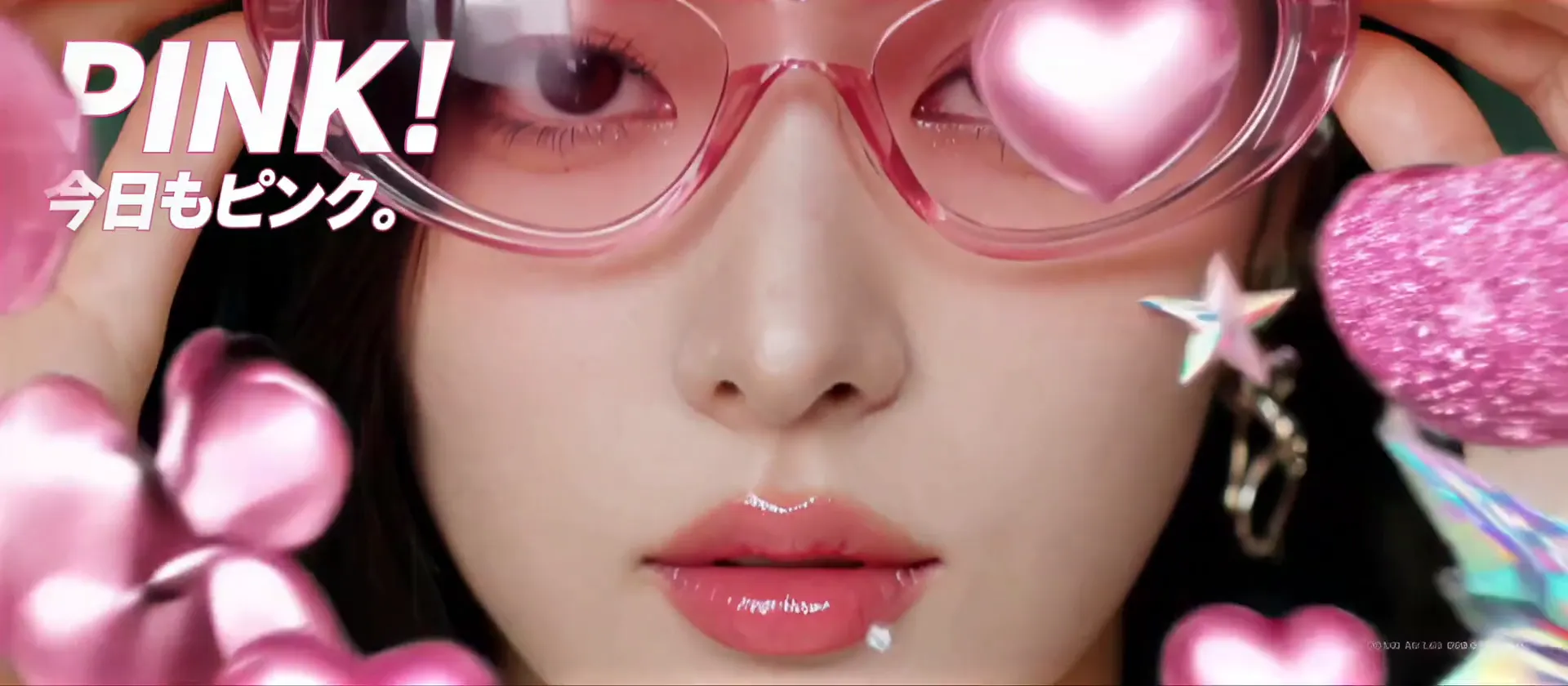
A person blinks once, gives a small natural smile and turns the head a few degrees toward the camera. This is the most direct choice for a headshot or a casual portrait where the face is the main subject.

Window Light

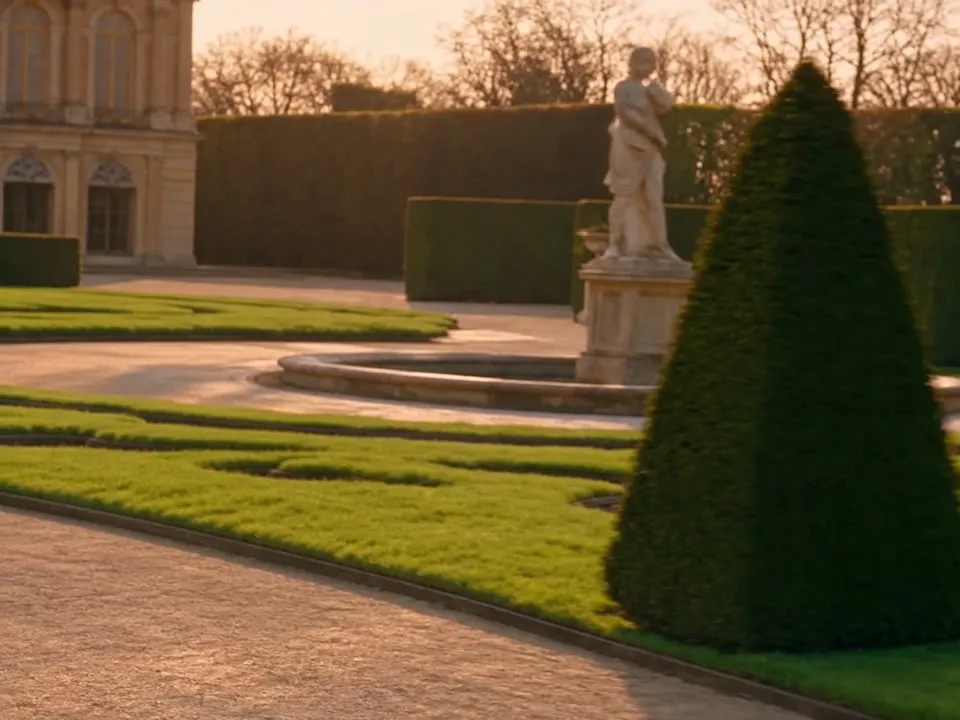
A curtain moves at the edge of the frame, soft daylight shifts across the scene and the camera pushes in very slowly. Use it when the room and the light matter as much as the person.

Product Highlight

The product stays fully visible while a controlled highlight travels across its surface and the camera moves slightly closer. This motion works best when the product shape, color and label are already clear in the source photo.

Quiet Memory

People hold their pose while one person blinks and smiles softly. A few dust motes move in the light, and the original framing stays intact. This is a calm choice for a group photo or a personal memory.

Key Features

A Simple AI Photo to Video Workflow

01

No Prompt to Write

Choose one of the four motions and the page prepares the prompt. You do not need to describe camera angles, light or sound.

02

One Photo Only

Upload one still. The page uses that image as the exact first frame, so you do not need a second reference or a video sample.

03

Vertical 768p MP4

Every AI photo to video clip is 15 seconds, 9:16 and 768p. Download the MP4 and post it directly to a phone-first platform.

04

60 Credits per Clip

One generation costs 60 credits. If the system fails, the credits are returned automatically.

Motion Choices

Portrait, Product or Atmosphere: Pick the Right Starting Point

The best AI photo to video style depends on what the source image already shows clearly.

For a face

Use Portrait Blink when the eyes and expression are visible and the face fills a useful part of the frame. Keep the movement small so the likeness stays stable.

For a product

Use Product Highlight when the object is centered, unobstructed and evenly lit. The label should already be readable before you upload the photo.

For a place or memory

Use Window Light or Quiet Memory when the room, light and pose carry the mood. These styles add subtle movement rather than a dramatic event.

Quick Facts

AI Photo to Video Specs at a Glance

FeatureDetails
Photo InputOne still image, used as the exact first frame.
Motion StylesPortrait Blink, Window Light, Product Highlight or Quiet Memory.
Video Length15 seconds per generation.
Aspect Ratio9:16 vertical.
Output Quality768p MP4.
AudioOriginal instrumental music with no lyrics, vocals or dialogue.
Credit Cost60 credits per clip.
AI Video ModelMiniMax H3.
System RefundCredits are returned automatically if generation fails because of a system error.

The result is generated from one still. Unseen sides, fine text and small reflective details can differ from the source photo.

Create AI Photo to Video

Three Steps

How to Make an AI Photo to Video Clip

Create AI Photo to Video

01

Upload One Photo

Choose a clear portrait, product shot or personal photo. A simple composition and an unobstructed subject give the model the best starting point.

02

Pick a Motion

Choose Portrait Blink, Window Light, Product Highlight or Quiet Memory. Every AI photo to video clip uses the same 15-second vertical format.

03

Review and Download

Watch the result for changes in the face, product label or background. Download the 768p MP4 when it looks right, then add any caption in your editor.

Credits and Plans for AI Photo to Video

One balance, every model. Credits work across all 20 video models — no watermark, no tier-locked models, commercial use on every paid plan.

Save 30% billed annually

Flexible monthly subscription.

Lite Monthly

The cheapest way to start. Every model, a small monthly budget.

$12.99/mo

Renews monthly, cancel anytime.

400 credits

≈ 1–20 videos, depending on the model

≈ 28–133 images, depending on the model

3.25¢ / credit

  • 1080p · No watermark · Commercial use
  • Credits reset every billing month
  • Access to all models
  • Watermark-free outputs
  • Buy an add-on credit pack
  • Standard support

Starter Monthly

Enough credits to try every model and finish a few clips each month.

$29.9/mo

Renews monthly, cancel anytime.

1,000 credits

≈ 3–50 videos, depending on the model

≈ 71–333 images, depending on the model

2.99¢ / credit

2 parallel tasks

  • 1080p · No watermark · Commercial use
  • Credits reset every billing month
  • Access to all models
  • Watermark-free outputs
  • Buy an add-on credit pack
  • Standard support

Standard Monthly

Popular

Steady output for solo creators going pro — every model, a comfortable budget.

$49.9/mo

Renews monthly, cancel anytime.

2,000 credits

≈ 6–100 videos, depending on the model

≈ 142–666 images, depending on the model

2.50¢ / credit

3 parallel tasks

  • 1080p · No watermark · Commercial use
  • Credits reset every billing month
  • Access to all models
  • Watermark-free outputs
  • Buy an add-on credit pack
  • Priority support

Advanced Monthly

High-volume production for prolific creators and small teams.

$89.9/mo

Renews monthly, cancel anytime.

5,000 credits

≈ 15–250 videos, depending on the model

≈ 357–1666 images, depending on the model

1.80¢ / credit

5 parallel tasks

  • 1080p · No watermark · Commercial use
  • Credits reset every billing month
  • Access to all models
  • Watermark-free outputs
  • Buy an add-on credit pack
  • Priority support

More to try with your photo

More AI video tools

AI Photo to Video FAQ

Answers about photo input, motion, sound and credits.

Create AI Photo to Video
How does AI photo to video work?

Upload one still and choose a motion. The AI photo to video tool uses the image as the exact first frame, generates the frames that follow and returns a 15-second 9:16 MP4. Portraits can blink or turn slightly, products can catch moving light and scenes can gain soft window light.

What photo works best for AI photo to video?

Use a sharp, well-lit photo with one clear subject and an unobstructed face or product. A simple background and a centered composition make it easier to preserve the details. Avoid blur, heavy filters and objects that cover the subject. A landscape or square photo can work, but the final clip is always returned in a vertical 9:16 frame.

Can AI photo to video keep the same face?

The prompt tells the model to keep the same face, hair, skin tone, clothing and background. Small movements such as a blink or a few-degree head turn help the likeness stay stable. Any angle that was not visible in the original photo is inferred and may differ. A front-facing portrait with the whole face visible gives the model the best chance to keep the likeness stable.

How long is the clip and what does it cost?

Each AI photo to video clip is 15 seconds, 9:16 and 768p. One generation costs 60 credits. If the generation fails because of a system error, the credits are returned automatically. The 15-second output is a 9:16 MP4 at 768p, and all four motion choices use the same 60-credit price.

What are the four motion choices?

Portrait Blink adds a blink, small smile and slight head turn. Window Light moves a curtain and daylight across the scene. Product Highlight sends a controlled light across the product. Quiet Memory adds a soft blink, a small smile and slow dust motes in the light. Each choice is a short, controlled movement, so the clip stays close to the original still.

Does the AI photo to video clip include sound?

Yes. Every clip includes an original instrumental track with no lyrics, vocals or dialogue. You can replace the audio in TikTok, Instagram or an editor if you have the rights to the new track.

Can I make a product video from one product photo?

Yes. Choose Product Highlight and upload a clear product photo with the label facing the camera. The product stays still while the light moves and the camera pushes in slightly. Fine text and reflective packaging can still change, so check the result before posting.

Is this an official Kavel or MiniMax page?

No. This is an independent AI photo to video generator built on MiniMax H3. It is not an official page for Kavel, TikTok, Instagram or any social platform. You are responsible for having permission to use the photo and audio you upload or add. For more photo-led ideas, read how to do the AI trend.

Can I post an AI photo to video clip on TikTok or Reels?

Yes. Download the vertical MP4 and post it directly. Turn on the platform's AI-generated label, review the face or product details first and use audio you have permission to publish.

Turn One Still Into

AI Photo to Video

One photo, a small natural movement and a 15-second vertical clip.

Create AI Photo to Video

15 seconds | 9:16 | 768p | 60 credits

Turn One Still Into

Create AI Photo to Video