Clean up a profile photo
Keep a relaxed portrait but replace a cluttered room with a calmer environment. The AI background changer still keeps the original person because the face and clothing stay locked.
Upload one photo and change only the setting. Keep the same person, outfit and pose, then match the light, perspective and floor shadows to the new place.
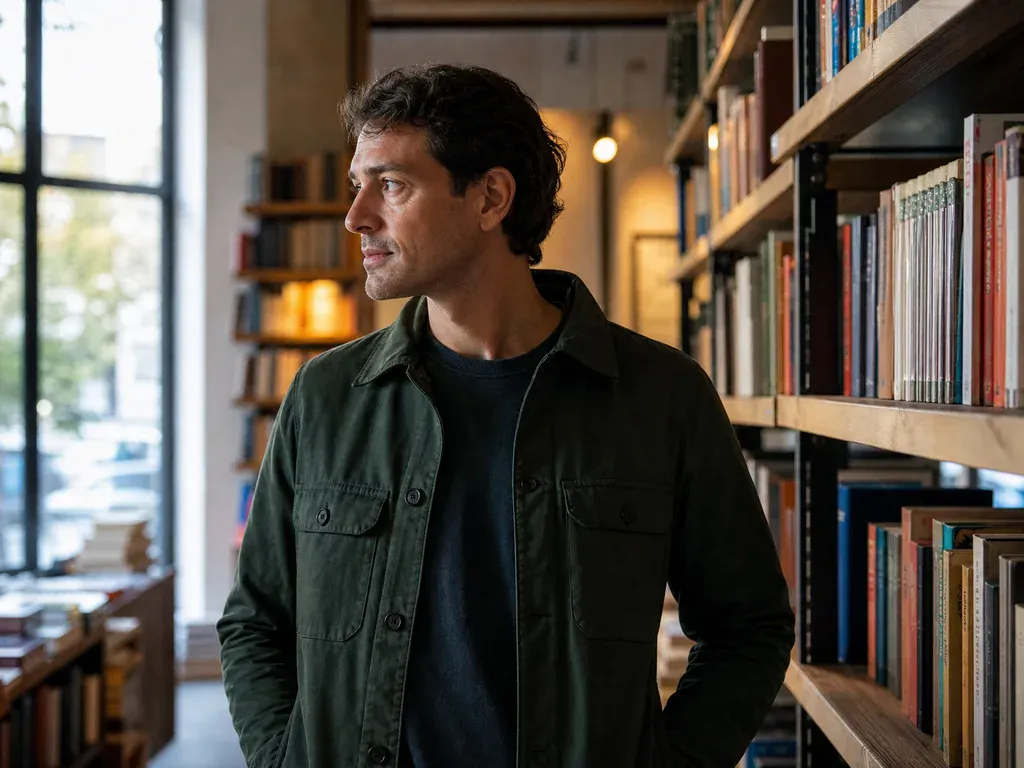
Open either card to read the exact background prompt. The AI background changer shows the same scene instruction it sends to Nano Banana 2.
What Changes
An AI background changer is useful when the person is right but the room is not. The source photo may have a messy bedroom, a hotel hallway, a shop aisle or uneven light, and replacing that setting can make the image feel finished. This tool does not treat the whole picture as disposable. It keeps the face, hair, clothing, accessories, body shape and pose from the upload, then rebuilds only the space around the subject. The greenhouse scene adds plants and large windows. The night cafe scene adds dark wood and warm pendant lights. In both cases the prompt asks for matched perspective, a believable floor plane, clean edge detail and contact shadows, so the subject does not look pasted onto a flat backdrop. One generation returns one 1K image for 8 credits. Fine details can still move, especially loose hair, thin straps, reflective fabric and very small background objects, so review the result before using it in a public profile or a product listing.
Change My BackgroundKeep a relaxed portrait but replace a cluttered room with a calmer environment. The AI background changer still keeps the original person because the face and clothing stay locked.
A simple phone portrait can sit in a greenhouse or cafe scene without booking a location. Use a wide crop for a website banner or a square crop for a social post.
When a product photo has the right angle but a distracting table or wall, this AI background changer edits only the surrounding surface and light. Check the label before you publish.
Generate the same portrait in two backgrounds and compare which mood fits a page, menu or campaign. Both scenes use the same source photo, so the comparison is easy to judge.
Download the new image, then open it in the MiniMax H3 photo tool for a restrained blink, head turn or moving light. The background should remain steady while the subject moves.
The upload matters as much as the scene preset.
The AI background changer is a targeted edit, not a full portrait makeover. It reads the uploaded photo, identifies the person or product and keeps those visible details as stable as the model can. The scene section then replaces the room, floor and surrounding light. This matters because a normal image generator asked to make a new background may also change the face, clothing or body. Here the AI background changer instruction is explicit: replace only the background and the light around the subject. The final image should still look like the same photo moment, moved into a place that makes sense. Review the result at full size because hair edges, glasses and reflective materials are common places for small errors.
Face, facial features, age, skin tone, hair, clothing, accessories, pose, body proportions and any visible product details.
The room, floor, furniture, plants, windows and the light around the subject, using the selected greenhouse or night cafe prompt.
Matched perspective, edge detail, directional light and contact shadows that help the subject sit in the new space.
Loose strands of hair, transparent fabrics, reflections, hands and small background objects can shift despite the lock instruction.
01
The AI background changer prompt protects identity, age, skin tone, hair, clothing, accessories, pose and proportions before it describes the new room.
02
Each preset includes a light direction, a floor plane and contact shadows so the result has a physical relationship between subject and background.
03
The style wall shows the exact AI background changer instruction behind each look. You can judge what the tool was asked to change before spending a credit.
01
Choose one image where the person, outfit or product is easy to see. The original background can be busy because the AI background changer will replace it.
02
Select the greenhouse or night cafe look, then choose auto, square, wide or vertical output to fit where the image will be posted.
03
Check the face, hands, hair, clothing and contact shadows at full size. Each run uses 8 credits and returns one downloadable image.

Browse all

One product snapshot into a clean studio shot

One pet photo into a polished portrait

Two photos into one natural couple portrait

One photo into a professional headshot
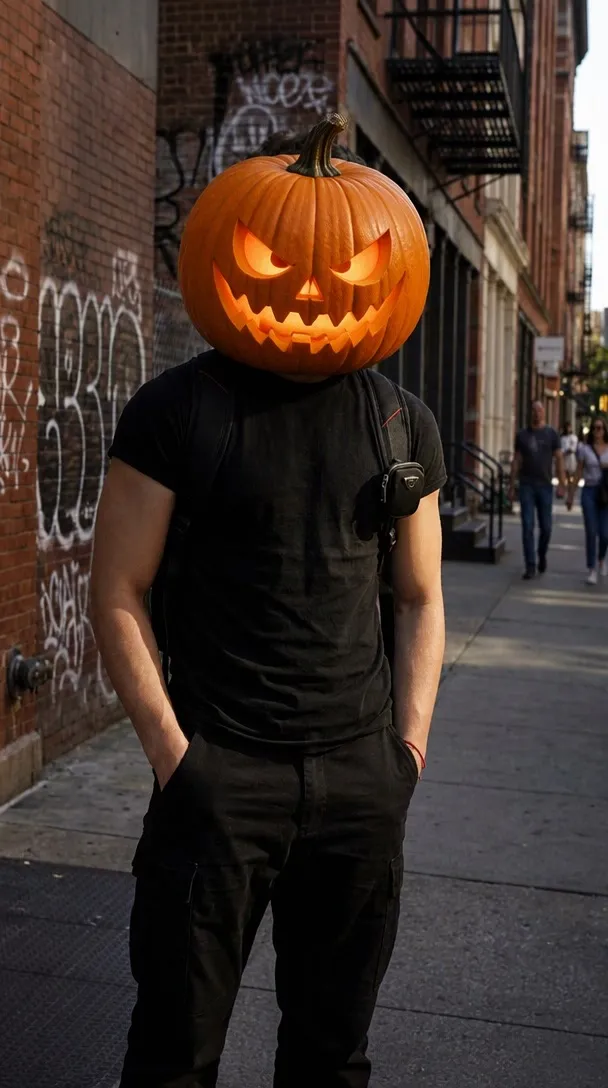
Turn photo heads into pumpkins
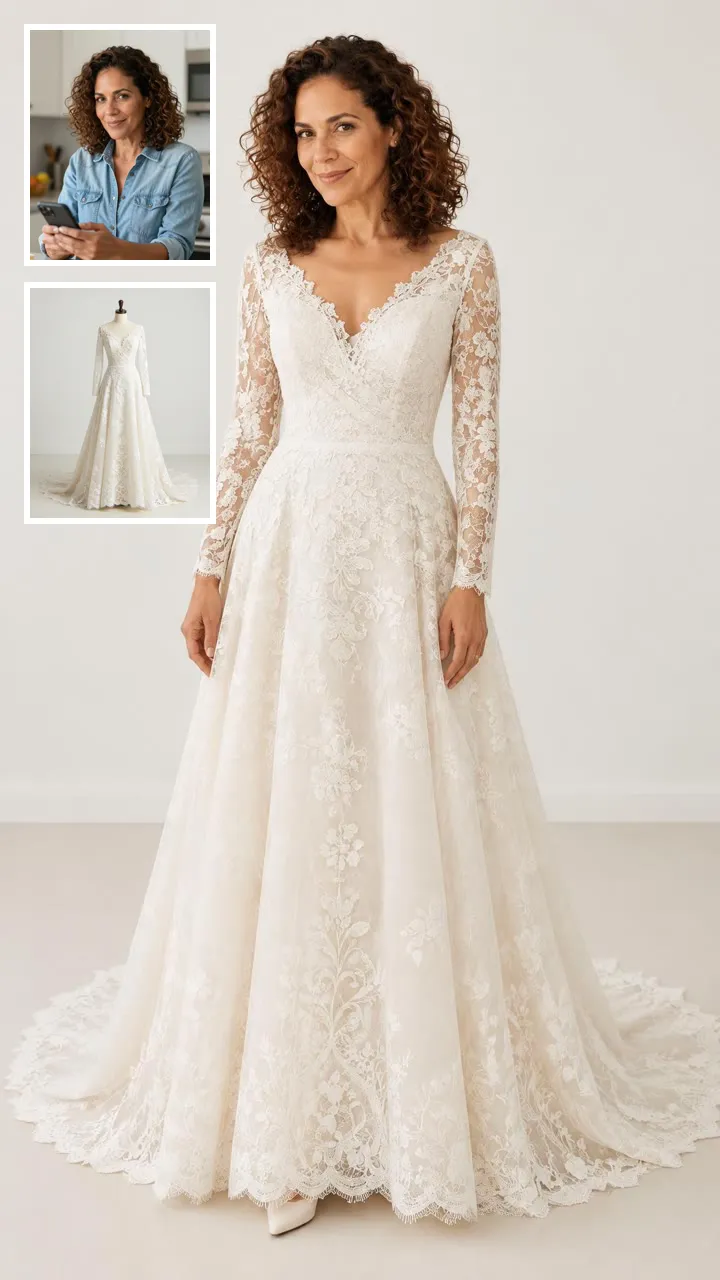
See clothes on your own photo
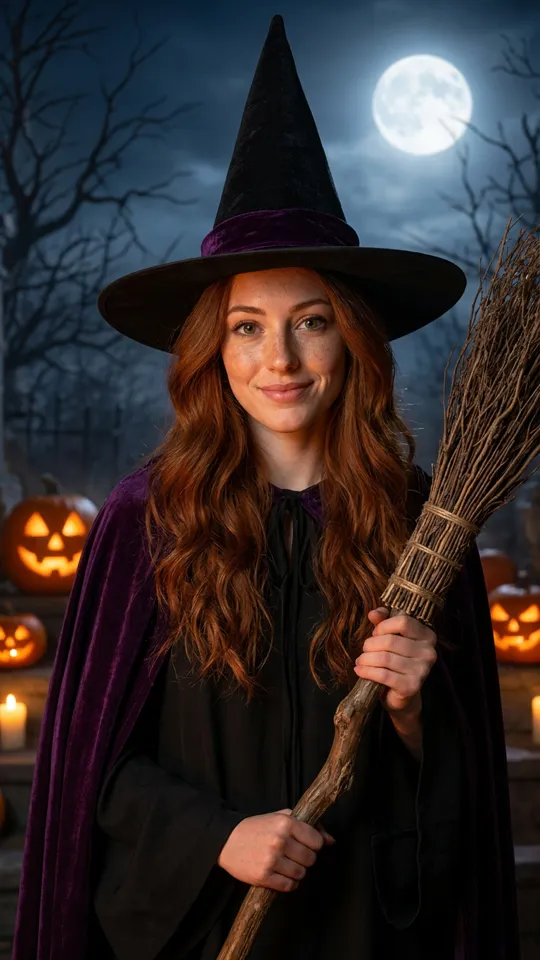
One photo into a Halloween costume photo
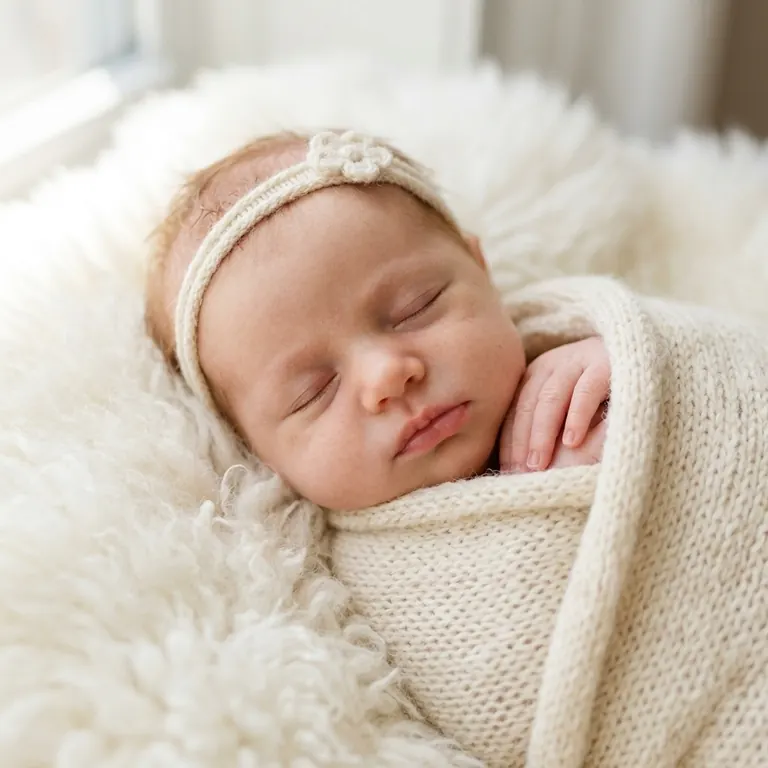
Two parent photos into one imagined baby photo
One photo into a bald, buzz-cut or bald-with-beard look
One old photo repaired, sharpened or colorized
One selfie into a trending Instagram photo edit
Check a photo against official ID rules
What this tool changes, what it protects and when to try again.
Change My BackgroundAn AI background changer replaces the setting around a person or product while trying to keep the subject unchanged. This page keeps the face, hair, clothing, pose and visible details, then rebuilds the room, floor and light around them. You can choose the greenhouse or night cafe scene, and the finished image is returned at 1K for 8 credits.
Upload one clear photo, choose the greenhouse or night cafe scene and generate. The prompt locks your face, age, skin tone, hair, clothing and pose before it describes the new background, although small edge details can still vary. A front-facing portrait with soft light and no object across the face gives the model the cleanest edge to preserve.
Yes, the instruction asks the model to keep the same clothing, accessories and visible proportions. A loose strap, a reflective logo or a very fine pattern may still move slightly, so inspect the result before using it. A solid outfit with clear seams and a simple silhouette is easier to keep stable than loose mesh, fine stripes or reflective trim.
You can use auto to match the source photo, or choose 1:1, 16:9 and 9:16 output. Auto is the safest choice when you want to preserve the original framing and avoid an extra crop. The output is one 1K image, so choose the shape that matches where you plan to publish before you generate.
Each generation costs 8 credits and returns one 1K image. New accounts receive 8 starter credits once per device and network, which covers one image; more credits are available on the pricing page. The pricing page lists larger packs for several generations, and a failed system run returns its credits automatically.
Yes, a product with a clear shape and readable label can use the same tool. Keep the product centered and check every word on the label after generation, because small text can change even when the prompt says to preserve it. For a clean shop image, keep the product centered and review the label at full size before publishing.
Hair, mesh, transparent glass and reflective surfaces give the model less clear visual information than a solid shirt or wall. A simple background, softer light and a larger subject in frame usually produce a cleaner edge.
Yes. Download the finished image and open it in the MiniMax H3 photo-to-video tool for a short blink, head turn or moving light. Keep the motion small so the new background and the person stay consistent.
Read the guide to AI photo and video trends for a simple explanation of source photos, motion and publishing. It also shows how an AI background changer fits with the other tools on this site.
Change the Place
Upload one photo and make a cleaner scene with this AI background changer.
Change My Background8 credits | 1K image
Keep the Person
Change My Background