



Gemini Omni AI Video Generator

Gemini Omni is Google’s video model that takes text, images and video in one prompt and returns a clip with sound. Ricebowl runs Gemini Omni Flash, the current release, from 4 to 10 seconds and up to 4K.

Estimated — credits

Feature 01

Native Multimodal Video GenerationText, Images and Video in One Prompt

Google introduced Gemini Omni at I/O 2026 as a model that can create anything from any input, starting with video. In practice that means text to video, image to video and video to video all run through the same model: write a prompt, attach up to seven reference images, or add a short clip, and Gemini Omni combines them into one scene with sound. You do not switch tools between a storyboard frame and a finished shot. On Ricebowl a clip runs 4, 6, 8 or 10 seconds, in portrait or landscape, at 720p, 1080p or 4K.

  • Text to video, image to video and video to video in one Gemini Omni model
  • Up to 7 reference images per generation on Ricebowl
  • 4 to 10 second clips with audio, 720p to 4K

Feature 02

Natural Language Video EditingEdit by Describing the Change

Google’s shortest description of Gemini Omni is Nano Banana for video: you edit a clip by telling it what to change, in plain words. Dim the lights, make the violin invisible, move the camera over the shoulder. The prompt does not have to be in English. Partners quoted on the DeepMind page report spoken Punjabi dialogue rendered and synced correctly, and Gemini Omni can also sync on-screen text with the action, so a word or a caption appears exactly when the beat lands rather than as a static overlay.

  • Plain-language edit instructions, no masks or timelines
  • Prompts and dialogue in languages other than English
  • On-screen text timed to the action

Feature 03

Video RemixingYour Footage as the Starting Point

Upload a clip you shot and ask Gemini Omni to change what happens in it: turn the room into voxel art, make a mirror ripple like liquid, replace a spaceship with another object, or turn yourself into a character from a reference image. The motion and structure of the original clip carry over, so the remix still moves the way you moved. Google’s API accepts input video up to 10 seconds for editing; on Ricebowl, add the clip as a reference video, and the job is priced at a flat 120 credits at 720p or 1080p.

  • Restyle, re-stage or re-cast footage you already have
  • Original motion and camera path are preserved
  • Flat 120 credits per remix at 720p or 1080p on Ricebowl

Feature 04

Targeted Scene EditingChange One Thing, Keep the Rest

Not every edit is a full remix. Gemini Omni can change a single element, a prop, a color, the time of day, while leaving the rest of the frame alone, and every instruction builds on the one before. Google’s demo takes a violinist through four turns: new environment, invisible violin, new camera angle, each step keeping the performance intact. That is the main reason to use Gemini Omni instead of rerolling a text prompt, because a reroll throws away the take you liked along with the detail you did not.

  • Swap one object, color or lighting setup
  • Each edit builds on the previous turn
  • Keeps the performance you already approved

Feature 05

Consistent Visual NarrativesCharacters and Physics That Hold

Google says that with Gemini Omni your characters stay consistent, the physics hold up and the scene remembers what came before. That matters when a story is told across several clips instead of one. Keep the same reference images and saved character in every request, and the face, outfit and setting carry across the sequence. Gemini Omni also supports extending a scene and specifying first and last frames at the model level, which is how Google builds longer stories out of 10-second shots.

  • Consistent characters across multiple edit rounds
  • Scene memory: later turns respect earlier changes
  • Extension and first-last frames at the model level
Consistent Visual Narratives

Feature 06

Knowledge-Based Scene CreationGrounded in What Gemini Knows

Gemini Omni pairs an intuitive grasp of physics, gravity, momentum and fluids, with Gemini’s knowledge of history, science and culture. Ask for a claymation explainer of protein folding or a stop-motion lesson on how the hippocampus works, and the model gets the content right as well as the look. For educators and explainer channels that is the difference between a pretty clip and a correct one.

  • Realistic physics: gravity, momentum and fluid motion
  • History, science and math grounded in Gemini’s knowledge
  • Explainers that are accurate, not just attractive

Feature 07

Precise Audio ControlSound That Follows the Action

Audio in Gemini Omni is intentional: you direct it the same way you direct the picture. Ask for harp notes each time a hand touches a fern, apartment lights switching on in time with the music, or no music and only realistic room sound. Attach an audio file as a reference and the model uses it for rhythm or voice. On Ricebowl you can save a voice in the Omni panel and reuse it across clips, which keeps a narrator or a brand character sounding the same in every video.

  • Sound effects triggered by specific on-screen moments
  • Audio references for rhythm, voice and music
  • Saved voices reusable across Gemini Omni clips

Feature 08

Diverse Camera AnglesRe-shoot From Another Angle

Camera direction works both at generation and in edits. Describe a whip pan, a low-angle close-up or a slow push-in in the first prompt, or take an existing clip and ask Gemini Omni to change the camera to an over-the-shoulder view without re-shooting. The animation studio Cartwheel says the model is especially good at generating and editing shots with dynamic camera motion. You can also borrow a move from a reference video: point the model at a clip whose camera you like and apply it to your own subject.

  • Camera moves described in plain film language
  • Change the angle of a finished clip in an edit
  • Copy a camera move from a reference video

Feature 09

Tailored Avatar GenerationYour Character, Your Motion

Upload a character image with your own clip and Gemini Omni swaps you for that character, matching your motion and your dialogue. Google demonstrates it with a single instruction: turn me into this character. It also works from sketches, turning a drawing into realistic footage that uses the doodle only as a guide for movement. On Ricebowl, save the character once in the Omni panel and select it in later generations, so a virtual host or mascot keeps the same face across a whole series.

  • Replace yourself with a character while keeping motion and speech
  • Sketches turned into realistic, moving footage
  • Saved characters reusable across Gemini Omni clips

PROMPT EXAMPLES

Gemini Omni Prompts

Prompt

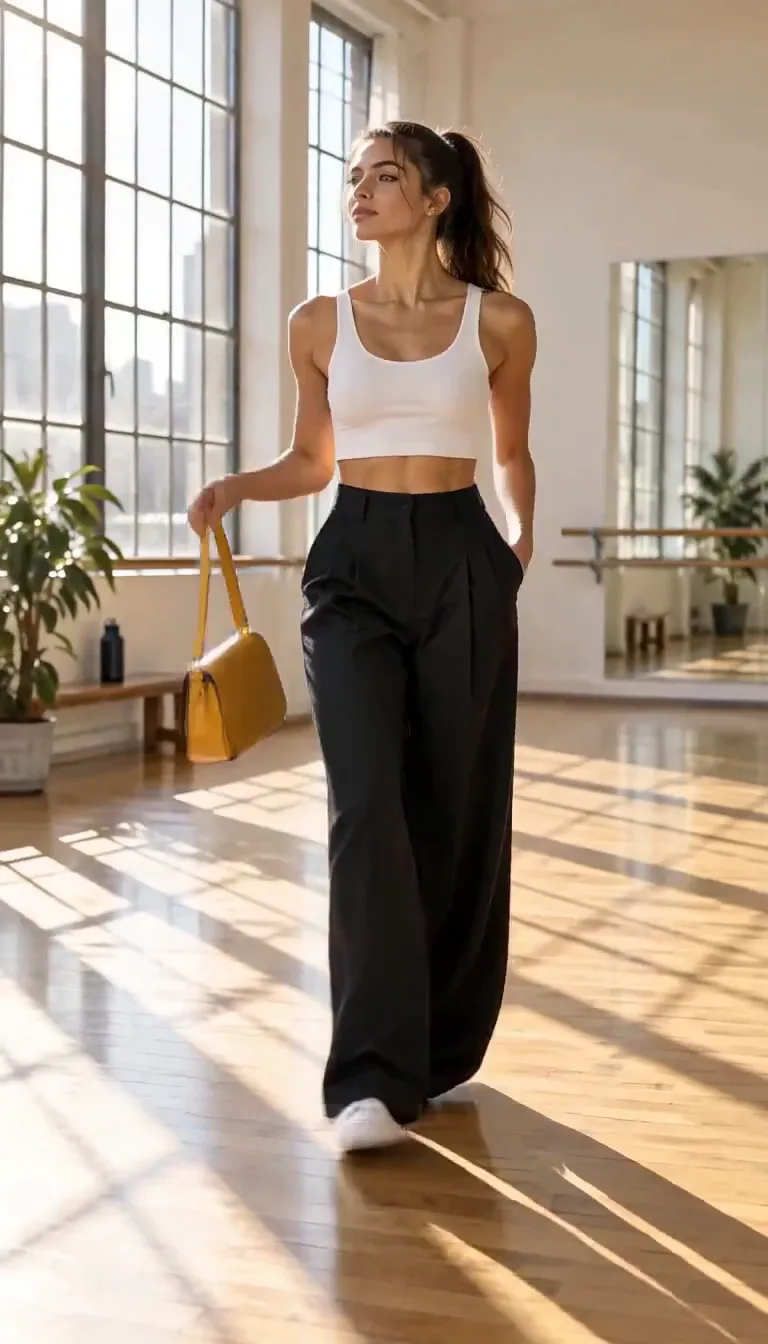
Use the bag in the reference image. A dancer swings it over her shoulder as she spins through a sunlit studio, the camera circles her once. Upbeat house track, a soft whoosh on each spin, no on-screen text.

Reference

Reference

Result

Result

Prompt

Use the bottle in the reference image. A runner stops on a track at dawn, takes a drink and looks toward the camera. Slow push-in, breathing and distant birds, then a single bass hit as the label turns to the lens.

Reference

Reference

Result

Result

USE CASES

Whatever Your Vision, Gemini Omni Delivers

Short-form creators

Shoot a plain clip on your phone and let Gemini Omni turn it into something you could never film: a room that dissolves into voxels, a hand that holds a floating sun, a transformation on the beat. Your own motion keeps the result feeling real.


Marketing and growth teams

One approved product shot, many variants. Change the setting, the season or the presenter with an edit instruction instead of a new shoot. HubX, quoted by Google, reports creative output up 23% and workflow costs down 20% after moving its campaigns to the model.

E-commerce and fashion

Virtual garment replacement and cinematic product hero shots are use cases the design platform FLORA names for Gemini Omni. Keep the model and the product fixed with reference images and change only the outfit or the backdrop.

Educators and explainer channels

Grounded in Gemini’s knowledge, Gemini Omni can build a stop-motion explainer on biology or a clay model of a physics idea that is correct as well as charming, with voiceover and synced on-screen text.

Game and app studios

Astrocade says iterating on gaming creatives went from days to minutes by talking to the model. Generate a trailer beat, then revise the character, the lighting or the camera in follow-up edits until it matches the brief.

WHAT USERS SAY

What Creators Keep Pointing Out

01

Conversational editing is the headline

Almost every partner quote on Google’s Gemini Omni page leads with editing: build a video, then revise it by talking to it. Picsart, which brings the model to its 130 million creators, calls out automated editing as the main unlock.

02

Camera motion and style feel right

Cartwheel says Gemini Omni understands style and motion in ways competing video models do not get right, and handles shots with dynamic camera movement well, which is where AI video usually looks stiff.

03

Benchmarks back the preference

Google reports Gemini Omni Flash ranked first for overall preference and instruction following on 1,003 MovieGenBench prompts, and led human side-by-side tests for video editing across 504 examples.

04

Image-to-video is strong but not alone

On the VBench image-to-video set, Google’s own results show Gemini Omni Flash tied with Grok Imagine Video and Kling at the top rather than ahead of them. For plain image animation, it is one strong choice among several.

Create a Gemini Omni Video

VERSIONS

Gemini Omni: A Leap Forward from Veo 3

Gemini Omni vs Veo 3.1: which one to use

Default to Gemini Omni. Google’s own Gemini API documentation recommends Gemini Omni Flash as the default video model for its coherence, multi-input reasoning, character consistency and multi-turn editing, and keeps Veo 3.1 for specific needs such as scene extension, last-frame control or legacy pipelines. On Ricebowl the one case where Veo 3.1 wins is price: a plain 10-second text-to-video clip costs 45 credits there against 90 for Gemini Omni.

Gemini Omni Flash vs Gemini Omni

Today they are the same model. Google ships Gemini Omni as Gemini Omni Flash, model code gemini-omni-1.1-flash, and there is no separate larger Omni to compare it with. When people search for Gemini Omni Flash, this is the model Ricebowl runs.

WHAT SETS IT APART

What Makes Gemini Omni Stand Out

01

Edit by conversation, turn after turn

Each instruction builds on the one before, so you can change a prop, then the light, then the camera angle, and keep the performance you already approved. A reroll of the text prompt would throw that take away along with the detail you wanted to fix.

02

Saved voices and characters in the Omni panel

On Ricebowl you can save a voice and a character in the Omni panel and select them again in later clips, so a narrator, a virtual host or a mascot looks and sounds the same across a whole series.

03

Use Gemini Omni without a Gemini plan

In Google’s apps, Gemini Omni Flash comes with Google AI Plus, Pro and Ultra subscriptions. On Ricebowl you pay per clip, from 45 credits for a 4-second video, with no monthly Google subscription, and the same credits run Veo 3.1, Seedance 2.5 and Kling 3.0.

OUR TAKE

Our Verdict on Gemini Omni

Gemini Omni and Veo 3.1: how are they related, and which should you use?

They are separate Google models; Gemini Omni belongs to the Gemini family, Veo is its own line. Use Gemini Omni by default, as Google’s API docs advise, and use Veo 3.1 only when you want the cheapest plain text-to-video clip on Ricebowl (45 credits for 10 seconds).

How far can Gemini Omni remix your own video?

All the way, from swapping one prop to changing the whole world, the art style or the character, while your original motion and camera path stay. The limit is length: keep the source clip short, since Google caps editing input at 10 seconds.

Is character consistency stronger or weaker than Seedance 2.5?

Stronger across edits, weaker across length. Gemini Omni keeps a character stable while you revise the same clip turn after turn; Seedance 2.5 holds a face through a single 30-second take with up to 30 reference images. Pick Gemini Omni for iterating on a shot and Seedance 2.5 for one long take.

COMPARISON

Gemini Omni vs Other AI Models

FeatureGemini OmniVeo 3.1Seedance 2.5Kling 3.0
Clip length on Ricebowl4, 6, 8 or 10 s10 s (6 s on Fast)5 to 30 s5, 10 or 15 s (15 s on Kling 3.0 Turbo)
Max resolution on Ricebowl4K4K (Pro 4K)720p4K (Kling 3 Omni)
InputsText, up to 7 images, video, saved voice and characterText, up to 3 imagesText, up to 30 images, video, audioText, up to 2 images
Edit an existing videoYes, by conversationNoYes, local editsNo
Native audioYesYesYesOptional add-on
Price example75 credits (8 s, 1080p)45 credits (10 s)315 credits (5 s, 720p)130 credits (Kling 3 Omni, 5 s, 1080p, audio)
Best forEditing and multi-input scenesCheapest single shot with audioLong single takesMulti-shot sequences

All four run on Ricebowl; switch between them in the model picker above. Credit prices come from the live pricing table and may change.

Create a Gemini Omni Video

HOW IT WORKS

How to Use Gemini Omni on Ricebowl

Create a Gemini Omni Video

01

Sign up and open Gemini Omni

The generator at the top of this page already has Gemini Omni selected. Signing up is free and adds 8 credits; a Gemini Omni clip starts at 45 credits for 4 seconds.

02

Write the prompt and add references

Describe the scene, the camera and the sound. Attach up to seven reference images, a short video to edit or remix, or pick a saved voice and character in the Omni panel. Choose length, orientation and resolution.

03

Generate, then refine

Press generate and the clip arrives with audio. To change a detail, use the result as a reference video and describe only what should change, instead of rewriting the whole prompt.

1,200+ creators this month4.8 average rating

REVIEWS

Used by Creators and Marketers

Feedback from people who make video on Ricebowl.

Priya Nair

I film a boring clip in my kitchen and turn it into something impossible. My own movement is what makes it look real.

Short-form creator

Daniel Weber

One product shot, then five edits for five audiences. Changing the backdrop by typing a sentence beats booking another shoot.

Growth marketer

Lucía Fernández

Same model, same bag, new outfit every time. The reference images keep the product exactly right.

Fashion e-commerce

Owen Brooks

The explainers are accurate, not just pretty. That was the thing I could never get from other video tools.

Science educator

Mei Chen

We revise trailers by talking to it. What used to take a day of back and forth takes an afternoon.

Indie game studio

AI Video Generator Pricing

One balance, every model. Credits work across all 20 video models — no watermark, no tier-locked models, commercial use on every paid plan.

Save 30% billed annually

Flexible monthly subscription.

Mini Monthly

The lowest price to get started. Every model, a monthly budget to try things out.

$7.99/mo

Renews monthly, cancel anytime.

200 credits

≈ 0–10 videos, depending on the model

≈ 14–66 images, depending on the model

4.00¢ / credit

  • 1080p · No watermark · Commercial use
  • Credits reset every billing month
  • Access to all models
  • Watermark-free outputs
  • Buy an add-on credit pack
  • Standard support

Lite Monthly

The cheapest way to start. Every model, a small monthly budget.

$12.99/mo

Renews monthly, cancel anytime.

400 credits

≈ 1–20 videos, depending on the model

≈ 28–133 images, depending on the model

3.25¢ / credit

  • 1080p · No watermark · Commercial use
  • Credits reset every billing month
  • Access to all models
  • Watermark-free outputs
  • Buy an add-on credit pack
  • Standard support

Starter Monthly

Enough credits to try every model and finish a few clips each month.

$29.9/mo

Renews monthly, cancel anytime.

1,000 credits

≈ 3–50 videos, depending on the model

≈ 71–333 images, depending on the model

2.99¢ / credit

2 parallel tasks

  • 1080p · No watermark · Commercial use
  • Credits reset every billing month
  • Access to all models
  • Watermark-free outputs
  • Buy an add-on credit pack
  • Standard support

Standard Monthly

Popular

Steady output for solo creators going pro — every model, a comfortable budget.

$49.9/mo

Renews monthly, cancel anytime.

2,000 credits

≈ 6–100 videos, depending on the model

≈ 142–666 images, depending on the model

2.50¢ / credit

3 parallel tasks

  • 1080p · No watermark · Commercial use
  • Credits reset every billing month
  • Access to all models
  • Watermark-free outputs
  • Buy an add-on credit pack
  • Priority support

Advanced Monthly

High-volume production for prolific creators and small teams.

$89.9/mo

Renews monthly, cancel anytime.

5,000 credits

≈ 15–250 videos, depending on the model

≈ 357–1666 images, depending on the model

1.80¢ / credit

5 parallel tasks

  • 1080p · No watermark · Commercial use
  • Credits reset every billing month
  • Access to all models
  • Watermark-free outputs
  • Buy an add-on credit pack
  • Priority support

Make something with Gemini Omni

More AI video tools

FAQs

What Gemini Omni is, how it relates to Veo, and what it costs here.

Create a Gemini Omni Video
Is Gemini Omni free to use on Ricebowl?

Signing up is free, but a Gemini Omni render is not. New Ricebowl accounts get 8 credits, which is not enough for any video clip, and the shortest Gemini Omni clip costs 45 credits (4 seconds). Google itself offers Gemini Omni Flash at no cost only inside YouTube Shorts and the YouTube Create app; in the Gemini app and Flow it comes with paid Google AI plans. On Ricebowl you pay per clip, with no subscription.

What is Gemini Omni?

Gemini Omni is Google’s multimodal generation model, announced at Google I/O 2026, that creates video from any mix of text, images, audio and video, and lets you edit the result through conversation. Google describes it as the point where Gemini’s ability to reason meets the ability to create. The released version is Gemini Omni Flash.

How does Gemini Omni differ from its predecessor Veo 3?

Veo 3 generates a video with audio from a prompt or images. Gemini Omni adds three things on top: it takes video and audio as inputs, it edits an existing clip over several conversational turns while keeping it consistent, and it draws on Gemini’s world knowledge for scenes that need to be factually right. Veo has since moved to Veo 3.1, which Google still offers for extension and frame control.

Does Gemini Omni use Veo?

No. Google presents Gemini Omni as a Gemini model, listed separately from Veo, which remains its own specialized video family. The two coexist: Google’s API docs point to Gemini Omni Flash as the default video model and to Veo 3.1 for specific features such as scene extension and last-frame control.

Is Gemini Omni Flash the same as Gemini Omni?

Yes, for now. Google released the model as Gemini Omni Flash, with the stable model code gemini-omni-1.1-flash, and there is no second, larger Gemini Omni available. Ricebowl’s Gemini Omni option runs that model.

How long can a Gemini Omni video be?

Google’s API outputs clips from 3 to 10 seconds. On Ricebowl you can choose 4, 6, 8 or 10 seconds. For longer stories, Google supports extending a scene, and in the meantime you can chain 10-second clips with the same references and saved character. If you need one continuous take longer than 10 seconds, Seedance 2.5 renders up to 30.

How does the intentional audio feature work in Gemini Omni?

You direct sound the same way you direct the picture. Tie an effect to a moment, such as a chime when a hand touches a leaf, set the music to follow the action, or ask for no music and only real room sound. You can also attach an audio file as a reference for rhythm or voice, and on Ricebowl save a voice to reuse in later clips.

Can Gemini Omni edit an existing video?

Yes, and it is the model’s main strength. Add your clip as a reference video and describe the change: a new environment, a different object, another art style, a new camera angle or a character swap. Motion and structure from the source carry over. Google caps input video for editing at 10 seconds, and on Ricebowl a job with a reference video costs 120 credits at 720p or 1080p.

Is Gemini Omni suitable for beginners?

Yes. There are no masks, keyframes or timelines to learn; you describe what you want and then describe what to change. The one habit that helps is to edit one thing at a time, so each turn stays predictable and you keep the parts of the clip you already like.

What resolution does Gemini Omni output?

Google lists 360p, 720p, 1080p and 4K at 24 frames per second. On Ricebowl you can pick 720p, 1080p or 4K. 720p and 1080p cost the same, 45 to 90 credits depending on length, so choose 1080p unless you need 4K, which costs 105 to 150 credits.

Can I use Gemini Omni videos commercially?

Yes, videos you generate with purchased credits can go into ads, client work and product pages. Use reference images and footage you own or have licensed, and avoid real people you have no permission to depict. Google marks Gemini Omni output with its invisible SynthID watermark and C2PA Content Credentials in its own apps.

Why use Gemini Omni on Ricebowl?

Because you get Google’s newest video model without a Google AI subscription, pay per clip from 45 credits, and can switch to Veo 3.1, Seedance 2.5 or Kling 3.0 in the same picker when a shot needs something else. Saved voices and characters make it easy to keep a series consistent. Start in the generator at the top of this page.

Try Gemini Omnion Ricebowl Now!

Text, images and video in, a clip with audio out. Edit it by conversation, save your voices and characters, render up to 4K.

Create a Gemini Omni Video

FREE SIGN-UP · CONVERSATIONAL EDITING · NATIVE AUDIO · UP TO 4K