
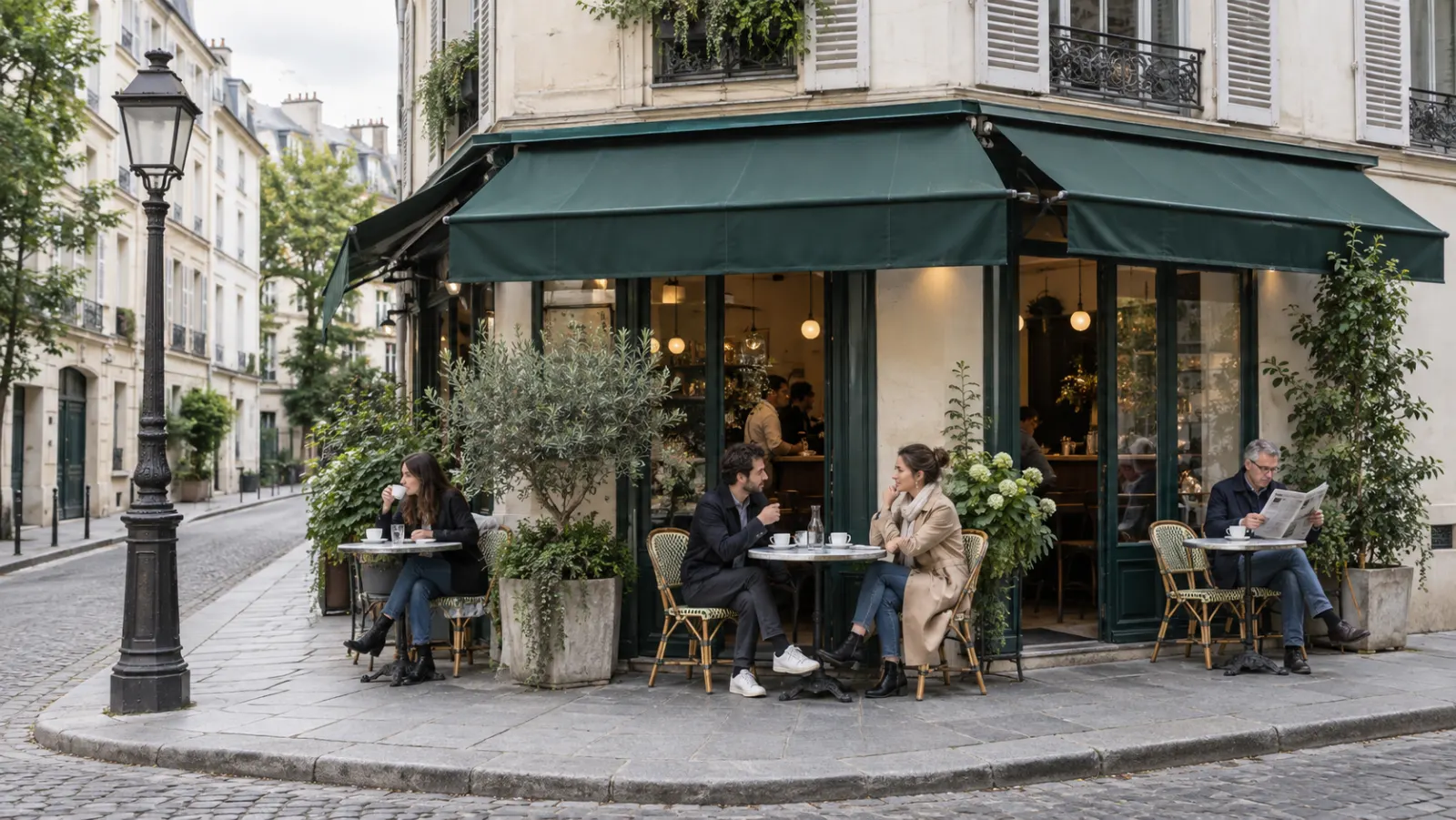








Google Veo 3 AI Video Generator

Ricebowl runs Veo 3.1 Fast, Veo 3.1 and Veo 3.1 Pro, the current generation of Google Veo 3. Type a scene or upload up to three reference images and get a clip with dialogue, sound effects and ambience already mixed in.

Estimated — credits

Feature 01

Native Audio GenerationSound Comes Out of the Same Render

Google Veo 3 was the first Veo release to generate sound together with the picture, and Veo 3.1 makes that audio richer. Put a line of dialogue in quotes, describe the ambience and name the sound effects, and the clip comes back with lip movement, footsteps, wind and music already synced. There is no separate voiceover pass and no stock track to hunt for, which is why a finished-looking short takes one generation instead of three tools.

  • Dialogue in quotes is spoken with matching lip movement
  • Sound effects land on the frame where the action happens
  • Ambience and music are generated for the scene, not pasted on

Feature 02

Produce Viral-ready ContentFormats People Already Share

Talking animals, fake news anchors, time-travel selfie vlogs and street interviews spread fast because they combine a clear hook with a voice. Google Veo 3 handles all of those formats in a single prompt: the character, the setting, the camera style and the spoken punchline. Pick portrait orientation for Reels, TikTok and Shorts, or landscape for YouTube, and the model composes the shot for that frame instead of cropping it later.

  • Portrait and landscape framing chosen before generation
  • Spoken hooks and punchlines rendered with the character
  • Street-interview, vlog and newsroom looks from one prompt

Feature 03

Advanced Prompt UnderstandingLong Prompts Stay Intact

Google describes Veo 3.1 as having stronger prompt adherence than Veo 3, and it shows in multi-part instructions. A prompt that names a shot size, a camera move, two characters, a line of dialogue and a background sound is followed in order rather than collapsed into the most prominent noun. Write the scene the way a director would brief a crew: shot, subject, action, audio. The more specific the brief, the fewer rerolls you pay for.

  • Shot size, camera move and action are read as separate instructions
  • Multiple characters keep the roles you gave them
  • Audio cues in the prompt are honored alongside the visuals

Feature 04

Reference to Video and Consistent CharactersThe Same Face in Every Clip

Upload up to three reference images and the model keeps that character, outfit or product recognizable while it moves through a new scene. This is the fix for the most common complaint about AI video, a hero whose face changes between shots. Use one image for a mascot, two for a person and their outfit, and three when a product, a character and a location all have to match the brief.

  • Up to 3 reference images per Veo 3.1 generation
  • Faces, outfits and products stay recognizable across clips
  • References guide the look while the prompt drives the action
Reference to Video and Consistent Characters

Feature 05

Accurate Style ControlFrom Photoreal to Papercraft

The model is known for realism, but it also holds a stylized look when you ask for one: 2D anime, claymation, papercraft, film noir, vintage VHS. Name the style in the prompt, or upload a style reference image and describe a new subject, and the texture, palette and lighting carry over. For brand work, this means a campaign can keep one art direction across a dozen clips without redrawing a frame.

  • Style named in text or taken from a reference image
  • Palette, texture and lighting transfer to new subjects
  • Photoreal and animated looks from the same model

Feature 06

Camera ControlsDirect the Lens With Words

Pan, tilt, dolly in, crane up, orbit, handheld, top-down: the camera vocabulary a cinematographer uses is the vocabulary Google Veo 3 responds to. Keep the scene description identical and change only the move, and you get a second angle of the same idea instead of a new idea. That makes it practical to build a sequence with coverage, a wide establishing shot followed by a slow push toward the subject.

  • Standard film moves: pan, tilt, dolly, crane, orbit
  • Same scene, different move, for real coverage
  • Handheld and locked-off looks on request

Feature 07

First and Last FramesPin the Opening and the Ending

Frames to Video lets you supply a starting image and an ending image, and Veo 3.1 generates the motion that bridges them, with audio. A block of marble becomes a finished statue, a closed box becomes an unboxed product, a daytime street becomes night. Google added audio to this mode with the Veo 3.1 update. The mode is available in Google Flow and the Gemini API; Ricebowl will switch it on in the generator here as it rolls out on our side.

  • Start and end images define the whole shot
  • Transitions and reveals without manual keyframing
  • Generated audio follows the transition
First and Last Frames

Feature 08

Add and Remove ObjectsFix One Detail, Keep the Take

Google introduced Insert in Flow alongside Veo 3.1: add a new element to an existing clip and the shadows and lighting adjust so it looks like it was always there. Remove, the reverse, rebuilds the background after an object or person is taken out; Google announced it as coming soon. Neither edit is exposed through the Gemini API yet, so for now it lives in Flow. Until then, the practical fix here is to regenerate with a tighter prompt or a reference image.

  • Insert adds elements with matching shadows and light
  • Remove reconstructs the background behind a deleted object
  • Currently a Google Flow feature, not an API feature

Feature 09

Flexible Motion ControlPhysics That Holds Up

DeepMind credits Veo 3 with real-world physics, and it is most visible in motion that usually breaks AI video: liquid pouring, fabric in wind, a ball bouncing, hair in slow motion. Describe the speed and the weight of the movement, not just the verb. A slow, heavy door swing reads very differently from a quick flick, and Veo 3.1 honors that difference, which keeps product demos and action beats from looking floaty.

  • Liquids, cloth and hair move with believable weight
  • Speed words like slow, snappy and gradual are respected
  • Product and action shots avoid the floating look

Feature 10

Integration with FlowGoogle’s Filmmaking App vs This Generator

Flow is Google’s own filmmaking tool built on Veo; Google reported over 275 million videos generated in it within five months of launch. Flow is tied to Google AI plans. Ricebowl calls the same Veo 3.1 models and charges per clip, so you can generate without a monthly Google subscription and switch to Seedance, Kling or Gemini Omni in the same picker when a shot needs something Veo does not do.

  • Same Veo 3.1 model family that powers Google Flow
  • Pay per clip in credits instead of a monthly Google plan
  • Other video models one click away in the same workspace

Feature 11

Ingredients to VideoSeveral Images, One Scene

Ingredients to Video is Google’s name for building a scene out of multiple reference images: a character from one picture, a costume from another, a location from a third. Veo 3.1 brought audio to this mode. In the generator above, add up to three images as references, then describe how they meet in the shot. It is the fastest way to put a real product in the hands of a consistent presenter without a shoot.

  • Combine characters, props and places from separate images
  • Up to 3 ingredients per generation
  • Audio included in the finished scene
Ingredients to Video

Feature 12

Powerful Scene ExtensionPast the Single-Clip Limit

On Ricebowl a single Veo 3.1 generation is 10 seconds, or 6 seconds on Fast. Extend continues a clip from its last second: Google’s API adds seven seconds per hop and can chain a Veo video up to 148 seconds, at 720p. In Flow, Google says extended shots can run a minute or more. Extension is not switched on in the Ricebowl generator yet, so today each clip is one shot; plan longer stories as a sequence of shots or use Seedance 2.5, which renders up to 30 seconds in one pass.

  • Seven seconds added per extension in Google’s API
  • Up to 148 seconds total, 720p only
  • Not yet enabled on Ricebowl; single shots for now

PROMPT EXAMPLES

Veo 3.1 Prompts

Prompt

Slow dolly in on a sunlit modern living room, a real-estate agent in a navy blazer turns to camera and says: "Floor-to-ceiling windows, south facing, and it is yours by spring." Soft piano, faint street noise through the glass.

Reference

Reference

Result

Result

Prompt

Portrait framing, a young woman in front of a bedroom mirror snaps her fingers and her outfit changes from pajamas to a tailored cream suit in one cut. Upbeat pop beat, a sharp snap sound on the change.

Reference

Reference

Result

Result

USE CASES

Built for Short Videos That Need Sound

Short-form creators

Skits, talking-animal gags and fake interviews live or die on the spoken punchline. Veo 3.1 renders the voice with the character, so a Reel is done the moment the clip finishes instead of after an evening of voiceover and sound design.


Performance marketers

Test five hooks for the same product in an afternoon. Keep the product in a reference image, change the opening line and the setting in each prompt, and send the variants straight into an ad set. Audio is already on the clip, which matters on platforms that autoplay with sound.

E-commerce and product teams

Turn a packshot into a lifestyle clip: a presenter holds the product, the camera pushes in, the product name is spoken. Reference images keep the label and colors accurate, which a text-only prompt cannot promise.

Filmmakers and storyboard artists

Previsualize a scene with real camera language and temp audio before a shoot. Google built Veo for filmmakers and storytellers, and camera terms like dolly, crane and whip pan behave the way a crew would expect.

Educators and explainers

A narrated 10-second clip explains one idea well. Chain a few of them, each with its own line of narration, and a lesson or product walkthrough gets visuals and voice from the same prompt.

STRENGTHS AND LIMITS

Why Veo 3 Feels Differentfrom silent AI video models

Pros

  • Audio in the same render: Dialogue, effects and ambience are generated with the picture, so the clip needs no separate sound pass.
  • Realism and physics: Faces, liquids and fabric move with believable weight, which is what DeepMind highlights about Veo 3.
  • Prompt adherence: Veo 3.1 follows long, multi-part directions more closely than Veo 3 did, according to Google.
  • Reference control: Up to three images keep a character, outfit or product consistent across clips.
  • Three tiers on one page: Fast, standard and Pro are all in the model picker, with a Pro 4K option for large-screen delivery.

Cons

  • One short clip per generation: 10 seconds on standard and Pro, 6 on Fast; extension is not enabled here yet.
  • No multi-shot sequencing in one pass: Unlike Seedance 2.5, one generation is one shot.
  • 4K doubles the price: Pro 4K costs 290 credits against 145 for Pro.
  • Editing lives in Flow: Insert and Remove object edits are Google Flow features, not available through the API.
Create a Veo 3.1 Video

WHAT USERS SAY

What Creators Keep Pointing Out

01

Audio is the biggest upgrade

Demis Hassabis described the Veo 3 launch as the moment AI video left the silent-film era, and creators say the same thing in plainer words: the clip arrives with a voice. Reference-driven shots and first-and-last-frame control get praise too, but sound is what changed the workflow.

02

The clips feel more finished

Because lip sync, room tone and music come out together, a Veo 3.1 clip often goes straight to a timeline. People who used to stitch a silent render, a TTS voice and a stock track now skip two of those three steps.

03

Realism gets strong praise

Skin, light falloff and physical motion are what people point to first. Reference images make that realism usable for real work, because the realistic face is also the right face.

04

Prompt quality still decides a lot

Vague prompts get generic clips; early coverage noticed the model repeating the same joke when prompts were thin. Specific shots, named sounds and quoted dialogue are what separate a usable take from a reroll.

Create a Veo 3.1 Video

VERSIONS AND TIERS

Veo 3 vs Veo 3.1: What Actually Changed

Google released Veo 3 in May 2025 and Veo 3.1 on October 15, 2025, building on its predecessor with richer audio, stronger prompt adherence and better image-to-video quality. Audio also arrived in Ingredients to Video, Frames to Video and Extend. Everything the original did, the update does better, which is why Ricebowl only runs the 3.1 generation.

Veo 3.1 Fast or Veo 3.1: Pick by Stage

On Ricebowl, the standard tier is 45 credits for a 10-second clip and Fast is 60 for 6 seconds, so Fast is not the budget option here. Draft and finalize on standard. Choose Fast only when turnaround speed matters more than credits, and keep Pro (145 credits) for hero shots.

Use Veo 3 Without a Gemini Ultra Plan

In Google’s own apps, Veo access comes with Google AI plans, and the higher allowances sit on Ultra. Here you pay per clip: 45 credits, no monthly Google subscription, and the credits also work on every other model in the picker.

OUR TAKE

Our Verdict on Veo 3.1

Veo 3.1 Fast or Veo 3.1: which one?

Pick Veo 3.1. On Ricebowl it costs 45 credits for a 10-second clip, while Fast costs 60 for 6 seconds, and Google positions it as the higher-quality tier. Fast only earns its place when you need the result sooner.

Veo 3.1 or Seedance 2.5: which one looks more real?

For a single shot with someone talking, pick Veo 3.1: realism, physics and dialogue in one render is the thing Google built it for, and it costs 45 credits against 315 for a 5-second 720p Seedance 2.5 clip. Pick Seedance 2.5 when the scene must run longer than 10 seconds or needs more than three references.

Is 4K worth the credits?

Not for social clips. The Pro 4K tier costs 290 credits, double the 145 of Pro, and a phone screen cannot show the difference. Buy 4K only when the clip goes on a TV, a big screen or into an edit that will crop and reframe it.

COMPARISON

Veo 3 vs Seedance 2.0 vs Kling 3.0

FeatureVeo 3.1Seedance 2.0Kling 3.0
Clip length per generation10 s (6 s on Fast)5, 10 or 15 s5, 10 or 15 s (15 s on Kling 3.0 Turbo)
Max resolution on Ricebowl4K (Veo 3.1 Pro 4K)1080p4K (Kling 3 Omni)
Native audioAlways on: dialogue, effects, ambienceOn by default, included in priceOptional add-on
Reference inputsUp to 3 imagesUp to 9 images plus video and audioUp to 2 images
Entry price on Ricebowl45 credits per clip205 credits (5 s, 720p)70 credits (Kling 3 Fast, 5 s, 720p, silent)
Best forShort realistic shots with dialogueMulti-reference scenes up to 15 sMulti-shot sequences and 4K output

All three families run on Ricebowl. Switch between Veo 3.1, Seedance 2.0 and Kling 3.0 in the model picker above; credit prices come from the live pricing table and may change.

Create a Veo 3.1 Video

HOW IT WORKS

How to Use Google Veo 3 on Ricebowl

Create a Veo 3.1 Video

01

Pick a Veo 3.1 tier

The generator at the top of this page already has Veo 3.1 selected. Switch to Veo 3.1 Fast or Veo 3.1 Pro in the model picker. Sign-up is free; a clip costs 45 to 290 credits depending on the tier.

02

Write the shot and add references

Describe the shot size, the subject, the action and the camera move, put spoken lines in quotes and name the sounds you want. Add up to three reference images to lock a face, an outfit or a product, and choose portrait or landscape.

03

Generate and download

Press generate. The clip appears in your feed with audio included and downloads as an MP4. If a detail is off, adjust one part of the prompt and run it again instead of rewriting everything.

1,200+ creators this month4.8 average rating

REVIEWS

Trusted by Creators and Marketers Worldwide

Feedback from people who make video on Ricebowl.

Jordan Hale

The voice comes out with the character. My skits used to need a separate voiceover app; now the clip is done when it renders.

Short-form creator

Ana Ribeiro

Same product image, five different hooks, one afternoon. Paying per clip means I only spend on the variants I actually test.

Performance marketer, DTC brand

Marcus Lee

I write prompts like shot lists and the camera does what I asked. It is the closest thing to previs I have found.

Freelance director

Sofia Novak

Reference images keep the label right. That was the thing that kept AI video out of our product pages until now.

E-commerce manager

Kenji Watanabe

Ten seconds with narration is exactly one idea. I build short lessons out of a handful of clips.

Educator

AI Video Generator Pricing

One balance, every model. Credits work across all 20 video models — no watermark, no tier-locked models, commercial use on every paid plan.

Save 30% billed annually

Flexible monthly subscription.

Mini Monthly

The lowest price to get started. Every model, a monthly budget to try things out.

$7.99/mo

Renews monthly, cancel anytime.

200 credits

≈ 0–10 videos, depending on the model

≈ 14–66 images, depending on the model

4.00¢ / credit

  • 1080p · No watermark · Commercial use
  • Credits reset every billing month
  • Access to all models
  • Watermark-free outputs
  • Buy an add-on credit pack
  • Standard support

Lite Monthly

The cheapest way to start. Every model, a small monthly budget.

$12.99/mo

Renews monthly, cancel anytime.

400 credits

≈ 1–20 videos, depending on the model

≈ 28–133 images, depending on the model

3.25¢ / credit

  • 1080p · No watermark · Commercial use
  • Credits reset every billing month
  • Access to all models
  • Watermark-free outputs
  • Buy an add-on credit pack
  • Standard support

Starter Monthly

Enough credits to try every model and finish a few clips each month.

$29.9/mo

Renews monthly, cancel anytime.

1,000 credits

≈ 3–50 videos, depending on the model

≈ 71–333 images, depending on the model

2.99¢ / credit

2 parallel tasks

  • 1080p · No watermark · Commercial use
  • Credits reset every billing month
  • Access to all models
  • Watermark-free outputs
  • Buy an add-on credit pack
  • Standard support

Standard Monthly

Popular

Steady output for solo creators going pro — every model, a comfortable budget.

$49.9/mo

Renews monthly, cancel anytime.

2,000 credits

≈ 6–100 videos, depending on the model

≈ 142–666 images, depending on the model

2.50¢ / credit

3 parallel tasks

  • 1080p · No watermark · Commercial use
  • Credits reset every billing month
  • Access to all models
  • Watermark-free outputs
  • Buy an add-on credit pack
  • Priority support

Advanced Monthly

High-volume production for prolific creators and small teams.

$89.9/mo

Renews monthly, cancel anytime.

5,000 credits

≈ 15–250 videos, depending on the model

≈ 357–1666 images, depending on the model

1.80¢ / credit

5 parallel tasks

  • 1080p · No watermark · Commercial use
  • Credits reset every billing month
  • Access to all models
  • Watermark-free outputs
  • Buy an add-on credit pack
  • Priority support

Make something with Veo 3

More AI video tools

FAQs

What Veo 3 is, what it costs here, and how to get a usable clip on the first try.

Create a Veo 3.1 Video
Is Google Veo 3 free to use?

No. Creating a Ricebowl account is free and comes with 8 credits, which is not enough for any video, while a Veo 3.1 clip costs 45 credits, so you top up with a credit pack before your first Veo render. In Google’s apps, Veo generation comes with paid Google AI plans. Here you pay per clip with no monthly Google subscription.

What is Google Veo 3?

Google Veo 3 is the video generation model from Google DeepMind that generates video and synchronized audio together: dialogue, sound effects and ambient noise. It was released in May 2025. Its successor, Veo 3.1, came out in October 2025 with richer audio and better prompt adherence, and it is the version Ricebowl runs in three tiers: Fast, standard and Pro.

How does Veo 3 differ from its predecessor Veo 2?

Veo 2, released in December 2024, generated silent video with improved physics. Veo 3 added native audio, so a clip comes with voices, effects and ambience that match the picture, and it improved realism and prompt adherence. For creators, the difference is that a Veo 2 clip still needed sound design, and a Veo 3 clip usually does not.

What is the difference between Veo 3 and Veo 3.1?

Veo 3.1 builds on Veo 3 with richer audio, more narrative control, more realistic textures and stronger prompt adherence, especially when turning images into video. It also brought audio to Ingredients to Video, Frames to Video and Extend. The older model has effectively been replaced, which is why Ricebowl offers only the 3.1 generation.

Should I pick Veo 3.1 Fast or Veo 3.1?

Pick the standard tier. On Ricebowl it costs 45 credits for 10 seconds and Fast costs 60 for 6 seconds, so standard is cheaper, longer and higher quality here. Use Fast when you need the result sooner, and Pro at 145 credits for the shots that matter most.

Does Veo 3.1 generate audio?

Yes. Every clip is generated with audio. Write dialogue in quotes and describe the sounds and music you want, and the model produces them in sync with the action. There is no extra charge for audio on Ricebowl; it is part of the per-clip price.

How long can a Veo 3.1 video be?

On Ricebowl, the standard and Pro tiers render 10 seconds per clip and Fast renders 6. Google’s Extend feature adds seven seconds per step and can grow a video to 148 seconds at 720p, and Flow advertises shots of a minute or more. Extension is not yet enabled on Ricebowl. For a longer single take, use Seedance 2.5, which renders up to 30 seconds.

Can I use reference images with Veo 3.1?

Yes. Upload up to three reference images in the generator to keep a character, outfit, product or style consistent. References guide appearance while your prompt controls action, camera and sound. Google calls the multi-image version of this Ingredients to Video.

What platforms provide access to Veo 3?

Google offers Veo 3.1 in the Gemini app, in its filmmaking tool Flow, through the Gemini API for developers and through Vertex AI for enterprises. Third-party platforms such as Ricebowl run the same models with pay-per-clip credits and put them next to other video models like Seedance, Kling and Gemini Omni.

How does Google ensure ethical use of Veo 3-generated content?

Every video made with Veo carries SynthID, Google’s invisible watermark for identifying AI-generated content, and outputs go through safety evaluations and checks for memorized content to reduce privacy, copyright and bias issues. Prompts that break the usage policy are refused before generation.

Can I use Veo 3.1 videos commercially?

Yes. Videos you generate on Ricebowl with purchased credits can be used in ads, client work and product pages. Make sure you own or have rights to any reference images you upload, avoid real people and trademarks you are not licensed to use, and remember the SynthID watermark stays in the file.

Why use Veo 3.1 on Ricebowl instead of Google Flow?

Flow is Google’s filmmaking app and it is bundled with Google AI plans. Ricebowl charges per clip, from 45 credits, so there is no monthly plan to keep paying. The same credits also run Seedance 2.5 for 30-second takes, Kling 3.0 for multi-shot sequences and Gemini Omni for conversational editing, all in the generator at the top of this page.

Get Started with Google Veo 3on Ricebowl Now!

Veo 3.1 Fast, Veo 3.1 and Veo 3.1 Pro, native audio in every clip, up to three reference images and 4K on the Pro tier.

Create a Veo 3.1 Video

FREE SIGN-UP · NATIVE AUDIO · 3 REFERENCE IMAGES · UP TO 4K

Get Started with Google Veo 3

Create a Veo 3.1 Video