Tiger Transition AI Trend: Your Face Gets the Tiger Claw

The tiger transition ai trend turns one photo of you into the reference reel’s tiger makeup reveal. MiniMax H3 follows its action, camera and timing in a 15-second vertical video with instrumental sound and no voice. This AI tiger makeup video uses the selected reel to guide the reveal.

1Add your photo

2Quality & length480p · 15s · 9:16120 credits

No subscription · Ready in about 3 minutes · Not charged if it fails

Use a photo of yourself or an adult who has given consent. Do not upload a stranger’s photo.

From the Feed

Two Tiger Transition Reference Reels

These two reference reels produce distinct looks. One moves from a towel turban and bare face to long glam waves and makeup; the other uses a claw gesture to reveal tiger face paint and an orange mane. Choose the glam reel for a glam reveal or the claw reel for a tiger transition. The generated clip follows its reference’s action, framing and timing.

Make My Tiger Transition

Three Steps

How to Make a Tiger Transition AI Trend Video

  1. 1

    Choose a Reference Look

    Pick the glam reveal with a towel turban and long waves, or the tiger makeup reveal with a claw gesture and orange mane. The selected reel guides the actions and camera.

  2. 2

    Upload One Photo

    Add one clear photo of yourself or an adult who has agreed. Face the camera and use even light; the upload supplies the person who appears in the transition.

  3. 3

    Generate and Review the Clip

    Press Make My Tiger Transition. MiniMax H3 creates a 15-second vertical video with instrumental sound. Review the face, makeup and reveal before downloading or sharing.

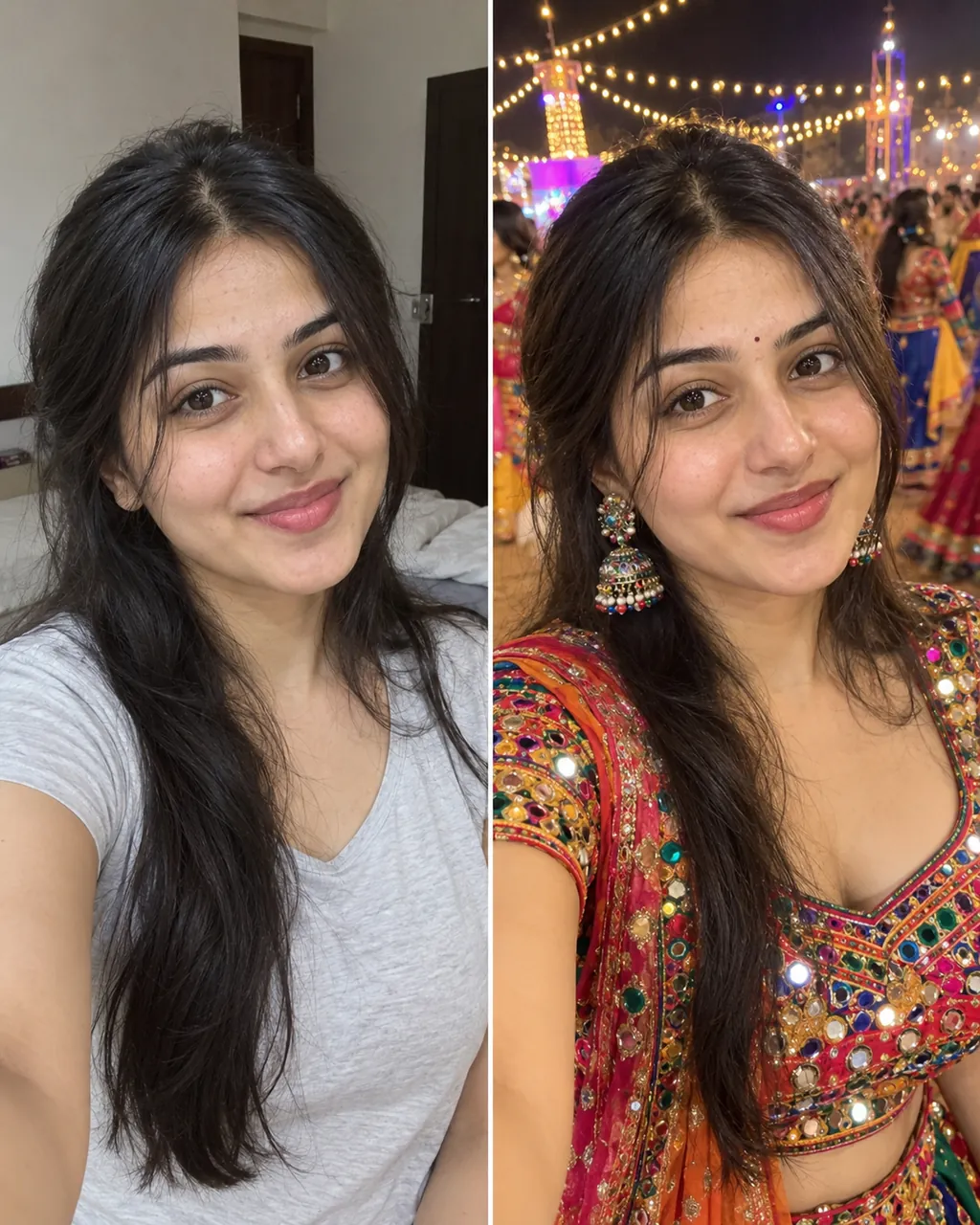
Reference Reel · Glam Reveal (Not a Tiger Transition)

From Towel Turban to Long Glam Waves

A hand covers the lens; the look changes on the reveal.

The reference begins with a bare face and a towel turban. A hand moves over the lens, then the reveal shows very long glam waves and full makeup, not tiger face paint. The tiger transition ai trend uses this reel’s sequence and camera movement as the guide, replacing its subject with the person in your uploaded photo. The reference controls the reveal and framing; your photo supplies the person who appears, and the generated details may vary.

  • Bare face with a towel turban
  • Hand passes over the lens
  • Reveal with long waves and full makeup

Reference Reel · Tiger Makeup

A Claw at the Lens, Then Tiger Paint

The plain look gives way to an orange mane.

This reference opens on a plain look, then brings a claw toward the lens. The next view reveals full tiger face paint and an orange mane. The generated tiger makeup transition follows that reference action and framing, with your uploaded photo used for the person shown in the clip. The reference provides the sequence and camera movement; your photo provides the subject, while small details in the final look may vary.

  • Plain look at the start
  • Claw reaches toward the lens
  • Tiger face paint and orange mane

Straight Answers

What This Tiger Transition Makes—and What It Does Not

The reference reel sets the scene, movement and pacing. Your photo supplies the person. That keeps the workflow simple, while also setting clear limits on what you can change.

What You Get

  • One photo places you in the selected reveal: either the glam waves and makeup look or the tiger face paint and orange mane.
  • MiniMax H3 follows the reference action, camera framing and rhythm for the 15-second clip.
  • The output is vertical 9:16 with instrumental sound and no voice.
  • The two examples make the visual difference clear: glam waves and makeup, or tiger paint and an orange mane.

Known Limits

  • You cannot choose a custom scene or rewrite the reference reel’s actions; the selected reference controls them.
  • The clip is 15 seconds, even if the reference reel shown is shorter.
  • The soundtrack is instrumental and has no voice; you cannot upload your own song.
  • A generated reveal can differ from the reference in details such as makeup, hair or facial likeness, so the result is not a frame-for-frame copy.
Make My Tiger Transition

The Trend Explained

What Is the Tiger Transition AI Trend?

The tiger transition ai trend is a short transformation format in which a claw reaches toward the lens before tiger face paint and an orange mane appear. A separate glam reference shows a bare-faced person in a towel turban disappearing behind a hand and returning with long waves and full makeup. This page uses MiniMax H3 to put the person from one uploaded photo into a reference reel. The reel determines the action, camera and pacing; the result is a 15-second, vertical 9:16 video with instrumental sound and no voice. You cannot direct a new setting or supply a song.

One Photo Sets the Person

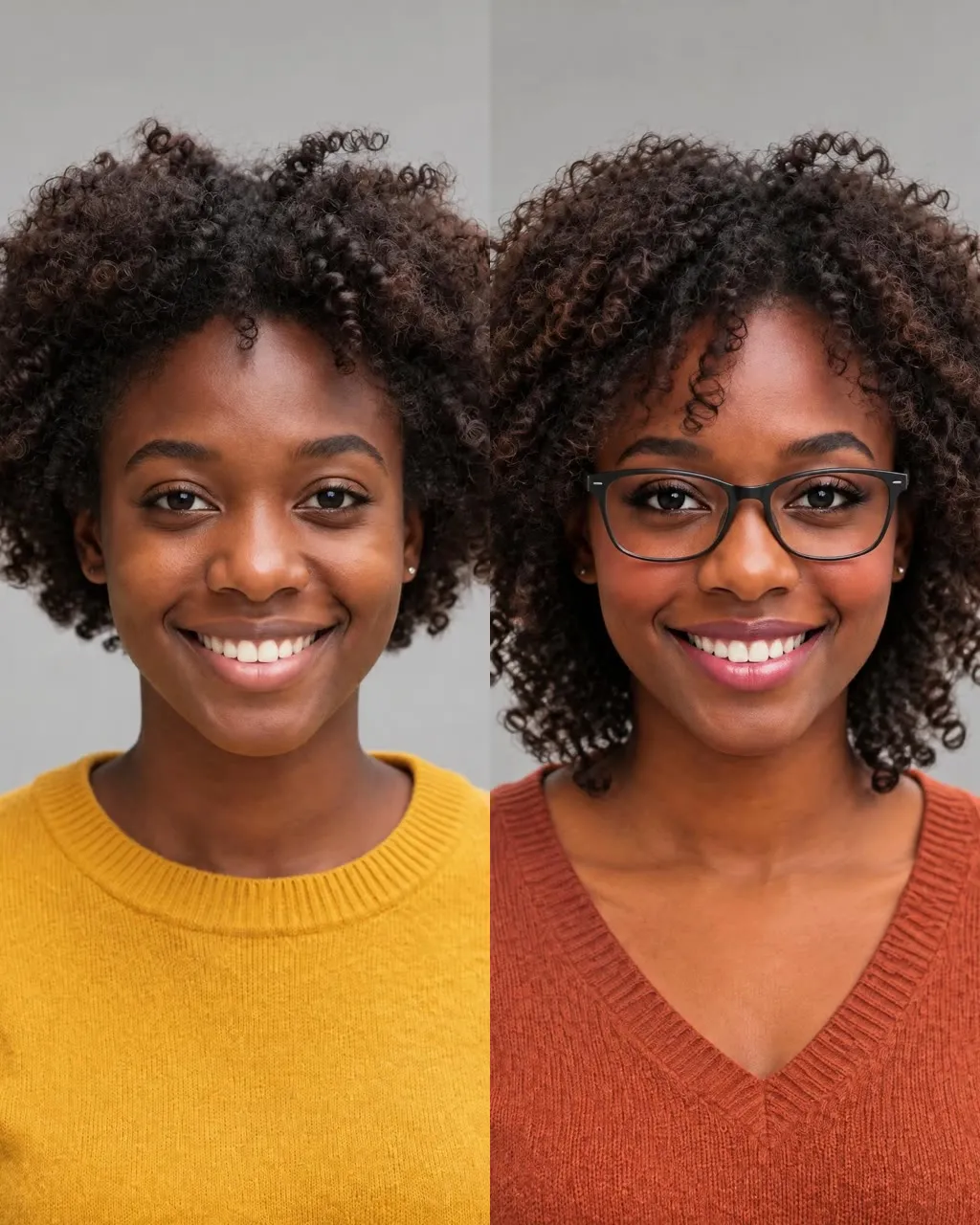
Upload one clear photo of yourself or a consenting adult. MiniMax H3 uses that image to place the person into the reference reel’s sequence. A front-facing photo with an unobstructed face gives the model a clearer view, but the final makeup, hair and likeness may still vary. Check that the face is visible before uploading, since the image supplies the person shown throughout the reveal.
The Reference Sets the Reveal

Choose the supplied reference that matches the result you want. The glam reel moves from a towel turban to long waves and makeup; the tiger makeup reel moves from a plain look to face paint and an orange mane. These references produce distinct reveals. You cannot select a custom location or change the action. The reference also determines the order of the reveal, so choose it before uploading your photo.

A Vertical Clip With Instrumental Sound

The output is 15 seconds in a 9:16 vertical format. It includes instrumental sound without spoken or sung vocals. You cannot upload your own song, so add a track separately when posting if you want music with lyrics.

More to try with your photo

Tiger Transition AI Trend FAQ

Answers about the photo, reference reels, sound and finished video.

Make My Tiger Transition
How do I make the tiger transition AI trend video from my photo?

Choose the tiger makeup reference, upload one clear photo of yourself or a consenting adult, and press Make My Tiger Transition. The glam reference produces a glam reveal with long waves and makeup, while the tiger makeup reference guides the tiger face paint and orange mane. MiniMax H3 uses the photo for the person and follows the selected reference for the action, camera and timing. The result is a 15-second vertical video with instrumental sound and no voice.

Which reference makes the tiger makeup transition?

Choose the reference that starts with a plain look and brings a claw toward the lens. Its reveal shows full tiger face paint and an orange mane. The other reference shows a towel turban, a hand over the lens, long glam waves and full makeup. The selected reel guides the sequence and framing, while your uploaded photo supplies the person shown in the resulting clip.

Can I choose what happens in my tiger transformation video?

No. The selected reference reel determines the actions, camera framing and pacing. You can choose between the available reference looks, but you cannot specify a new location, add your own scene or change the sequence with a custom prompt.

How many photos do I need for the tiger transition video?

You need one photo to generate a clip. Use a clear, front-facing image where the person’s face is visible. Upload only your own photo or a photo of an adult who has agreed to be included.

Does the tiger transition video include the original song or voices?

No. The generated clip has instrumental sound and no voice, and you cannot upload your own song. If you want a particular track, add it separately using the music tools available where you post the video.

How long and what shape is the finished tiger makeup video?

The generated video is 15 seconds long and has a vertical 9:16 frame. The original reference reels are shorter, but the generated result follows their action and pacing within the fixed 15-second output.

Will my photo become a realistic tiger transformation?

The tiger makeup reference shows a person with tiger face paint and an orange mane; it does not turn the person into a literal tiger. MiniMax H3 follows that visual idea, but exact facial likeness, paint details and hair can vary in the generated result.

Can I use someone else’s face in a tiger transition AI trend clip?

Only use a photo of yourself or an adult who has agreed to appear in the video. A clear photo helps the model place the person into the reference, but consent matters before uploading another adult’s image.

What should I know before sharing the generated clip?

Review the result before posting, especially the face and transformation details. The clip uses instrumental sound without vocals, so add a track separately if needed. Read the [AI trend creation guide](/hub/how-to-do-the-ai-trend) for practical advice on preparing and sharing trend videos.

Explore More

More AI Trend Tools and Guides

Plans and Credits

Put Your Face in the

Tiger Transition AI Trend

Upload one photo and let MiniMax H3 follow the reference reel’s reveal in a 15-second vertical clip. The tiger transition ai trend includes instrumental sound and no voice.

Make My Tiger Transition

One photo • 15 seconds • 9:16 vertical

Put Your Face in the

Make My Tiger Transition