AI Fashion Video Edit: Your Plaza Pose Sequence

Upload one photo for an ai fashion video edit that places you in the street-style reel: the same poses, camera angles and rhythm, in a 15-second vertical clip with instrumental sound and no voice.

1Add your photo

2Quality & length480p · 15s · 9:16120 credits

No subscription · Ready in about 3 minutes · Not charged if it fails

Upload a photo of yourself or of an adult who has given permission. Do not upload someone else’s photo without their consent.

From the Feed

The Street-Style Reel This Edit Follows

This page follows one reference: a street-style fashion reel by @erfaiin, posted on 5 January 2025. Its model poses and walks through a city plaza in a sequence of 14 jump cuts. The generated clip uses that reel as its guide for the subject’s actions, camera positions and pacing, while your uploaded photo supplies the person on screen. The sequence gives you a clear preview of the movement and setting before you upload. The original reel remains the source reference, so the page does not present it as a result generated from your photo.

Make My Fashion Video

Three Steps

How to Make an AI Fashion Video Edit

  1. 1

    Choose a Photo You Can Use

    Select one clear photo of yourself, or of an adult who has agreed to appear in an AI-generated video. Make sure the person is visible enough to identify as the intended subject. This page takes one photo, so you cannot combine several people or upload a separate outfit reference. Before continuing, check that you have permission to use the image and that it shows the person you want featured. A visible face helps establish who should take the lead role in the generated plaza sequence.

  2. 2

    Upload the Photo

    Add the photo in the upload area. The original street-style reel guides the poses, plaza movement, camera positions and timing; you do not type a prompt or select a new scene. The page’s sample shows the source reel, not a finished generation.

  3. 3

    Generate and Review the Clip

    Press Make My Fashion Video to start generation. The result is a 15-second, 9:16 video with instrumental sound and no voice. Review the face, clothing and movement before sharing; the reference guides the sequence, but it is not a guarantee that every detail will match your photo exactly. If you plan to post the clip, check the platform’s rules about labeling AI-made media and add a separate track there if you want different audio.

Straight Answers

What This Fashion Edit Does and Does Not Change

The reference sets the scene and movement, so you can see what the single-photo workflow gives you before you upload. The sample on this page is the original reel, not a generated result; your finished clip is generated from your photo and may differ in likeness or visual details.

What You Get

  • One photo is enough to place you in the reference reel as the featured person.
  • The original poses, camera positions and pacing guide the generated clip, including its plaza walk and pose sequence.
  • The result is a 15-second vertical 9:16 video with instrumental sound and no voice.
  • You can judge the reference itself on this page; it shows the street-style scene and editing rhythm the generation follows.

Known Limits

  • You cannot choose new actions or direct separate shots; the reference reel determines the movement and camera sequence.
  • You cannot choose a different location or set a custom scene. The edit follows the reference’s city-plaza setting.
  • The clip has instrumental sound only, with no voice. You cannot upload your own song.
  • The reference is not a sample generation, so it does not prove how closely every face, garment or detail will match in the final video.
Make My Fashion Video

The Trend Explained

What Is the AI Fashion Video Edit Trend?

The ai fashion video edit is a one-photo transformation based on a street-style reel. The reference features a model posing and walking through a city plaza, cut into 14 jump cuts. Upload one photo of a person, and MiniMax H3 uses the original reel as a reference to generate a 15-second, 9:16 video with that person in the lead role. Actions, camera positions and rhythm follow the reel. The tool does not let you set a different location or invent a new sequence, and the result includes instrumental sound without voice. The reference shown here is the creator’s original video, not a generated example, so use it to understand the source sequence rather than as a promise of exact output quality.

One Photo Replaces the Lead

Upload one photo of the person who should appear in the edit. MiniMax H3 uses the original reel as the motion and camera reference, then places the uploaded person in the lead role. A clear image with the face visible gives the model a more useful reference for the person it needs to depict.
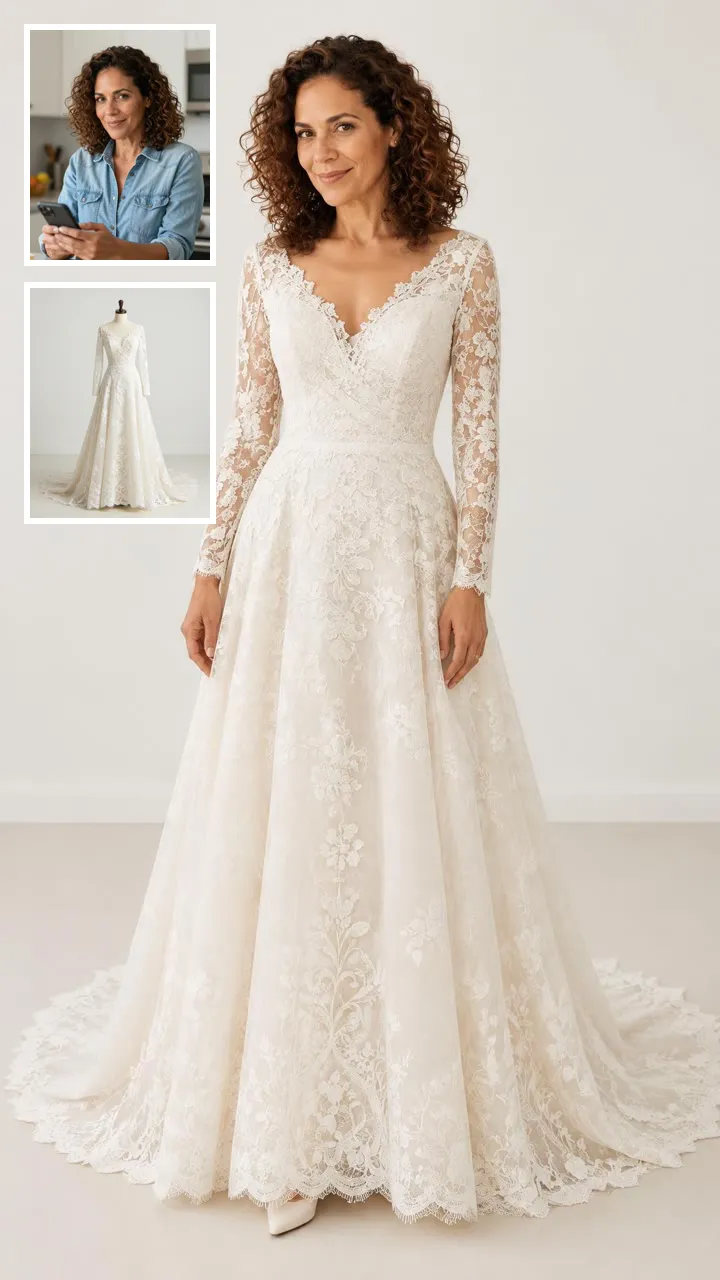
The Reel Sets the Movement

The source clip shows a model posing and walking through a city plaza in 14 jump cuts. The generated fashion walk video follows the reference’s actions, camera positions and pacing. You cannot ask for a different pose sequence or specify a custom scene on this page.

Vertical Video With Instrumental Sound

The output is a 15-second video in 9:16 format. It has instrumental sound and no voice, and the page does not accept a song upload. If you want a different track for a social post, add it separately in the platform where you share the video.

More to try with your photo

AI Fashion Video Edit FAQ

Answers about the reference reel, photo requirements, motion, sound and output.

Make My Fashion Video
How can an AI fashion video edit turn my photo into a fashion video?

This page makes a street-style fashion edit from one photo. Upload a photo of yourself, and MiniMax H3 uses the original plaza reel as a reference for the poses, camera positions and rhythm. The output is a 15-second vertical video with instrumental sound and no voice. The reference determines the scene and movement, while your photo supplies the person shown in the generated clip. You do not need to upload a separate video or write a prompt.

How do I make an AI fashion video edit using a selfie?

Upload one selfie with your face visible, then start generation. The source reel supplies the actions, camera positions, plaza setting and edit rhythm, so you do not provide a separate video or write a prompt. The result is a 15-second 9:16 clip; its scene and movement follow the reference rather than your own directions. Before sharing, check that the generated face, clothing and movement look right to you. The reference is the original reel, not a sample made from your selfie.

What happens in the street-style fashion edit?

The reference shows a model posing and walking through a city plaza. The original reel uses 14 jump cuts, and the generation follows its movement, camera positions and timing while using your photo for the featured person. The page’s sample is the original reel, not an AI-generated result. It lets you inspect the source sequence before uploading, including the plaza setting and the order of the poses.

Can I choose the poses or make a custom scene?

No. The original reel determines the pose sequence, camera positions, pace and plaza setting for this ai fashion video edit. You upload one photo to replace the featured person, but you cannot direct new actions, choose a different location or request a custom scene on this page.

Can I upload a full-body photo or a picture of my outfit?

This page accepts one photo of the person who should appear in the video. It does not provide a separate outfit upload or a full-body-photo requirement. Use an image you have permission to use and keep the person’s face visible so the intended subject is clear.

Does the fashion video have music or voice?

The generated clip includes instrumental sound and has no voice. You cannot upload your own song to this page. If you want different audio in a social post, add a track separately using the sharing platform’s sound tools.

How long is the fashion video, and what shape is it?

The output is 15 seconds in vertical 9:16 format. The reference reel guides the actions, camera positions and rhythm across the clip. Review the result before posting, since the source is a motion reference and does not guarantee an exact reproduction of every visual detail.

Is the reference sample an AI-generated result?

No. The sample is the original street-style reel by @erfaiin, posted on 5 January 2025. It shows the reference scene and edit that guide generation; it is not a result made from a user photo, so it cannot demonstrate the likeness or quality of your own generated clip. Use the sample to see the plaza setting, poses and camera sequence that the generated video follows.

How much does one AI fashion video edit cost?

One 15-second clip costs {credits:768p-15} credits. You can also buy a one-time video pack: 1 video for $9.99, 3 for $19.99, or 5 for $29.99. Monthly plans start at $12.99 and include 400 credits; see the pricing page for current details.

Can I use a photo of someone else?

Yes, you can upload a photo of another adult if they have given permission. Review the generated clip before sharing it, and follow the sharing platform’s AI labeling rules.

How do I make and share an AI fashion trend video?

Upload one photo of an adult who has given permission, generate the clip, and review it before sharing. Post the video with the platform’s AI label if its rules require one. The AI trend guide explains how to prepare and share this kind of video.

Explore More

More From Ricebowl AI

Step Into the Plaza in an

AI Fashion Video Edit

Upload one photo and let the reference guide the poses, camera positions and rhythm in your 15-second ai fashion video edit. Instrumental sound included; no voice.

Make My Fashion Video

One photo • 15 seconds • 9:16 video • Instrumental sound

Step Into the Plaza in an

Make My Fashion Video