Fitting Room Outfit Change AI Trend: Five Looks, One Glide

Make a fitting room outfit change AI trend video from one photo. MiniMax H3 follows the provided fitting-room trend clip’s gliding camera and curtain-by-curtain outfit reveals in a 15-second vertical video with instrumental sound.

1Add your photo

2Quality & length480p · 15s · 9:16120 credits

No subscription · Ready in about 3 minutes · Not charged if it fails

Upload a photo of yourself or an adult who has agreed to appear in an AI-generated video.

From the Feed

The Reference Clip’s Curtain-by-Curtain Reveal

The provided reference clip moves its camera along fitting rooms while burgundy curtains reveal outfits. The outfits visible in the reference include a leather jacket over a yellow slip dress, a navy sweater, double denim, a striped knit and a black blazer; they describe the reference and are not selectable or guaranteed results. This page has no separate case gallery; the reference guides the action, framing and pacing of your generated video.

Make My Outfit Reveal

Three Steps

How to Make the Fitting Room Outfit Change AI Trend

  1. 1

    Choose a Clear Photo

    Select one photo of yourself, or of an adult who has agreed to appear in the video. Check that the person is easy to identify in the image before you upload it; the workflow uses this single photo to replace the person in the reference sequence.

  2. 2

    Generate the Curtain Reveal

    Press Make My Outfit Reveal. MiniMax H3 uses the trend reference to guide the gliding camera, curtain reveals, action and pacing. You cannot write a custom setting or change the scene, and you do not need to provide a second photo.

  3. 3

    Review and Download the Clip

    When generation finishes, review the 15-second vertical result. The video includes instrumental sound but no voice, and it follows the reference clip’s action. Add a track in your posting app if you want a different sound.

Straight Answers

What This Outfit Change Video Does

The fitting-room effect is a recreation of a specific reference video. Here is what the one-photo workflow includes and where its limits are clear.

What You Get

  • MiniMax H3 uses one uploaded photo to put you in the reference clip’s fitting-room sequence.
  • The camera movement, action and pacing follow the reference, including the gliding view past the curtains.
  • The output is a 15-second vertical 9:16 video with instrumental sound and no voice.
  • The result is a stylized video sequence, so you can see the outfit reveals without treating it as a garment fit preview.

Known Limits

  • You cannot choose a different scene or ask for a custom setting; the reference clip determines the scene and action.
  • The video is 15 seconds long, and the movement follows the reference rather than a custom performance.
  • The audio has instrumental sound only. You cannot upload your own song, and the clip has no spoken or sung vocals.
  • The result is not a reliable virtual fitting or sizing tool; generated clothing in a video does not show how real garments fit your body.
Make My Outfit Reveal

The Trend Explained

What Is the Fitting Room Outfit Change AI Trend?

The fitting room outfit change AI trend is a short video built around one continuous camera glide past curtained changing rooms. Each curtain reveal shows the same person in a different outfit, turning an ordinary try-on sequence into a quick fashion-show gag. Here, you upload one photo and MiniMax H3 uses the trend’s reference clip to guide the replacement person, camera movement, action and timing. The output lasts 15 seconds, uses a vertical 9:16 frame and includes instrumental sound without vocals. The clip follows the reference, so you do not set a new location or direct a different sequence. Treat the result as entertainment rather than a true virtual try-on: the generated outfits do not predict fit, fabric or how a real garment will look on your body.

One Photo Replaces the Reference Person

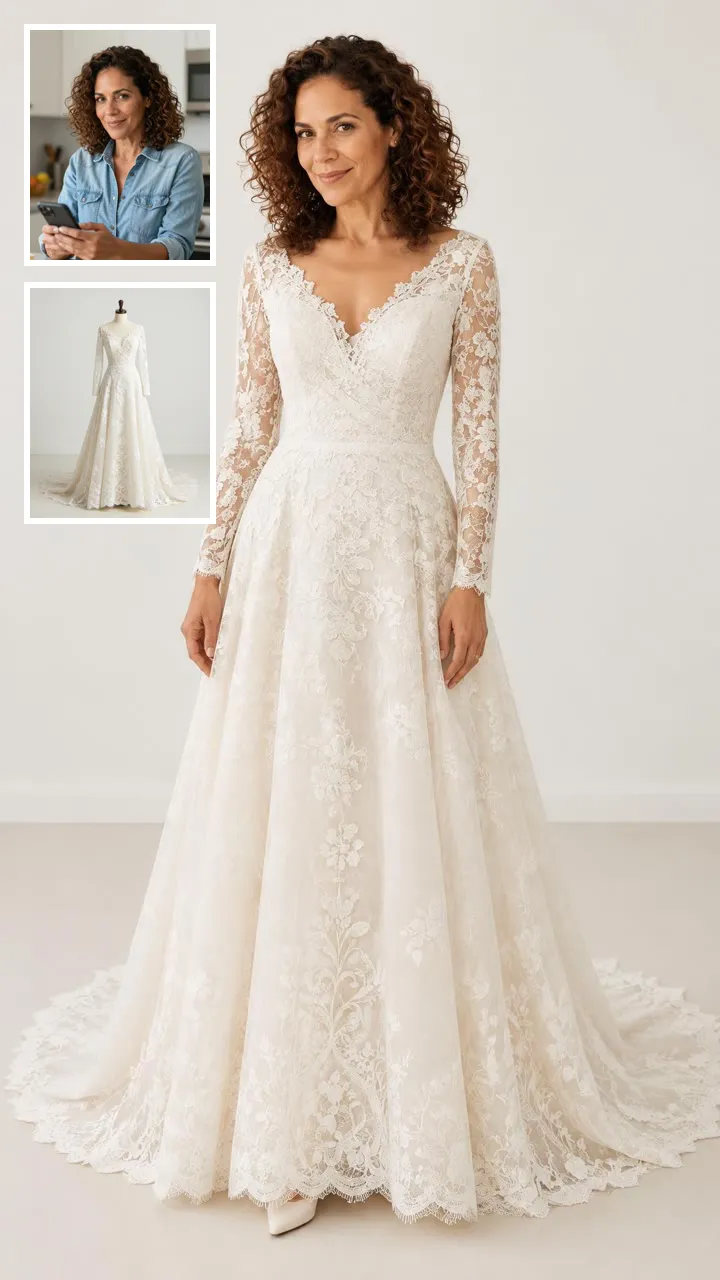
Upload one photo of yourself or an adult who has agreed to be included. MiniMax H3 uses the image to make you the person in the fitting-room sequence. The uploaded photo supplies the person, while the reference clip supplies the scene and movement. The clip follows that reference, including its camera glide and curtain reveals.
The Camera Glides Past the Curtains

The provided reference clip defines the sequence: the camera keeps moving while each fitting-room curtain reveals another look. The outfits visible in that reference include a leather jacket over a yellow slip dress, a navy sweater, double denim, a striped knit and a black blazer; these describe the reference, not selectable or guaranteed generated outfits. The AI fitting room try-on video follows the reference structure instead of asking you to invent a new scene.

Instrumental Sound, No Voice

The generated clip is 15 seconds in vertical 9:16 and has instrumental sound without vocals. You cannot upload your own song through this page. If you want a particular track, add it using the sound library in the app where you publish the video.

More to try with your photo

Fitting Room Outfit Change AI Trend FAQ

Answers about the one-photo setup, the reference sequence, sound, video length and sharing.

Make My Outfit Reveal
What AI tool can turn my photo into a fitting-room outfit-change trend video?

This page makes a curtain-reveal video from one photo. Upload a clear image of yourself, then generate the clip; MiniMax H3 uses the reference video to guide the camera glide, curtain reveals, action and pacing. The result is a 15-second vertical video with instrumental sound and no voice. The workflow uses the reference for the sequence, so you do not need to describe the scene.

How do I make an AI outfit transformation video from a selfie?

Upload one clear photo of yourself and press Make My Outfit Reveal. MiniMax H3 uses the reference clip to build the fitting-room sequence around the person in your photo, including its moving camera and outfit reveals. You do not need to write a prompt or supply a second image. Review the generated clip before downloading it to share.

What should I type into an AI video generator to make an AI fitting room try-on video?

You do not need to type a prompt on this page. The reference clip supplies the scene, camera movement, action and timing, while your uploaded photo supplies the person. The result is a stylized outfit-change video, not a measurement-based try-on that predicts real clothing fit.

Which app can make a video of me changing outfits using just one photo?

This page creates a fitting-room outfit change AI trend video using one photo. The workflow follows the provided reference: a camera glides past fitting-room curtains as different looks appear. It does not let you choose a separate setting or describe a custom sequence.

Can I choose the outfits or change the fitting-room scene?

No. The reference clip determines the scene and outfit-reveal sequence, and you cannot set a different location or custom action here. The reference shows a leather jacket over a yellow slip dress, a navy sweater, double denim, a striped knit and a black blazer as the camera passes the curtains; these are reference outfits, not guaranteed generated results. Your uploaded photo supplies the person in the sequence.

Does the fitting room outfit change AI trend video have singing or dialogue?

No. The 15-second clip has instrumental sound and no voice, so it does not sing or include spoken dialogue. You cannot upload your own song through this page; you can add a track later in the app where you post the video.

How long and what shape is the outfit-change video?

The generated video is 15 seconds long and uses a vertical 9:16 frame. The camera movement and timing follow the reference clip, which makes the result suited to a short vertical post. The page does not offer a custom duration or a different aspect ratio.

Can this video show how clothes will really fit me?

No. This is a stylized recreation of the curtain-reveal trend, not a dependable virtual fitting or sizing preview. Generated outfits do not establish how real garments will fit, feel or look on your body, so use it for an entertaining transformation rather than a shopping decision.

Whose photo can I upload for the outfit-change trend?

Use your own photo or a photo of an adult who has agreed to appear in an AI-generated video. Upload one image for each clip. Make sure you have permission before using someone else’s likeness, and consider who may see the result before sharing it.

How do I make and share the fitting room outfit change AI trend?

Upload one permitted photo and generate the 15-second vertical clip. The video uses instrumental sound without vocals; add a track in your posting app if you want one. Check that you have permission to use the person’s photo and follow your posting platform’s AI labeling rules. Read the [AI trend creation guide](/hub/how-to-do-the-ai-trend) for more steps and sharing tips.

Explore More

Explore Outfit and AI Video Tools

Put Yourself Behind Every Curtain in the

Fitting Room Outfit Change AI Trend

Make the fitting room outfit change AI trend from one photo: MiniMax H3 follows the reference’s camera glide and outfit reveals in a 15-second vertical clip.

Make My Outfit Reveal

One photo • 15 seconds • 9:16 vertical • Instrumental sound

Put Yourself Behind Every Curtain in the

Make My Outfit Reveal