The Hand-Off Is the Setup
The camera stays in a point-of-view position while a hand presents one object at a time. The repeated gesture sets up the reveal, so the viewer can recognize the pattern before the next outfit appears.
Make the pov outfit transition ai trend with one photo. MiniMax H3 follows the original reel’s hand-held item reveals and jump cuts, placing you in a matching look each time.
1Add your photo
2Quality & length480p · 15s · 9:16120 credits
No subscription · Ready in about 3 minutes · Not charged if it fails
Only upload a photo of yourself or of an adult who has agreed to be included.
From the Feed
The reference reel builds its joke through a repeating hand-off and reveal: a hand presents an item, then a jump cut shows a coordinated look. Its six objects are a ring, sunglasses, a silk scarf, a phone, iced matcha and a red fan. This POV outfit transition AI trend uses that sequence to guide the generated video. This page has no separate case gallery; those details describe the supplied reference.
Make My Outfit VideoThree Steps
Select one photo of yourself, or an adult who agreed to be included. A single-person image with a clearly visible face gives the model a direct subject to place into the reference sequence.
Upload one photo and start generation to make the POV outfit transition AI trend video. MiniMax H3 uses the supplied reel as its reference for the hand-held items, outfit changes, camera position and timing. The page does not offer scene or soundtrack choices. After generation, review the clip to check that its sequence and framing suit your intended post.
Check the finished 15-second video before sharing. It is framed vertically at 9:16 and includes instrumental music without vocals; add a song separately in your posting app if desired.
Straight Answers
The result follows a specific reference, so the sequence is predictable while creative control stays focused. Here is what to expect before you upload a photo.
The Trend Explained
This page uses one uploaded photo as the input for a 15-second video generated with MiniMax H3. The output is vertical 9:16 and includes instrumental music with no vocals. You cannot choose a new setting or upload a song. The supplied reference determines the scene and sequence: a hand presents six objects, and each hand-off leads into a jump cut to a matching look. Review the finished clip to check its framing and outfit reveals before sharing it.
The camera stays in a point-of-view position while a hand presents one object at a time. The repeated gesture sets up the reveal, so the viewer can recognize the pattern before the next outfit appears.
The reel pairs six objects with six outfit reveals: a ring, sunglasses, a silk scarf, a phone, iced matcha and a red fan. The generated video follows that order and uses the reference scene rather than letting you type custom wardrobe directions. This item-by-item outfit reveal depends on the source clip’s hand-offs and jump cuts, so the objects establish the rhythm while each matching look delivers the next beat.
Upload one photo of a person. MiniMax H3 follows the reference for the movement and framing, and the result is a 15-second, 9:16 video with instrumental music and no voice.
Answers about the reference, photo requirements, video format, music and privacy.
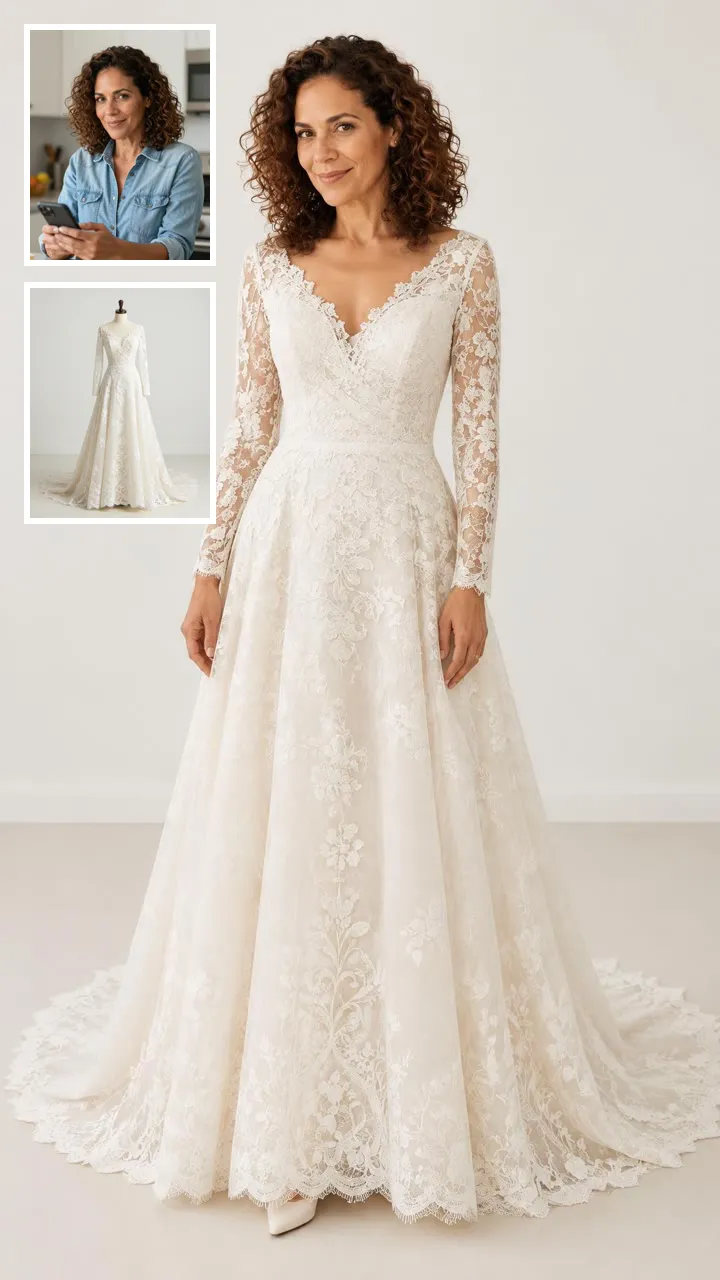
Make My Outfit VideoThis page uses MiniMax H3 to place the person from one uploaded photo into the supplied outfit-transition reference. The model follows the reference’s actions, camera position and pacing, including its item-by-item jump cuts. For a one photo outfit transition, upload a photo of yourself or an adult who has agreed to appear. The reference supplies the setting and sequence, while the uploaded image supplies the person shown in the generated clip.
Upload one photo of yourself and start generation. MiniMax H3 follows the reference reel, where a hand presents an item before a jump cut reveals a matching outfit. The result is a 15-second vertical video with instrumental music and no voice.
A hand holds an object toward the camera, then a jump cut reveals a person in a look that matches it. The reference used here repeats the gag with a ring, sunglasses, a silk scarf, a phone, iced matcha and a red fan, with a different outfit reveal after each item. This POV outfit change video follows the same six-part sequence, so the object hand-offs and matching looks provide its structure.
You need one photo of a person. Use a clear image of yourself or an adult who has agreed to be included; the reference clip supplies the sequence, movement, setting and camera framing for the generated video. MiniMax H3 uses the photo as the person shown in the clip, while the reference provides the six item reveals and matching outfit changes. The result is a 15-second vertical 9:16 video with instrumental music and no vocals.
No. The generated clip follows the supplied reference, including its six item reveals, matching looks, actions, camera position and pacing. You cannot choose a new setting or customize the sequence on this page.
The output includes instrumental music and no voice. You cannot upload your own song during generation. If you want a particular track, add it separately when you post the finished video.
Every result is 15 seconds and vertical 9:16. The fixed format follows the short fashion-reel style of the supplied reference; you cannot set another length here.
Only use a photo of yourself or an adult who has agreed to appear in the generated video. Do not upload an image of someone who has not given permission for this use.
The confirmed output is a 15-second vertical 9:16 video with instrumental music and no vocals. The available tool information does not specify whether the generated video follows the original reel’s actions or sequence.
Upload one photo of yourself or a consenting adult, generate the 15-second vertical clip, then review it before posting. The pov outfit transition ai trend follows the reference reel and includes instrumental music without vocals. Check that the framing and outfit reveals look right in the finished video, and add a track separately in your posting app if you want one. Read the [AI trend how-to guide](/hub/how-to-do-the-ai-trend) for general guidance on making and sharing trend videos.
Explore More
Six-Item Outfit Reveal
Make the pov outfit transition ai trend from one photo. Get a 15-second vertical clip that follows the reference reel’s item reveals and jump-cut timing.
Make My Outfit VideoOne photo • 15 seconds • 9:16 vertical
Put Yourself Into the
Make My Outfit Video