AI Pixie Haircut Filter: The Mirror Sees a New Cut

Use the ai pixie haircut filter to turn one photo into a 15-second salon reveal. Choose a scene chip, then watch your original hairstyle give way to a pixie look.

1Add your photo

Choose a Salon Scene

2Quality & length768p · 15s · 9:1660 credits

No subscription · Ready in about 3 minutes · Not charged if it fails

Only upload a photo of yourself or a consenting adult. Do not upload a child’s photo.

From the Feed

Choose the Salon Moment

This page has two salon setups rather than a gallery of example cases. Pixie Reveal opens with the original hairstyle visible in a softly lit salon, then centers the haircut change. Salon Confidence places the person beside a bright mirror, looking toward the reflection. Both choices use one uploaded photo and produce a 15-second vertical video, so choose the opening composition that fits the reveal you want.

Reveal My Pixie Cut

Three Steps

How to Make an AI Pixie Haircut Filter Video

  1. 1

    Choose a Salon Scene

    Select Pixie Reveal for a softly lit salon opening with the original hairstyle visible, or Salon Confidence for a bright mirror setup. The selected chip determines the scene; this page does not accept custom scene instructions.

  2. 2

    Upload One Clear Person Photo

    Add one photo of yourself or a consenting adult. Use good light and keep the face and hairstyle unobstructed. The generator uses that single image as its person reference for the haircut reveal.

  3. 3

    Generate and Review the Clip

    Press Reveal My Pixie Cut to create the 15-second vertical video with MiniMax H3. Review the result as an AI preview with environmental sound and instrumental music. No voice or user-supplied song is included.

Straight Answers

What the Pixie Preview Can and Cannot Show

A generated haircut reveal can help you picture a different silhouette, but it cannot settle how a real cut will suit your hair or face. Here are the practical limits before you upload.

What You Get

  • The ai pixie haircut filter creates a moving salon reveal from one photo, so you can preview a short hairstyle without cutting your hair first.
  • Two scene chips give you a choice of opening: Pixie Reveal starts in a softly lit salon, while Salon Confidence begins by a bright mirror.
  • The finished video is 15 seconds, vertical 9:16, and includes environmental sound plus instrumental music without human vocals.
  • The page explains the input and output before generation: one person photo, one selected chip, and a fixed video format.

Known Limits

  • The preview is an AI interpretation, not a reliable guarantee of the way a stylist will cut your hair or how the finished haircut will sit in real life.
  • You can upload one photo and choose only between the listed scene chips; you cannot add another person or describe a custom salon setting.
  • The video has no human voice, and the page does not accept a song upload. Its soundtrack is environmental sound and instrumental music.
  • A still image cannot show every detail a stylist needs, such as hair density, texture, growth patterns, or how much daily styling a pixie cut may require.
Reveal My Pixie Cut

The Trend Explained

What Does the AI Pixie Haircut Filter Make?

The ai pixie haircut filter turns one uploaded person photo into a 15-second, vertical 9:16 salon video that reveals a pixie hairstyle. The clip uses MiniMax H3 and one of two fixed scene chips: Pixie Reveal or Salon Confidence. The first shows the original hairstyle in a softly lit salon before the reveal; the second places the person by a bright salon mirror. The generated soundtrack contains environmental sound and instrumental music, but no human voice. Treat the result as a visual preview for discussion, not as a prediction of an actual haircut. A stylist can assess hair texture, density, face framing, and maintenance in ways a generated clip cannot.

One Photo Anchors the Reveal

The tool takes one photo of one person. Choose a clear image with the face visible and the original hairstyle in frame, so the opening can establish what changes. Use your own image or one from an adult who has agreed to it. The output is a generated video, not a before-and-after record of a real salon appointment.
Two Chips Set the Salon Opening

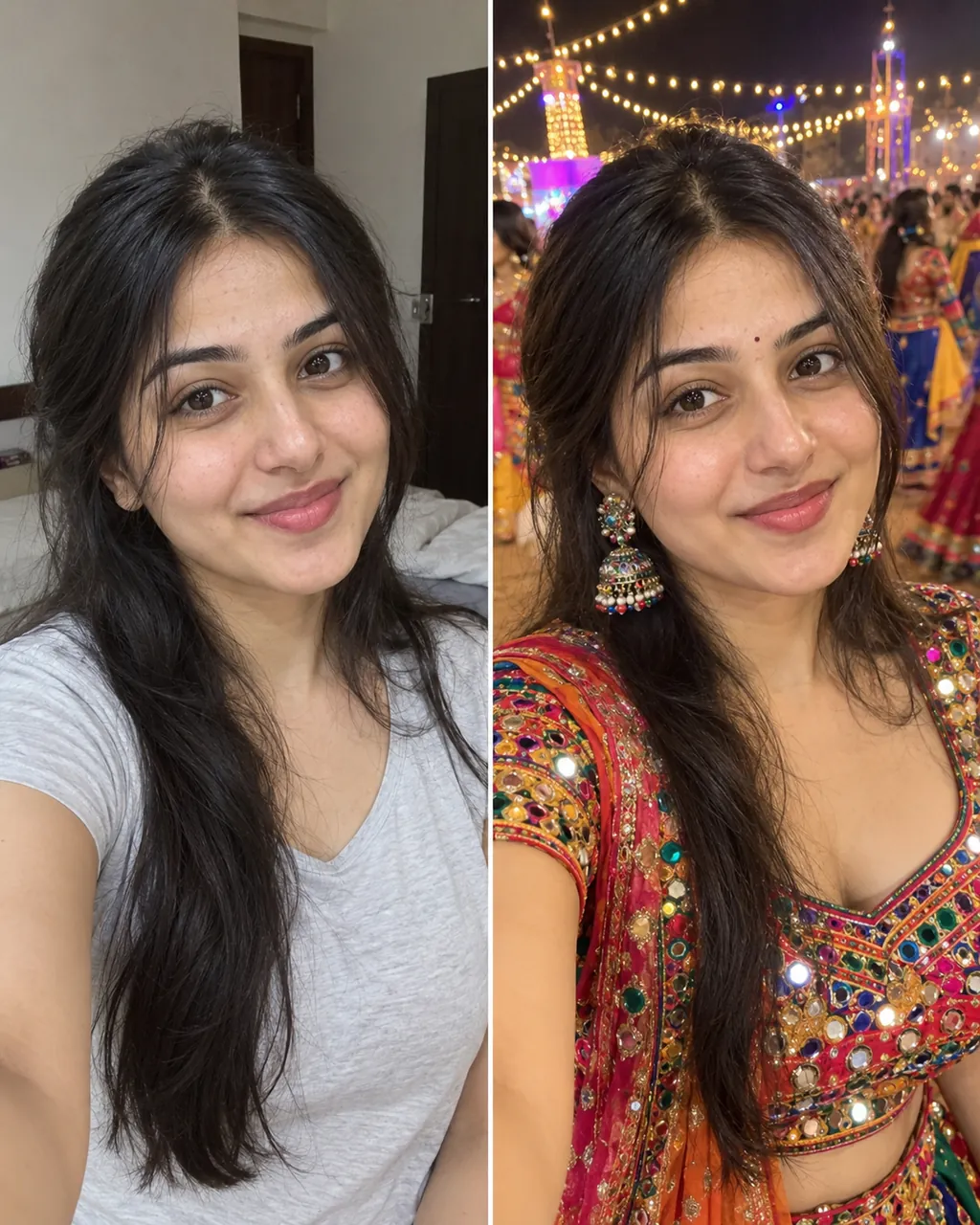
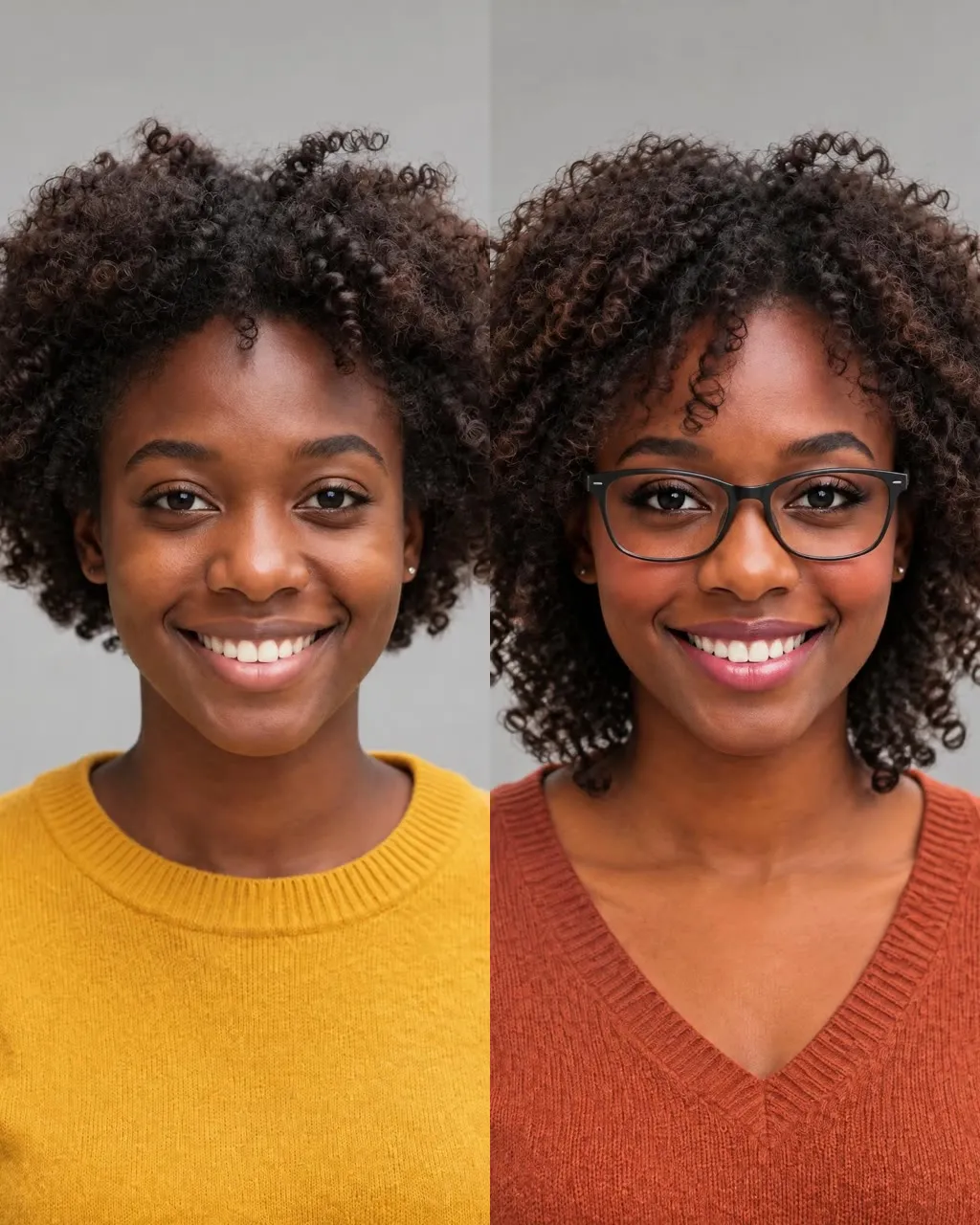
Pixie Reveal starts with the person sitting still in a softly lit salon, with the original hairstyle visible and face unobstructed. Salon Confidence starts beside a bright salon mirror, with the person looking toward the reflection. Both chips use the same one-photo input; you choose the scene from the available options rather than typing a custom prompt.

A Fixed Video and Sound Format

Each result is a 15-second 9:16 video made with MiniMax H3. It includes environmental sound and instrumental music, with no spoken voice. You cannot supply your own song in the generator. If you want a specific track, add it later using the sound tools on the platform where you share the clip. This fixed format makes the result an AI hairstyle change video for viewing and sharing, while the photo to pixie transformation remains a generated interpretation of the uploaded image.

More to try with your photo

AI Pixie Haircut Filter FAQ

Answers about the photo, scene choices, sound, video format, and what a generated haircut preview can tell you.

Reveal My Pixie Cut
How do I make an AI pixie haircut filter video from my photo?

Upload one clear photo of yourself or a consenting adult, choose Pixie Reveal or Salon Confidence, and press Reveal My Pixie Cut. MiniMax H3 generates a 15-second vertical salon video from that photo. The result is an AI preview, so use it to explore an idea rather than to predict an exact salon outcome.

What’s the best tool for trying a pixie selfie filter with AI?

This page makes a short video preview from one person photo and two fixed salon scenes. It is suited to seeing a pixie reveal in motion; it does not offer custom haircut prompts or a guarantee that a real cut will match. For a decision, bring the generated image or clip to a stylist and discuss your hair texture, density, and preferred maintenance. The pixie selfie filter gives you a visual starting point for that conversation.

How many photos do I need for the pixie cut filter video?

You need one photo of one person. Choose a clear, well-lit image with the face unobstructed and the original hairstyle visible. The page does not take a second reference image, a group photo, or a separate after photo.

Which salon scenes can I choose?

You can choose Pixie Reveal or Salon Confidence. Pixie Reveal begins with the person sitting in a softly lit salon with the original hairstyle visible; Salon Confidence begins beside a bright mirror, looking toward the reflection. The scene chips are the only scene choices on this page.

How long is the AI pixie haircut video, and what shape is it?

Every generated clip is 15 seconds in a vertical 9:16 format. That format suits portrait viewing on a phone, but the page does not provide a different duration or aspect ratio for this effect.

Does the pixie haircut video include a voice or let me add my own song?

No. The generated clip has environmental sound and instrumental music, without a human voice, and you cannot upload your own song to the generator. You can add a track later with the sound library on the platform where you post the video.

Will this AI pixie haircut filter show exactly how a real haircut will look?

No generated preview can guarantee the result of a real haircut. The video offers a visual idea based on one photo, while a stylist can assess your hair texture, density, growth pattern, and styling needs in person. Use the clip as a conversation starter, not as a promise. A photo to pixie transformation can help you discuss a silhouette, but it cannot show how your hair will behave after a real cut.

Can I use someone else’s photo for a pixie cut preview?

Use your own photo or a photo of an adult who has agreed to be included. Do not upload a child’s photo or an image of someone who has not consented. A clear face and visible hairstyle help establish the starting look for the reveal.

Can I change the haircut style or write my own salon prompt?

No. This page offers the listed scene chips and does not provide a text prompt or custom haircut controls. The generated result is a pixie haircut reveal using the selected scene, so it may interpret details differently from a style reference you have in mind.

Where can I learn how to make the AI pixie haircut filter trend?

Use one clear photo of yourself or a consenting adult, choose a salon scene, and generate the 15-second vertical reveal. The guide to the AI trend on this page covers those steps and the photo consent requirement. Treat the result as an AI preview, and only use a photo of an adult who has agreed to be included. The clip shows a generated hairstyle change, not the result of a real salon appointment.

Explore More

More Photo-to-Video Tools and Guides

Plans and Credits

AI Video Guides and Models

See Your Salon Reveal in an

AI Pixie Haircut Filter

Upload one consenting adult’s photo and pick a salon scene. The ai pixie haircut filter makes a 15-second vertical preview with environmental sound and instrumental music.

Reveal My Pixie Cut

One photo • 15 seconds • Vertical 9:16

See Your Salon Reveal in an

Reveal My Pixie Cut