FNAF Jumpscare Simulator vs AI Jumpscare Video: What Actually Scares People
Published October 13, 2026
A fnaf jumpscare simulator is an interactive experience or video where a character lunges straight toward the screen with a sudden, loud scream to shock the viewer. Across online communities, the search term fnaf jumpscare simulator points to three distinct formats: retro browser click games, AR camera masks, and personalized AI video transformations. New accounts can try it free. A 10-second clip costs 40 credits. Or pay once, no subscription: 1 video for $9.99, 3 videos for $19.99, or 5 videos for $29.99. If you want to create your own terrifying sequence using your personal portrait, you can use our FNAF jumpscare AI generator directly in your browser. Whether you want to test your own courage with an automated fnaf jumpscare simulator or craft a personalized fnaf jumpscare simulator to startle your friends, understanding how each fnaf jumpscare simulator format functions will help you choose the right tool.
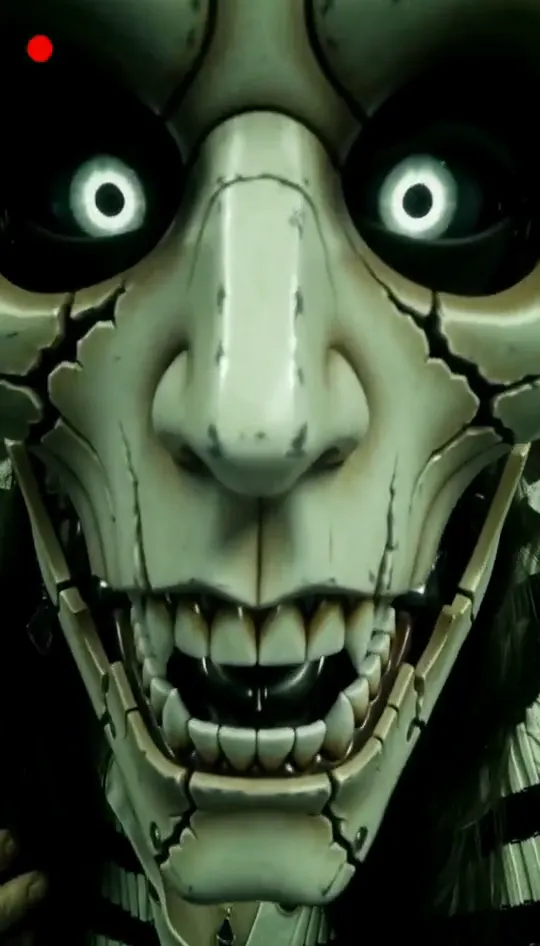
The FNAF AI Trend and Where It Came From
The ongoing FNAF AI trend grew out of years of community fascination with robotic horror and mechanical jumpscares. Long before modern tools existed, fans relied on a web-based fnaf jumpscare simulator to experience quick thrills. Back in 2023, short-form video feeds were filled with video-editor templates and AR filters that laid an animatronic head directly over a creator’s face. Around that same time in 2023, the YouTube channel Annoying Orange published a video titled “Asking AI to turn us into FNAF Jumpscares,” where fruit cartoon characters were reimagined as mechanical figures with wide jaws and sharp teeth. That project showed people how terrifying non-human characters looked when converted into damaged robots, but it did not let regular users transform their own moving footage into a fnaf jumpscare simulator.
By August 2026, social platforms saw a wave of still-image transformations where users turned personal portraits into mechanical characters. People shared still photos showing peeled faceplates and exposed wiring, but there was still no easy way to turn those portraits into an automated fnaf jumpscare simulator clip. On October 13, 2026, a web tool launched a selfie-to-jumpscare video feature that took a single portrait and turned it into an active, lunging fnaf jumpscare simulator video scare. Nobody can name one original creator or one original viral clip for the video version. There is no song attached to the fnaf jumpscare simulator trend; it relies purely on ambient mechanical noise and sudden shrieks. Today, people search for this fnaf jumpscare simulator phenomenon under several names, including the FNAF AI filter, animatronic face transformation, and FNAF jumpscare AI. Rather than relying on a classic fnaf jumpscare simulator with pre-rendered characters, users can now watch their own faces tear open into rusted machines.
What is a FNAF Jumpscare Simulator: Three Formats Compared
When people search for a fnaf jumpscare simulator, they are usually looking for one of three completely different creative formats. Understanding these boundaries prevents confusion when browsing fan sites or testing modern AI engines for a fnaf jumpscare simulator.
- Browser or Scratch jumpscare simulator games and fan-made fnaf jumpscare maker projects. In these web projects, you press a button or tap an office doorway, and an animatronic from the game lunges directly into the frame. The assets belong entirely to the horror game universe, meaning you cannot insert your own face, change the lighting, or alter the character design. It is a traditional fnaf jumpscare simulator designed to startle the player sitting at the keyboard.
- AR face filters and 2023 video-editor templates. These tools place a pre-built digital mask directly over your head in real time. While it tracks your movements, it is simply a surface graphic pinned to your forehead and jaw. Your real skin does not morph into plastic panels, and the surrounding room remains untouched. It does not generate a full narrative video scare like a tailored fnaf jumpscare simulator.
- AI jumpscare videos. This modern fnaf jumpscare simulator format takes your actual portrait, keeps your underlying bone structure, clothing, and background, and steadily morphs your features into an original robotic entity. The lights flicker, your head twitches, and your transformed self lunges forward in a fnaf jumpscare simulator.
Each format serves a different purpose. A standard fnaf jumpscare simulator game is built to frighten the person playing it, delivering random surprises during late-night gaming sessions. An AI jumpscare video, by contrast, gives you a finished MP4 file that you can send to someone else. Instead of waiting for a canned monster to jump out, you become the mechanical monster inside your own custom fnaf jumpscare simulator setup.
Photo Setup and the 8 Scene Options
Generating a believable horror transformation requires starting with a clean input image. If the input image is blurry or poorly framed, the resulting fnaf jumpscare simulator clip will lose the fine facial details that make the final fnaf jumpscare simulator transformation so unsettling.
| Photo Slot | Status | What Works | Notes |
|---|---|---|---|
| Photo 1 | Required | Clear face, looking at camera, chest up | Plain lighting, unobstructed eyes and mouth |
When you upload your selfie, you do not need to take off your everyday accessories. If you wear glasses, a baseball cap, or a gaming headset, you can keep them on. The generator integrates those items into the fnaf jumpscare simulator design, bending metal frames and attaching headwear to the worn plastic plates of the robotic skull through our jumpscare tool.
After preparing your portrait, you choose one of eight specific environments to frame the fnaf jumpscare simulator animation:
- Your Own Room: Your original room from the photo serves as the setting, bathed in noisy green night-vision security camera footage. This is the default look for a classic home-security fnaf jumpscare simulator scare.
- Pizza Party Room: A closed family pizza restaurant party room after hours, featuring a checkered floor, party tables set with paper hats, and a dark empty stage seen through a black-and-white security camera; you get closer with every flicker.
- Baby Monitor: A dark adult bedroom at night with nobody else in the room, framed from a green night-vision baby monitor view in a high corner; you stand up and walk toward the camera.
- Office Hallway: A dark office hallway showing a glowing exit sign at the far end and one flickering ceiling light on a black-and-white security camera; you step closer with every flicker.
- Prank a Friend: Filmed like a front-facing phone video call inside your own room; you smile naturally as if chatting, then suddenly freeze before transforming in this fnaf jumpscare simulator.
- Prank a Coworker: An empty office after hours viewed directly from a laptop webcam, complete with a faint red recording light in the corner.
- Halloween Scare: A dark living room on Halloween night decorated with carved glowing pumpkins and hanging cobwebs for a fnaf jumpscare simulator.
- Keep Glasses & Cap: Operates like Your Own Room, but ensures that any glasses, cap, headphones, or headset you wear stay firmly in place throughout the transformation.
Selecting the right room establishes the mood of your personal fnaf jumpscare simulator, grounding the robotic transformation in a believable space before the sudden fnaf jumpscare simulator lunge.
How to Make a FNAF Jumpscare Video in 3 Steps
Creating a personalized horror clip does not require editing software or manual animation rigging. While older fnaf jumpscare simulator tools forced fans to piece together static images, our web application handles the entire fnaf jumpscare simulator sequence in three straightforward actions.
- Upload your image. Visit our jumpscare creator and provide one clear portrait. Make sure your face is centered, unobstructed, and framed from the chest up so the engine can accurately map your jawline and cheekbones into mechanical components for your fnaf jumpscare simulator.
- Choose your scene and aspect ratio. Select one of the 8 environments described above for your fnaf jumpscare simulator. Choose between a 9:16 vertical format or a 16:9 horizontal format. If your goal is to share the final result on mobile messaging apps, short-video feeds, or direct messages, select 9:16 vertical. If you plan to embed the result into a desktop video, presentation, or horror compilation, 16:9 horizontal provides a broader security-monitor view for your fnaf jumpscare simulator.
- Generate and download your MP4. Once the rendering pipeline finishes, preview your 10-second 768p MP4 video. Verify the mechanical timing, review the audio sync, and save the file to your local drive.
Once saved, your custom fnaf jumpscare simulator video is ready to be shared with friends or archived for Halloween pranks. When you make your own jumpscare clip, the tool builds the movement and audio directly into the rendering process for a complete fnaf jumpscare simulator.
Real AI Jumpscare Clips Frame by Frame
To understand why this fnaf jumpscare simulator style works so well compared to a generic fnaf jumpscare simulator, examine how the pacing builds across individual frames. The tool page sample clip illustrates this pacing: a woman in glasses and a striped top sits in an office, the scene switches to night vision, her face cracks into an animatronic mask, and she lunges directly at the lens. This clip was not made with our tool; it is how the fnaf jumpscare simulator trend looks in feeds.
We screened 8 candidate clips for this article and only 3 of them were this effect.
Analyzing still frames from early online experiments shows how digital artists and creators laid the groundwork for this automated fnaf jumpscare simulator style.
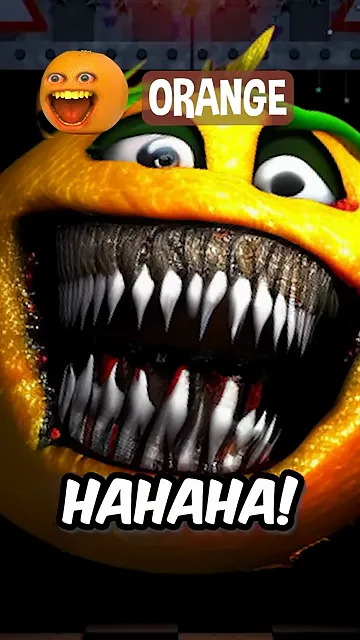
Frame 1 comes from the Annoying Orange video titled “Asking AI to turn us into FNAF Jumpscares.” It shows the orange cartoon character turned into an animatronic with a huge mouth of needle teeth pushed right up to the camera, alongside an on-screen caption reading “HAHAHA!”. This frame succeeds because the mechanical face completely fills the screen, eliminating empty negative space. To achieve this aggressive, crowded framing in our fnaf jumpscare simulator tool, select the Prank a Friend scene, which places your face directly against the front-facing camera lens.
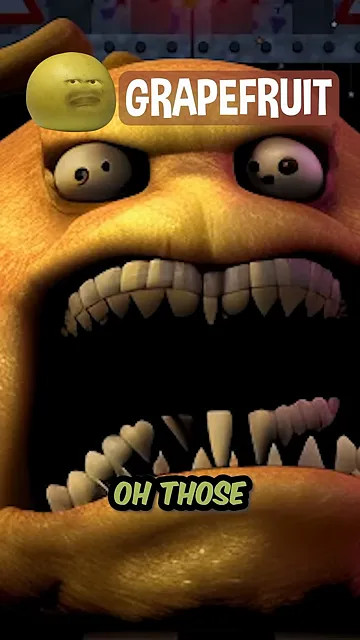
Frame 2 is taken from the same Annoying Orange experiment, showing the grapefruit character reimagined as an animatronic with bulging eyes, wide-spaced teeth, and a gaping mouth. This composition works by exaggerating mechanical facial openings while retaining the round silhouette of the subject. If you want wide, unblinking eyes and an exaggerated jaw drop on your custom fnaf jumpscare simulator render, the Pizza Party Room scene emphasizes these sudden expressions as your figure advances toward the lens.
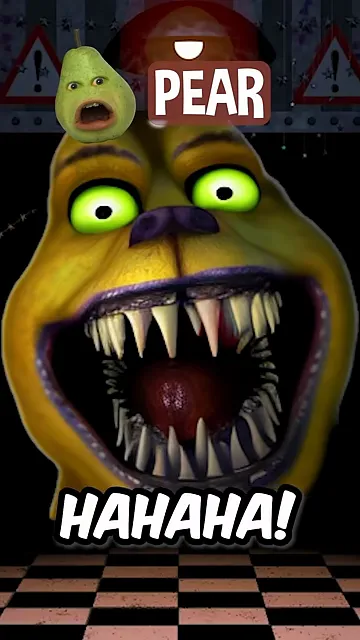
Frame 3 shows the pear character from the same production transformed into an animatronic featuring glowing green eyes, sharp fangs, and a black and pink checkered floor below. The checkered tiles and eerie low-angle lighting anchor the robotic subject inside a retro entertainment venue. To recreate that classic restaurant floor and surveillance-camera atmosphere in your fnaf jumpscare simulator, select the Pizza Party Room scene, which pairs a tiled floor with dramatic overhead shadows.
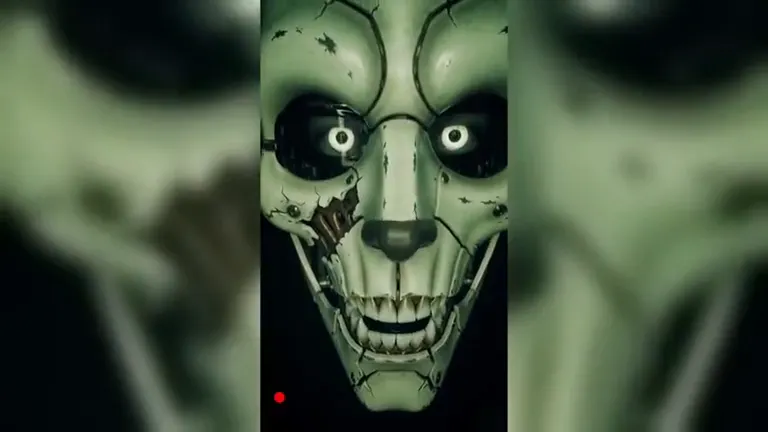
By studying these compositions, you can pick the scene that best matches the specific type of tension you want your fnaf jumpscare simulator project to deliver.
What Our Tool Will Not Do
To keep expectations clear, we outline the strict technical and design limits of our fnaf jumpscare simulator generator. A good fnaf jumpscare simulator should be straightforward about what it can and cannot generate, as detailed on our jumpscare tool page:
- One person per clip: The generator supports exactly one face per rendering pass. Two people, couples, or group photos are not supported and will result in distorted outputs.
- No pet support: Pets have not been tested with the transformation model, so we cannot promise a dog, cat, or other animal will work in a fnaf jumpscare simulator.
- Fixed duration: Every clip is rendered strictly as a 10-second video. The system does not support 5-second or 15-second variations.
- Original designs only: The AI is instructed to leave out animal ears and features associated with specific species, though it sometimes adds subtle mechanical ear plates anyway. The resulting animatronic is always an original mechanical entity and never a character from the horror games.
- No official game assets: The generator does not include audio, voice lines, or sound effects taken from the commercial game series.
- No group images: Group photos fail facial extraction and cannot be processed into a clean fnaf jumpscare simulator video.
Knowing these parameters ensures you submit the right photo format when launching your fnaf jumpscare simulator render.
FNAF Jumpscare Simulator Options and Price Details
Pricing across modern video generation platforms varies widely depending on whether a site uses recurring subscriptions or pay-as-you-go credit packs. When shopping for a fnaf jumpscare simulator, always check whether audio is included automatically, whether failed renders are refunded, and whether the service produces actual MP4 videos rather than flat still images.
| Tool | Photos | Length | Price | Sound included | Refund on fail | Read on |
|---|---|---|---|---|---|---|
| Ricebowl | 1 selfie | 10 s, 9:16 or 16:9, 768p | 40 credits per clip; Free to try for new accounts; one-time packs $9.99 for 1 video, $19.99 for 3, $29.99 for 5 | Yes: electrical hum, servo clicks and a mechanical screech; no game audio, no music | Yes, credits are refunded automatically | 2026-10-13 |
| Kavel | 1 selfie | 10 s, 9:16 | 360 to about 2,365 credits per clip depending on quality; yearly plan from $8.30 a month (14,400 credits a year); any plan or the $19.90 pack removes the watermark | Yes: servo clicks and a screech; you can add a trending sound | Yes, once you have bought any plan or pack | 2026-10-13 |
| Revid AI | Text prompt; a separate Animate Photo tool | Sample clip 40 s, 9:16 | Plans from $39 a month; Growth $32 a month billed yearly for 2,000 credits, about 25 to 50 clips of 30 s | Voiceover included | Not stated | 2026-10-13 |
| BasedLabs | Text description; the animatronic tool makes images | Video billed per second | $10 for 300 credits, about 10 short videos | Not stated | Not stated | 2026-10-13 |
| Vondy | Text prompt, mostly images | Not stated | Pro $20 a month for 10,000 credits | Not stated | Not stated | 2026-10-13 |
| Neural Love | Text prompt, images only | No video | Not stated | No, images only | Not stated | 2026-10-13 |
Before purchasing credits for any online fnaf jumpscare simulator, verify the underlying terms. Several tools on the market charge high fees but only generate static graphics, forcing you to assemble the animation manually. Other platforms require recurring monthly commitments even if you only need a single fnaf jumpscare simulator scare for a weekend party. On Ricebowl AI, any fnaf jumpscare simulator render that encounters a system error immediately refunds its credits back to your balance, ensuring you only pay for completed video clips. If you want to test our infrastructure, you can review our jumpscare tool to see available render packs and scene previews.
Three Ways People Make a FNAF Jumpscare Simulator Clip
Depending on your technical skill and budget, there are three primary workflows for producing a personalized fnaf jumpscare simulator clip.
First, you can use a dedicated one-selfie tool page like our jumpscare tool. This method takes a single uploaded portrait, applies a fixed sequence of visual prompts, builds a mechanical transition, and attaches audio effects in one automated step. It requires zero editing experience, keeps your facial structure intact, and generates a ready-to-share fnaf jumpscare simulator video in minutes.
Second, you can use a general image-to-video model with your own custom prompts to build a fnaf jumpscare simulator. This approach involves taking your portrait, generating an altered mechanical still in an image generator, and feeding both frames into a general video pipeline. While this method offers granular control over motion paths, it requires extensive trial and error to prevent the character’s facial structure from melting during the camera lunge.
Third, you can assemble the entire project by hand inside desktop editing software. Creators doing this manually take their photo, paint mechanical seams and exposed wiring across the skin using graphics software, cut the footage with flickering light transitions, and manually layer static noise, servo motors, and scream audio onto the timeline. This offers total artistic control, but building a convincing fnaf jumpscare simulator by hand can take several hours per clip.
If you enjoy creating seasonal video transformations, Ricebowl AI also offers specialized creative tools for other horror aesthetics. You can try the zombie AI trend to upload one or two photos and make a zombie AI trend video. For still image makeovers, the pumpkin head AI lets you swap heads for glowing jack-o’-lanterns from up to 4 photos (photos, not video). If you need costume inspiration, the AI Halloween costume tool lets you upload one photo, pick a Halloween costume and get a costume photo. Finally, the Ramalama Halloween tool produces a Ramalama costume walk video, creating a low-angle shoe shot that hard-cuts to your full costume reveal on the beat.
Each of these options expands your seasonal toolkit, providing alternatives whenever you want a different style alongside your fnaf jumpscare simulator videos.
Prompts You Can Copy
If you choose to build your clip inside a general image-to-video platform rather than using our automated interface, you will need descriptive text prompts that guide the camera movement and mechanical decay. The prompts below replicate the visual rhythm of our fnaf jumpscare simulator pipeline.
Our generation prompts specifically demand an “original animatronic” and emphasize “no animal ears” to keep the focus entirely on cracked plastic plates, visible wires, and rusted joints rather than copying existing commercial characters.
Your Own Room prompt, 1 photo, 10 seconds, 9:16:
Reference image 1 is a photo of the person who is the main character. Keep the person in reference image 1 recognisable: same face shape, nose, mouth, hair and clothes as in reference image 1. Vertical 9:16 clip. The scene starts in the same room and background as in reference image 1, with the person in reference image 1 in the same pose. The lights flicker and die, and the picture turns into noisy greenish night-vision security camera footage, with a faint red recording light in the corner. The person in reference image 1 stares into the lens, completely still. With each flicker the face of the person in reference image 1 turns into a worn mechanical animatronic version of the same face: the skin becomes scuffed, cracked off-white plastic with seams and rivets, peeling at one cheek to show a rusted metal endoskeleton underneath, the jaw becomes a hinged metal jaw on wires, and the eyes become two glowing white pinpoints. The face stays human, with the same nose, mouth and face shape: an original animatronic, no existing game or film character. No animal ears, no bear or animal features, no muzzle, no costume head. Then the head of the person in reference image 1 twitches sideways with a mechanical jerk, and the person in reference image 1 lunges straight into the lens, metal jaw wide open, filling the frame, and the picture shakes and breaks into static. One continuous shot, no other people, no text, no captions, no timestamps, no logos, no watermark. Audio: a low electrical hum, a few servo clicks, then a loud mechanical screech on the lunge, no music, no lyrics, no dialogue.Office Hallway prompt, 1 photo, 10 seconds, 16:9:
Reference image 1 is a photo of the person who is the main character. Keep the person in reference image 1 recognisable: same face shape, nose, mouth, hair and clothes as in reference image 1. Horizontal 16:9 clip. A dark office hallway at night, a glowing exit sign at the far end and one flickering ceiling light. The lights flicker and die, and the picture turns into black-and-white security camera footage from a high corner camera. The person in reference image 1 stands at the far end of the hallway, staring at the camera. With each flicker the face of the person in reference image 1 turns into a worn mechanical animatronic version of the same face: the skin becomes scuffed, cracked off-white plastic with seams and rivets, peeling at one cheek to show a rusted metal endoskeleton underneath, the jaw becomes a hinged metal jaw on wires, and the eyes become two glowing white pinpoints. The face stays human, with the same nose, mouth and face shape: an original animatronic, no existing game or film character. No animal ears, no bear or animal features, no muzzle, no costume head. With every flicker the person in reference image 1 is closer to the camera. Then the head of the person in reference image 1 twitches sideways with a mechanical jerk, and the person in reference image 1 lunges straight into the lens, metal jaw wide open, filling the frame, and the picture shakes and breaks into static. One continuous shot, no other people, no text, no captions, no timestamps, no logos, no watermark. Audio: a low electrical hum and a buzzing fluorescent tube, a few servo clicks, then a loud mechanical screech on the lunge, no music, no lyrics, no dialogue.When feeding these prompt structures into general video models, monitor how the facial structure evolves during the midway point of the clip. A quality fnaf jumpscare simulator requires the person’s real face to remain recognizable even after the plastic shell splits open and the hinged jaw drops. Fine-tuning prompts for a custom video ensures smooth mechanical transitions.
Before You Post Your FNAF Jumpscare Simulator Clip
Before uploading your fnaf jumpscare simulator to social networks or sending it directly to friends, review several important safety and platform considerations.
Credits return automatically to your account balance if a generation fails due to a network or server error. When selecting source images, only use your own photo or a photo of an adult who has given you explicit permission to use their likeness. You must be 18 or older to access and use the generation tools on Ricebowl AI.
Safety matters when sharing sudden horror clips. Turn the volume down before showing your fnaf jumpscare simulator to anyone who startles easily or experiences anxiety. Never play the video unexpectedly for someone who is driving, operating machinery, holding hot liquids, or dealing with known heart conditions.
Respect copyright and intellectual property rules when publishing your finished media. Do not post your fnaf jumpscare simulator clip using official game character names, and never claim that your video is an official production from Scott Cawthon, Steel Wool Studios, or the FNAF games. Ricebowl AI is not affiliated with Scott Cawthon, Steel Wool Studios, or the FNAF games in any way. Furthermore, keep in mind that videos generated without an active subscription may appear in the public Explore feed on Ricebowl AI. When distributing your horror video on social video networks, always enable the platform’s AI-generated content label to remain transparent with your audience.
Using an automated fnaf jumpscare simulator is an entertaining way to celebrate horror culture, provided you share the resulting videos responsibly.
Sources
Annoying Orange, “Asking AI to turn us into FNAF Jumpscares”, YouTube video _oKAryMMnwQ, read 2026-10-13
Kavel FNAF jumpscare AI page, read 2026-10-13
pricing pages of Kavel, Revid AI, BasedLabs, Vondy and Neural Love, read 2026-10-13