Make Old Photos Talk: Grandpa Gets the Last Word

Make old photos talk with one portrait and a scene chip: MiniMax H3 turns the person in your photo into a 15-second vertical video with environmental sound and instrumental music, but no human voice.

1添加你的照片

Choose a Scene

2画质与时长768p · 15s · 9:1660 credits

无需订阅 · 约 3 分钟完成 · 失败不扣费

Upload a photo of yourself or an adult who has agreed to be included. Do not upload someone else’s portrait without their consent.

From the Feed

Five Scenes for a Photo with a Story

The page offers five portrait chips: Warm Greeting, Wedding Memory, Home Soon, Kind Advice, and Shared Memories. The four featured scenes are Wedding Memory, Home Soon, Kind Advice, and Shared Memories. Each starts from one person’s photo and gives the portrait a different setting and expression. Pick a scene that fits the memory you want to share, then preview the generated 15-second vertical video. The sound is environmental audio and instrumental music, with no human voice. This is how the page lets you make old photos talk through a visual scene rather than a spoken message.

Make the Photo Talk
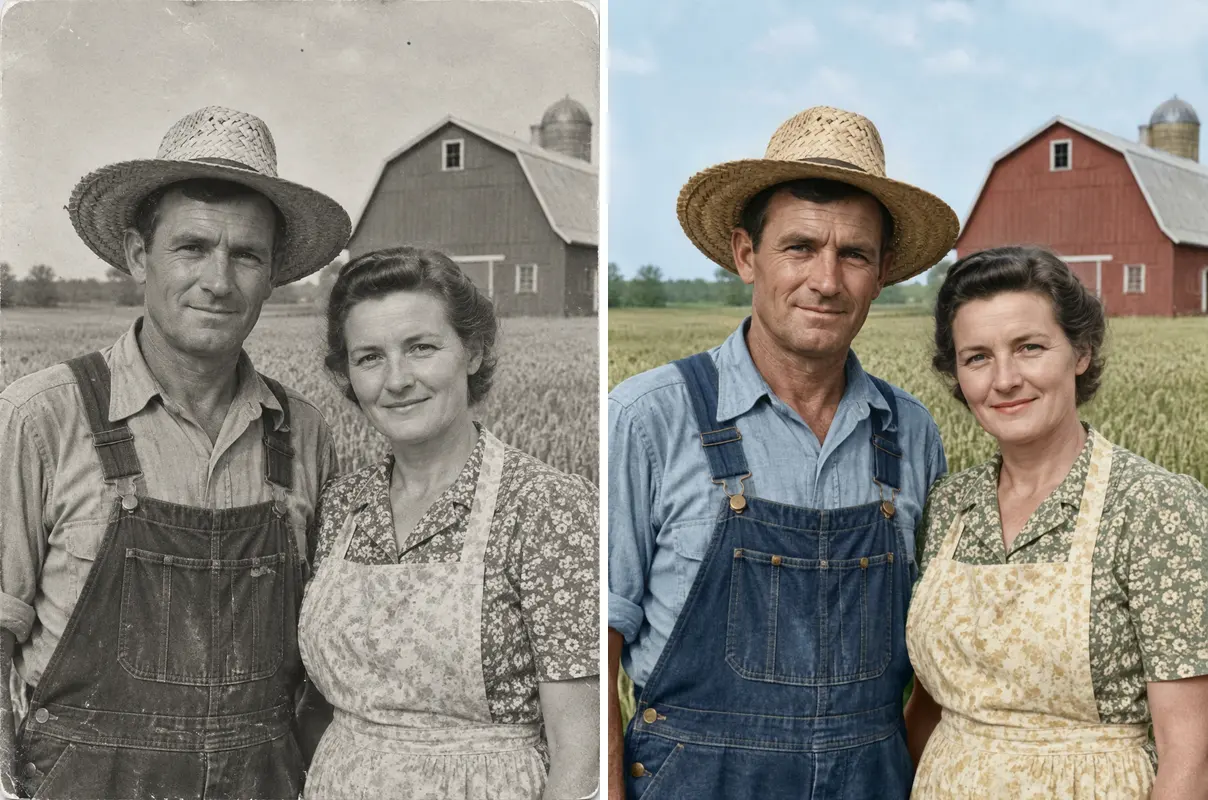
Three Steps

How to Make Old Photos Talk from One Portrait

  1. 1

    Choose a Portrait Scene

    Select Warm Greeting, Wedding Memory, Home Soon, Kind Advice, or Shared Memories. Each chip describes a prepared portrait setting, so pick the one that fits the person and the moment you want to share.

  2. 2

    Upload One Person’s Photo

    Add one clear photo of yourself or an adult who agreed to appear. Keep the person visible in the frame and avoid using a portrait without permission. The page accepts one photo for each video.

  3. 3

    Generate and Review the Video

    Press Make the Photo Talk to create a 15-second 9:16 clip with MiniMax H3. Review the scene and sound before sharing: it includes environmental audio and instrumental music, but no human voice or custom song.

Scene 01 · Wedding Memory

The Wedding Portrait Gets a Second Look

A composed pose, with a hint of celebration.

Wedding Memory places the person from your photo in a classic wedding portrait setting, with delicate flowers nearby and a composed, joyful expression toward the camera. Use it for an anniversary greeting or a family album moment. The clip is generated from one person’s photo and includes environmental sound and instrumental music, without dialogue or a recreated voice.

  • Classic wedding portrait setting
  • Delicate flowers in the scene
  • Choose Wedding Memory for this look

Scene 02 · Home Soon

A Reassuring Portrait for the Family Chat

Steady eye contact and a calm, dignified setting.

Home Soon places the person in a dignified vintage portrait setting, upright and facing the camera with a reassuring expression. The scene suits a tribute or a thoughtful message built around a service portrait. It does not generate spoken words, and the result is a 15-second vertical video with environmental sound and instrumental music.

  • Dignified vintage portrait setting
  • Upright posture and reassuring expression
  • Choose Home Soon for this look

Scene 03 · Kind Advice

The Portrait Has One More Kind Thought

Warm window light gives the moment a friendly feel.

Kind Advice places the person in a relaxed portrait setting with warm window light, looking directly toward the camera with a lively, friendly expression. It can frame a playful family message or a quiet remembrance. The scene is selected from the page’s chips; you cannot type a custom setting or add a recorded voice to the video.

  • Relaxed portrait setting
  • Warm window light
  • Choose Kind Advice for this look

Scene 04 · Shared Memories

A Garden Portrait for a Beloved Companion

Greenery frames a fond look toward the camera.

Shared Memories places the person in a peaceful garden portrait setting, framed by greenery and looking fondly toward the camera. Choose it for a gentle family keepsake or a memory of someone close. The generator uses one person’s photo and produces a 15-second vertical video with environmental sound and instrumental music, not human speech. This talking photo scene is selected from the available chips, so the garden setting is prepared rather than custom written.

  • Peaceful garden portrait setting
  • Greenery frames the person
  • Choose Shared Memories for this look

Straight Answers

What This Talking Photo Can and Cannot Do

The idea is simple: one portrait enters a selected scene and becomes a short video. Check the voice and scene limits before you make one.

What You Get

  • One uploaded photo of a person is enough to create the clip; you do not need to film a new performance.
  • Five portrait scene chips offer distinct settings: Warm Greeting, Wedding Memory, Home Soon, Kind Advice, and Shared Memories.
  • MiniMax H3 generates a 15-second video in a 9:16 vertical format, ready for a phone screen.
  • The sound is stated plainly: environmental audio and instrumental music accompany the clip, with no human voice.

Known Limits

  • The person does not speak. The video has no dialogue, voiceover, or generated human voice, so it cannot deliver a typed message aloud.
  • You cannot upload your own song or voice recording. The audio is limited to the generated environmental sound and instrumental music.
  • You can upload one photo per video, and the photo must show a person; this page does not combine several portraits.
  • You must choose from the available scene chips. You cannot enter a custom scene description or request a different duration here.
Make the Photo Talk

The Trend Explained

What Does It Mean to Make Old Photos Talk Here?

Here, make old photos talk means turning one portrait into a short AI-generated video with gentle scene movement. The phrase can suggest that a person says a line, so the key distinction matters: this page does not create speech. MiniMax H3 makes a 15-second, 9:16 clip from one person’s photo and a selected scene chip. The audio contains environmental sound and instrumental music, but no human voice. You choose among four prepared portrait settings rather than writing a custom prompt. That makes the result a visual keepsake or playful family post, not a spoken message in the pictured person’s voice.

One Portrait Starts the Clip

Upload one photo showing one person. A clear face and visible features give the generator a useful reference for the portrait scene. The tool builds a short video from that image, so you do not need to film footage or provide a second photo.

Five Scene Chips Set the Moment

Choose Warm Greeting for a warm greeting, Wedding Memory for a classic wedding portrait, Home Soon for a dignified vintage setting, Kind Advice for warm window light, or Shared Memories for a peaceful garden. The chip controls the scene; there is no free-text scene prompt on this page.

Instrumental Sound, No Speaking

The finished 15-second vertical clip includes environmental sound and instrumental music. It does not contain a human voice, spoken dialogue, or a recording of the person in the photo. You also cannot upload your own song, so treat the audio as part of the generated scene. The result is an old portrait talking video in the visual sense: the portrait moves within its setting, while the person does not speak.

More to try with your photo

Make Old Photos Talk: Questions and Answers

Clear details on the photo, scene chips, video format, sound, and sharing.

Make the Photo Talk
How can I make a photo of myself talk using AI?

Upload one photo of yourself and select a scene chip to create a 15-second vertical video. This page animates the portrait in a prepared setting, but it does not make the person speak: the audio has environmental sound and instrumental music, with no human voice. If you want to make a photo of me talk, this tool creates a visual portrait scene and does not add spoken words or a recorded voice.

Can I make old photos talk with a typed script?

No. This generator does not turn typed text into spoken dialogue. It makes a visual portrait video from one person’s photo and one selected scene, with environmental sound and instrumental music but no human voice or voice recording.

How many scene options can I choose from?

There are five scene options: Warm Greeting, Wedding Memory, Home Soon, Kind Advice, and Shared Memories. Each chip selects a prepared portrait setting, and you cannot write your own scene description on this page.

Can I upload two people or several old photos?

No. Each video uses one uploaded photo of one person. Choose a portrait that clearly shows the person you want in the scene; this page does not combine a group of people or multiple images into one clip.

Does the video include a real voice or dialogue?

No. The generated video has no human voice and does not speak a script. It includes environmental sound and instrumental music, so it can set a mood without pretending to reproduce the pictured person’s voice.

Can I add my own song or voice recording?

No. You cannot upload your own song or a voice recording to this generator. The 15-second clip uses generated environmental sound and instrumental music; if you want another song, add it separately when posting where the platform allows it.

What format does the portrait video use?

The clip is 15 seconds long and uses a 9:16 vertical aspect ratio. It is generated from one person’s photo with MiniMax H3 and a selected scene chip, which makes the format suitable for viewing on a phone screen.

Is make old photos talk free?

Check the generation button for the current credit requirement before you start. One 15-second clip costs 60 credits, and the pricing page lists credit packs and monthly plans. A generated clip can appear in the public Explore feed, so only upload a photo you have permission to share.

How do I make old photos talk safely and share the result?

Use a photo of yourself or an adult who has agreed to appear, choose one of the five scene chips, then generate and review the video before sharing. This page creates a 15-second 9:16 clip with environmental sound and instrumental music, not a spoken message. Read the [AI trend guide](/hub/how-to-do-the-ai-trend) for more guidance on making and sharing an AI trend video.

Explore More

More Ways to Make Photo Videos

Give One Portrait a New Scene with

Make Old Photos Talk

Make old photos talk with one person’s photo, one scene chip, and a 15-second vertical video. The result has environmental sound and instrumental music, without a human voice.

Make the Photo Talk

One photo • 9:16 vertical • Instrumental sound

Give One Portrait a New Scene with

Make the Photo Talk