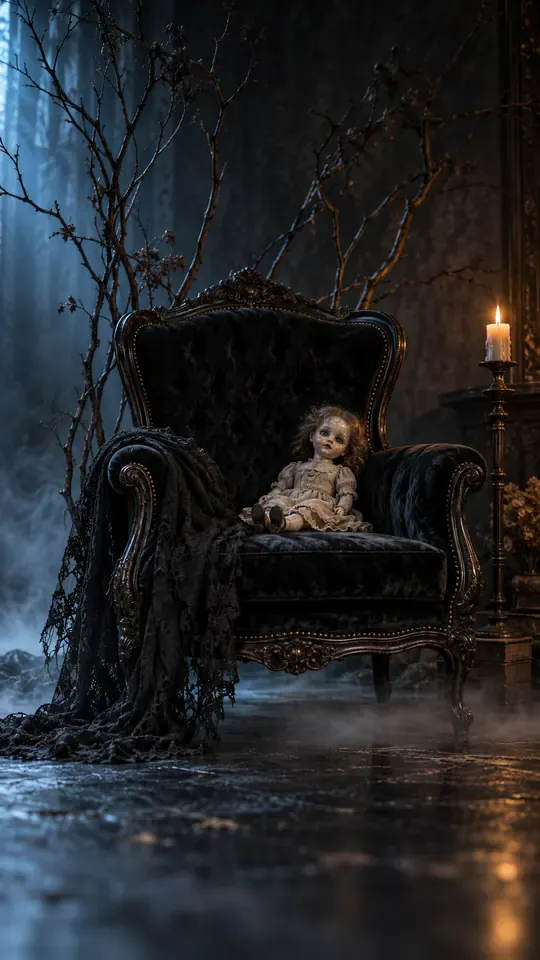
Halloween Transformation Video: One Portrait Becomes a Witch, Dark Queen, or Spider Glamour

Make a Halloween transformation video from one photo: choose a scene, then MiniMax H3 creates a 15-second vertical reveal with eerie ambience and instrumental sound.

1เพิ่มรูปของคุณ

Choose a Halloween Scene

2คุณภาพและความยาว768p · 15s · 9:1660 credits

ไม่ต้องสมัครสมาชิก · เสร็จในประมาณ 3 นาที · ไม่คิดเงินหากล้มเหลว

Only upload a photo of yourself or an adult who has given consent.

From the Feed

Five Halloween Transformation Video Scenes

These five scene choices follow the same one-photo format but start with different clothes, expressions, and backdrops. Vampire Reveal is the default; it starts with the person in simple dark clothing in a softly lit room. Witch Metamorphosis uses mist, Dark Queen uses a shadowy stone setting, Haunted Smile begins with a gentle expression, and Spider Glamour starts against a dark plain background. Pick the scene whose opening feels closest to your idea; the video model creates the transformation from that setup.

Make My Transformation

Three Steps

How to Make a Halloween Transformation Video

  1. 1

    Choose a Scene

    Start with Vampire Reveal, which is selected by default, or choose Witch Metamorphosis, Dark Queen, Haunted Smile, or Spider Glamour. Each chip sets a different opening scene.

  2. 2

    Upload One Clear Photo

    Add one photo of yourself or a consenting adult. Keep the face visible and easy to see so the selected scene has a clear portrait to use as its starting point.

  3. 3

    Generate and Review the Clip

    Select Make My Transformation, then review the displayed credit cost before generation. When the 15-second vertical video is ready, check its sound and appearance; add a separate track when posting if you want a specific song.

Scene 01 · Witch Metamorphosis

Witch Metamorphosis From One Portrait

Everyday dark clothing, then a misty witch reveal.

Witch Metamorphosis begins with the person in your photo standing in everyday dark clothing against a dim, misty backdrop, hands relaxed and gaze toward the camera. The scene turns that starting portrait into a witch transformation. Choose this when you want a misty setting and a direct camera-facing opening. This selfie witch transformation uses one uploaded photo, with the final look shaped by the selected scene. Its opening clothes and backdrop make it a practical choice for a Halloween costume reveal video when you want the change to start from an everyday portrait.

  • Dim, misty backdrop
  • Relaxed hands and camera-facing gaze
  • Choose Witch Metamorphosis for this scene

Scene 02 · Dark Queen

A Shadowy Dark Queen Reveal

A plain black top meets a stone-shadow setting.

Dark Queen opens with the person in your photo wearing a plain black top before a shadowy stone backdrop and looking steadily at the camera. The scene supplies the dark, regal transformation. Pick it for a composed portrait reveal, with the initial frame kept simple so the change in character carries the moment. This spooky portrait video uses one photo and the selected scene rather than a second costume image. The defined opening makes it useful when you want a Halloween costume reveal video with a steady, camera-facing start.

  • Shadowy stone backdrop
  • Steady, camera-facing opening
  • Choose Dark Queen for this scene

Scene 03 · Haunted Smile

A Gentle Smile Turns Haunted

A light robe and a soft opening set up the reveal.

Haunted Smile starts with the person in your photo in a simple light robe in a softly lit room, offering a gentle smile toward the camera. The scene moves from that calm expression into a haunted character reveal. Choose it if you want the contrast to begin with a friendly portrait instead of an already dark outfit. Your halloween transformation video uses one uploaded photo and runs for 15 seconds. This one photo Halloween video gives the scene a clear starting expression, making the change from a gentle smile to a haunted look the focus.

  • Softly lit room
  • Gentle smile at the start
  • Choose Haunted Smile for this scene

Scene 04 · Spider Glamour

Spider Glamour With a Dark Finish

Tied-back hair and a bare face begin the scene.

Spider Glamour opens with the person in your photo, hair tied back and face bare, against a dark uncluttered background. The selected scene builds toward a spider-themed transformation with a polished, dramatic mood. Choose this look when you want the starting portrait to stay visually simple and the character change to provide the contrast. This Halloween costume reveal video is generated from one photo, not a set of before-and-after images. The simple opening also suits a spooky portrait video where the selected scene supplies the character look.

  • Dark, uncluttered background
  • Hair tied back and bare face at the start
  • Choose Spider Glamour for this scene

Straight Answers

What This Halloween Transformation Video Includes

This page turns one portrait and a chosen scene into a short Halloween reveal. The scene list, clip length, and audio limits are fixed, so you can decide whether the format fits before you generate.

What You Get

  • One uploaded photo becomes the subject of a 15-second vertical 9:16 transformation clip.
  • Five fixed scene choices are available: Vampire Reveal, Witch Metamorphosis, Dark Queen, Haunted Smile, and Spider Glamour.
  • MiniMax H3 generates environmental sound and instrumental music with the clip; no separate audio file is needed for playback.
  • The displayed credit amount is shown before you start, so you can review the cost first.

Known Limits

  • The clip has no human voice. Its audio is environmental sound and instrumental music, not spoken dialogue or singing.
  • You cannot upload your own song or soundtrack with this tool. Add music separately when posting if you want a specific track.
  • Each generation uses one photo, and you can choose only from the five listed scene chips; custom scene entry is not available here.
  • The video lasts 15 seconds in a 9:16 vertical format, so it is designed as a short reveal rather than a longer story.
Make My Transformation

The Trend Explained

What Is a Halloween Transformation Video?

A halloween transformation video is a short clip that starts with an everyday portrait and changes into a Halloween character or costume look. This page makes that format from one uploaded photo: choose one of five fixed scenes, and MiniMax H3 generates a 15-second vertical video. The output includes environmental sound and instrumental music, without a human voice. It does not accept a custom song or a second photo. The five scenes include Vampire Reveal, a witch, a dark queen, a haunted smile, and spider glamour.

One Photo Sets the Subject

Upload one clear photo of yourself or a consenting adult. The chosen portrait gives the video its person, while the selected scene sets the opening clothes, pose, and backdrop. You do not supply a separate after image. A simple, unobstructed portrait gives the scene a clear starting point.
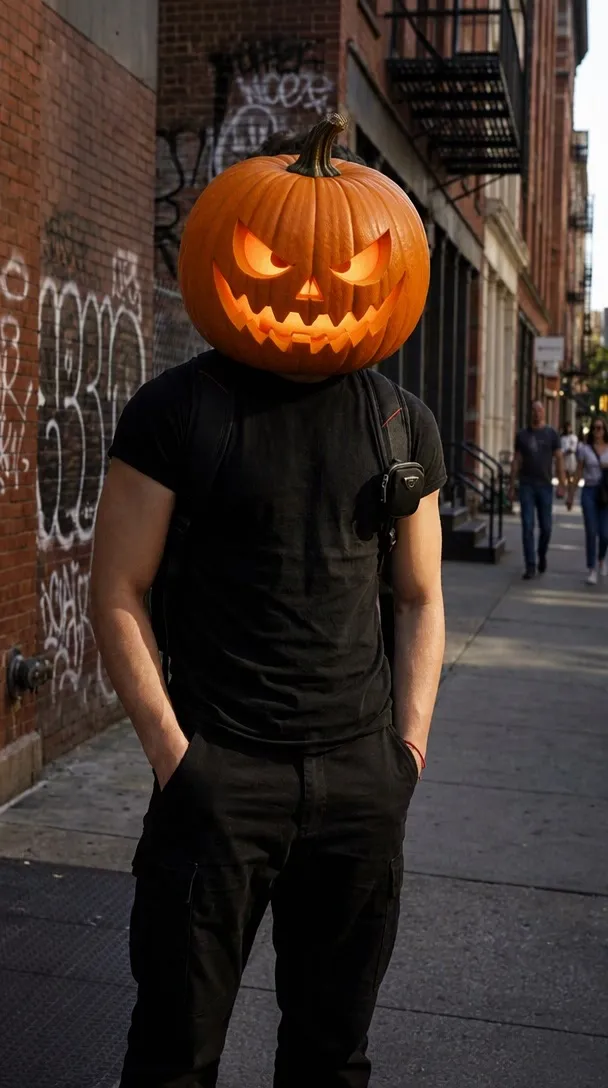
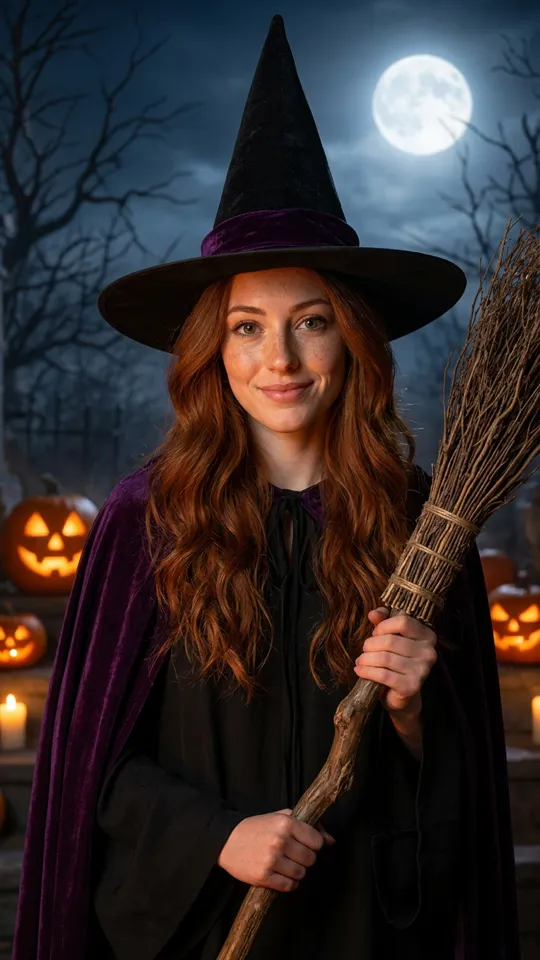
Five Scene Chips Set the Look

The available choices are Vampire Reveal, Witch Metamorphosis, Dark Queen, Haunted Smile, and Spider Glamour. The first chip, Vampire Reveal, is selected by default. Each chip has a defined opening setup, so the scene choice determines which transformation prompt starts the generation.

A Fixed Length and Soundtrack

MiniMax H3 generates a 15-second 9:16 vertical clip. The video includes environmental sound and instrumental music, but it has no human voice and does not accept your own song. If you want a particular track, add it separately in the app where you share the finished clip.

More to try with your photo

Halloween Transformation Video FAQ

Answers about the photo, scene choices, clip length, audio, and sharing.

Make My Transformation
How can I turn a selfie into a Halloween transformation video?

Choose one of the five scene chips and upload one clear photo of yourself or a consenting adult. MiniMax H3 uses that photo and the selected scene to generate a 15-second vertical reveal. Review the credit amount shown on the button before you start. This one photo Halloween video needs no separate after image; the scene sets the transformation, while your portrait supplies the person and starting frame.

What AI tool can make a video of me transforming into a vampire from a photo?

Vampire Reveal is the default scene. Upload one portrait to generate a 15-second vertical clip with environmental sound and instrumental music, but no human voice. The scene selection starts the transformation, so you do not need to upload a second image or costume reference.

How many scene choices are available?

There are five fixed scene choices: Vampire Reveal, Witch Metamorphosis, Dark Queen, Haunted Smile, and Spider Glamour. Vampire Reveal is the default. You select a chip rather than entering a custom scene prompt.

Can I make a witch transformation from one photo?

Yes. Choose Witch Metamorphosis and upload one clear photo of yourself or a consenting adult. The scene starts with everyday dark clothing against a dim, misty backdrop, then MiniMax H3 generates the 15-second transformation clip. This selfie witch transformation uses the selected scene to set the opening and character look; a single portrait is the only image required.

Can I use my own song in the Halloween video?

No. The generated clip includes environmental sound and instrumental music, and it has no human voice. You cannot upload your own song to this tool, but you can add a track separately in the app where you share the video.

How long is the video and what shape is it?

Each generated clip is 15 seconds and uses a 9:16 vertical aspect ratio. That format suits a short portrait reveal. The scene choices and clip length are fixed on this page.

Can I upload more than one photo or choose my own scene?

No. Each generation uses one photo, and the scene must come from the five available chips. The page does not offer a second reference photo or a field for writing a custom scene, so choose the closest listed look before generating.

What does one Halloween transformation video cost?

Check the pricing page for the current credit cost of one 15-second clip. The generation button shows the credit amount before you start. You can also review available credit packs and monthly plans on the pricing page.

Can I use someone else’s portrait for a transformation?

Use a photo of yourself or an adult who has given consent. Do not upload a person’s image without permission. A clear portrait with the face visible gives the selected scene a straightforward starting image.

Where can I learn how to make and share an AI trend video?

Read the guide for practical steps on preparing and sharing an AI trend video. It can help you plan a post around your Halloween reveal, while the generated clip itself remains 15 seconds with environmental and instrumental audio.

Explore More

More Photo and Halloween Video Tools

Turn One Portrait Into a

Halloween Transformation Video

Pick a scene, upload one photo, and make a 15-second vertical reveal with environmental sound and instrumental music.

Make My Transformation

One photo • 15 seconds • 9:16 vertical

Turn One Portrait Into a

Make My Transformation