AI Santa Video: Santa Steals Your Spotlight

Upload one photo and make an ai santa video where Santa hugs you, dances beside you, arrives with a gift, or looks up at a full moon from a light-strung porch. Choose one of five set scenes for a 15-second vertical clip with instrumental sound and no voice.

1הוסיפו את התמונה שלכם

Choose a Santa Scene

2איכות ואורך768p · 15s · 9:1660 credits

בלי מנוי · מוכן תוך כ-3 דקות · לא מחויבים אם זה נכשל

Upload a photo of yourself or an adult who has given permission. Do not upload a child’s photo.

From the Feed

Five Santa Scenes, One Photo to Start

An ai santa video on this page starts with one photo and one scene chip. Santa Hug sets up a sofa visit; Santa Dance brings Santa into a decorated room; Moonlit Sleigh uses a light-strung porch and full moon; Santa Gift stages a red present in a winter garden; and Claus Duo adds swirling snow by a tree. The scenes are preset, so select the one whose setup fits your joke.

Make My Santa Video

Three Steps

How to Make an AI Santa Video

  1. 1

    Choose a Scene Chip

    Pick Santa Hug, Santa Dance, Moonlit Sleigh, Santa Gift, or Claus Duo. Read the scene description and choose the setup you want; the selected chip determines the preset scene for your clip.

  2. 2

    Upload One Permitted Photo

    Add one clear photo of yourself or an adult who has agreed to its use. Keep the person’s face visible. The page makes one-person scenes and does not accept a second reference photo.

  3. 3

    Generate and Share the Clip

    Start generation to create a 15-second 9:16 video with environmental sound and instrumental music. Review the result before sharing, and remember that the audio has no voice and cannot use a song you upload.

Scene 01 · Santa Hug

Santa Joins You on the Sofa

A gift sack, a cozy seat, and a surprise guest.

Santa Hug starts with you seated on a cozy sofa beside a glowing Christmas tree. Santa enters carrying a gift sack, turning an ordinary portrait into a warm visit scene. Choose this chip when the joke is that you were having a quiet evening and Santa arrived with absolutely no appointment. The video is generated from one photo and stays in a vertical 9:16 frame.

  • Santa enters with a gift sack
  • A cozy sofa and glowing tree set the scene
  • Santa enters carrying the gift sack.

Scene 02 · Santa Dance

Santa Steps In and Takes the Floor

The tree is decorated. Santa has a move to show.

Santa Dance places you beside a decorated Christmas tree as Santa steps into the room. The scene gives the greeting a playful turn as Santa enters beside you while the instrumental soundtrack plays. Select this chip for a festive clip with Santa arriving in the room rather than a present handoff or a quiet winter setting. It uses one uploaded photo and produces a 15-second vertical video.

  • Santa steps into the room
  • A decorated Christmas tree anchors the scene
  • Santa steps into the room beside the decorated tree.

Scene 03 · Moonlit Sleigh

Look Up as the Moon Sets the Scene

Warm porch lights below, a bright full moon above.

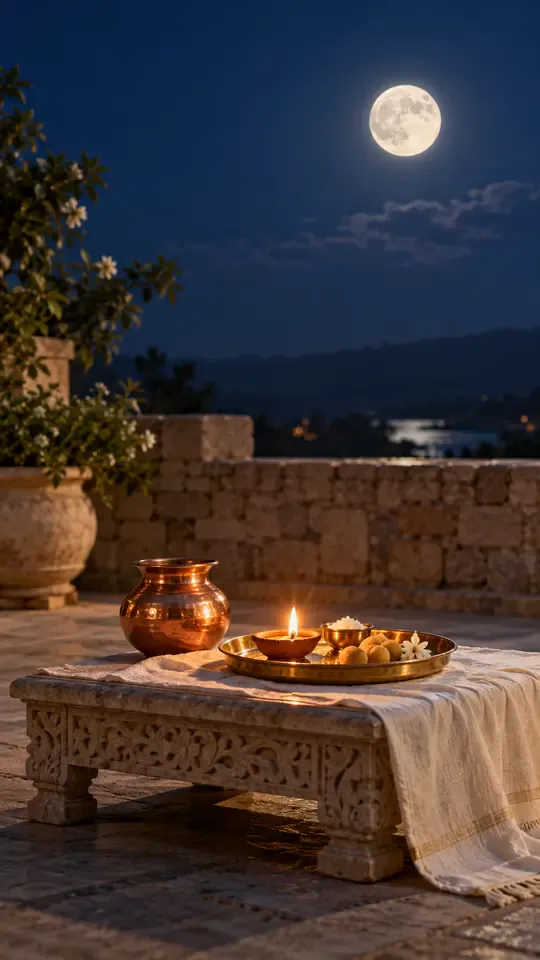
Moonlit Sleigh begins with you on a porch strung with warm lights, looking up at a bright full moon. This choice gives the Christmas scene a quieter, night-sky mood than the indoor tree settings. Pick it when the visual setup matters more than a close interaction with Santa. The chip sets the scene for the generated clip; you cannot replace it with a custom prompt on this page.

  • A porch strung with warm lights
  • A bright full moon overhead
  • Choose Moonlit Sleigh for an outdoor night scene

Scene 04 · Santa Gift

Santa Arrives With the Red Present

A sunny winter garden and a gold-ribbon reveal.

Santa Gift places you in a sunlit winter garden as Santa approaches with a red present tied with a gold ribbon. The bright setting and clear gift make the scene easy to read at a glance, even on a phone screen. Choose this chip for a Christmas reveal with a simple visual payoff. The result is a 15-second 9:16 clip generated from one photo, with instrumental music and environmental sound but no voice.

  • Santa approaches with a red present
  • The present has a gold ribbon
  • Choose Santa Gift for a gift arrival scene

Scene 05 · Claus Duo

Snow Swirls Around Your Christmas Tree

A familiar tree gets a sparkling snow moment.

Claus Duo places you beside a decorated Christmas tree while sparkling snow swirls around you. The name describes a snowy tree scene, with the supplied setup focused on the person in your photo and the wintry setting. Choose it for a festive transformation in atmosphere rather than a sofa visit or gift exchange. The generated video uses one image, lasts 15 seconds, and has no spoken dialogue.

  • A decorated Christmas tree
  • Sparkling snow swirls around the person
  • Snow swirls around the person beside the tree.

Straight Answers

Know What Your Santa Clip Includes

This ai santa video has a fixed format and a clear set of choices. You can see the limits before you upload: one photo, one of five scenes, 15 seconds, and a soundtrack without spoken words.

What You Get

  • One uploaded photo gives the generator a person to place in the selected Christmas scene.
  • Five named scene chips cover a sofa visit, dance, moonlit porch, gift arrival, and snowy tree setting.
  • Every result is a 15-second vertical 9:16 clip with environmental sound and instrumental music.
  • The scene and format are defined up front, so you can choose a preset based on the moment you want to share.

Known Limits

  • The soundtrack has no human voice, and you cannot upload your own song. The instrumental audio is not a spoken Santa greeting.
  • Each clip uses one photo. You cannot combine separate portraits into a group scene on this page.
  • You must choose one of the five scene chips; custom scene prompts are not available here.
  • The duration is 15 seconds, so the scene is a short clip rather than a longer Christmas message or story.
Make My Santa Video

The Trend Explained

What Does This AI Santa Video Make?

An ai santa video here is a short generated Christmas scene featuring the adult in your uploaded photo. Choose one photo and one preset chip, and MiniMax H3 creates a 15-second video in a 9:16 vertical frame. The available moments include Santa arriving with a gift, stepping into a dance scene, joining you by a sofa, or appearing in a moonlit or snowy setting. Sound includes environmental audio and instrumental music, but no human voice. This format is for a visual seasonal clip, not a personalized spoken message.

One Photo Sets the Person

Upload a single photo of yourself or an adult who has given permission. The image supplies one person for the selected scene, which may also include Santa. The page accepts one photo per clip, so select an image with the face visible and avoid expecting the generator to add another photographed person. A clear, front-facing image also makes it easier to review who appears in the finished clip.
Five Chips Set the Scene

Choose Santa Hug, Santa Dance, Moonlit Sleigh, Santa Gift, or Claus Duo. Each chip selects a defined setup, from Santa entering with a gift sack to a full moon above a lit porch. You cannot type a replacement scene or upload a custom soundtrack through these choices.

Short Vertical Video With Instrumental Sound

MiniMax H3 generates a 15-second clip in 9:16 vertical format. The soundtrack combines environmental sound and instrumental music. It contains no spoken voice, so the result will not say a name, deliver a message, or sound like a conversation with Santa.

More to try with your photo

AI Santa Video Questions

Answers about the photo, scene chips, video format, sound, and sharing.

Make My Santa Video
What AI tool can turn a selfie into a video with Santa?

This page makes a 15-second Christmas clip from one photo and a scene chip. “A video of Santa visiting me” describes the kind of preset clip; the available scenes vary in whether Santa appears. The result is a santa video from photo: upload a clear photo of yourself, choose a scene, and generate the video in vertical 9:16 format. The soundtrack includes environmental sound and instrumental music, without a spoken voice.

Which scenes can I choose for an AI Santa video?

You can choose Santa Hug, Santa Dance, Moonlit Sleigh, Santa Gift, or Claus Duo for a festive video with Santa. Each chip selects a preset Christmas setup, such as Santa arriving with a present or a person looking up from a light-strung porch. A meeting Santa on video scene depends on which preset you choose. Custom scene prompts are not available on this page.

Can I upload more than one photo?

No. Each clip uses one photo of one person. Choose an image with the person’s face visible, and use only a photo of yourself or an adult who has agreed to be included. The page does not combine separate portraits into a group scene.

Does the video include Santa speaking?

No. The clip has environmental sound and instrumental music, but it has no human voice or spoken Santa message. You cannot upload your own song, so choose this format for a visual Christmas scene rather than a personalized greeting with speech.

Can I choose the actions or write my own scene?

Choose one of the five named scene chips, and each chip supplies its own setup. The available choices are Santa Hug, Santa Dance, Moonlit Sleigh, Santa Gift, and Claus Duo. The Santa suit video look comes from the selected preset; this page has no custom prompt field or additional scene controls.

How long is the video, and what shape is it?

Each result is 15 seconds long and uses a vertical 9:16 aspect ratio. MiniMax H3 generates the clip from your one photo and selected scene. The soundtrack contains environmental sound and instrumental music, with no spoken voice.

Can I use a child’s photo in this Santa video?

This page is intended for photos of yourself or consenting adults. Do not upload a child’s photo. Only use images you have the right and permission to submit, and consider whether you are comfortable sharing the generated clip.

Will the result look exactly like the photo I upload?

The uploaded photo provides the person reference for the generated scene, but a generated video may not reproduce every detail exactly. Use a clear image with the face visible, then review the result before you share it. The selected chip also determines the scene around the person.

How much does one clip cost?

The generation button shows the required credits before you start. One 15-second clip costs 60 credits. You can also check the available one-time video packs and monthly plans on the pricing page.

How do I make an AI Santa video for a Christmas post?

Upload one permitted photo, select one of the five scene chips, and generate your 15-second vertical clip. Review the video before posting; it has instrumental and environmental sound but no voice. For more guidance on making and sharing a trend clip, read the guide to how to do the AI trend.

Explore More

More Christmas Videos and Guides

Put Santa in Your

AI Santa Video

Choose one photo and one preset scene to make an ai santa video: 15 seconds, vertical 9:16, with environmental sound and instrumental music but no voice.

Make My Santa Video

One photo • Five scenes • 15 seconds • 9:16

Put Santa in Your

Make My Santa Video