Casa Tupka AI Video: From Calm Portrait to Glam Look

Make a casa tupka ai video from one photo: choose a scene, then get a 15-second vertical clip with ambient sound and instrumental music. No filming, outfit photos, or editing steps.

1הוסיפו את התמונה שלכם

Choose a Scene

2איכות ואורך768p · 15s · 9:1660 credits

בלי מנוי · מוכן תוך כ-3 דקות · לא מחויבים אם זה נכשל

Use a photo of yourself or an adult who has agreed to appear in an AI-generated video.

From the Feed

Four Casa Tupka AI Video Scene Ideas

These four scene chips provide distinct starting frames for a Casa Tupka style transformation: a mauve-curtain close-up, a teal look against an orange wall, a full-body party frame, and a low-angle shot beneath a ceiling fan. Each description comes from the selected scene setup, so you can choose by backdrop, framing, and clothing. Every option uses one uploaded photo and produces a 15-second vertical clip.

Make My Video

Three Steps

How to Make a Casa Tupka AI Video

  1. 1

    Choose a Scene Chip

    Party Reveal is the default, with a person in a white tee by a beige wall. Select Glam Transformation, Rooftop Confidence, Style Carousel, or Fan Sweep to use a different described setup.

  2. 2

    Upload One Appropriate Photo

    Add one clear photo of yourself, or an adult who has agreed to appear. Face the camera in even light so the person is easy to identify. This single photo video generator takes one photo and does not accept a separate song.

  3. 3

    Generate and Review the Clip

    Press Make My Video to create the 15-second 9:16 result. Review the ambient sound and instrumental music; the clip has no vocals. Add any separate audio through the platform where you share your portrait to vertical clip.

Scene 01 · Glam Transformation

From a Calm Portrait to a Glam Look

A close-up framed by a muted mauve curtain.

Glam Transformation starts with the person in your photo before a muted mauve curtain, wearing a checked top under soft studio lighting. The scene keeps the opening calm and close, making the change in styling the main visual beat. Pick this chip when you want a portrait-led setup rather than a full-body party frame. The clip remains 15 seconds and uses the same single uploaded photo.

  • Muted mauve curtain
  • Checked top and soft studio light
  • Close-up opening frame

Scene 02 · Rooftop Confidence

A Direct Look Against an Orange Wall

Teal traditional styling, framed close to camera.

Rooftop Confidence places the person from your photo close to an orange wall in a teal traditional tunic, looking directly into the camera. The supplied scene description sets an assertive portrait composition; it does not require a second outfit photo or a real rooftop recording. Choose this option when you want a steady gaze and a bold color contrast in your casa tupka ai video.

  • Orange wall backdrop
  • Teal traditional tunic
  • Direct-to-camera pose

Scene 04 · Fan Sweep

A Low-Angle Look Beneath a Turning Fan

Black tee, indoor framing, slow fan movement above.

Fan Sweep places the person from your photo beneath a slowly turning ceiling fan, wearing a black tee in a low-angle indoor shot. The fan gives the scene a visible motion cue while the camera looks upward from below. Select this chip if you want a casual indoor setup with a different composition from the portrait and party choices. This single photo video generator creates a 15-second vertical clip with environmental sound and instrumental music, with no human voice.

  • Low-angle indoor composition
  • A slowly turning ceiling fan frames this portrait to vertical clip
  • Black tee in the opening scene of this casa tupka ai video

Straight Answers

What This One-Photo Video Can and Cannot Do

The setup is deliberately specific: one person photo, a fixed clip length, and scene chips that set the visual direction. Here are the practical limits before you choose a look.

What You Get

  • Start with one photo; you do not need to film a before-and-after sequence or upload outfit pictures.
  • Choose among Party Reveal, Glam Transformation, Rooftop Confidence, Style Carousel, and Fan Sweep.
  • Get a 15-second 9:16 vertical video with ambient sound and instrumental music included.
  • The sound has no human vocals, so the clip does not claim that the person is singing or speaking.

Known Limits

  • The clip is 15 seconds long; you cannot set a different duration on this page.
  • You can upload one photo of one person, not a group or a sequence of personal photos.
  • You must choose one of the available scene chips; you cannot type a custom scene here.
  • The audio contains ambient sound and instrumental music, with no vocals, and you cannot upload your own song.
Make My Video

The Trend Explained

What Is the Casa Tupka AI Video Trend?

A Casa Tupka AI video is a short, vertical clip built around one person and a chosen scene. The page offers five fixed starting setups: Party Reveal, Glam Transformation, Rooftop Confidence, Style Carousel, and Fan Sweep. Party Reveal shows a full-body person in a white T-shirt against a beige wall. You upload one photo, select a chip, and the generator creates a 15-second 9:16 video with ambient sound and instrumental music. The audio has no vocals, and the page does not accept a personal song upload. The scene chips set a backdrop, framing, and outfit direction; the generated result may vary from the description.

One Photo Sets the Person

Upload a single clear photo of yourself or an adult who agreed to appear. The selected photo is the person reference for this one photo transformation video. You do not need to record a separate opening clip, submit outfit references, or film the transformation yourself.
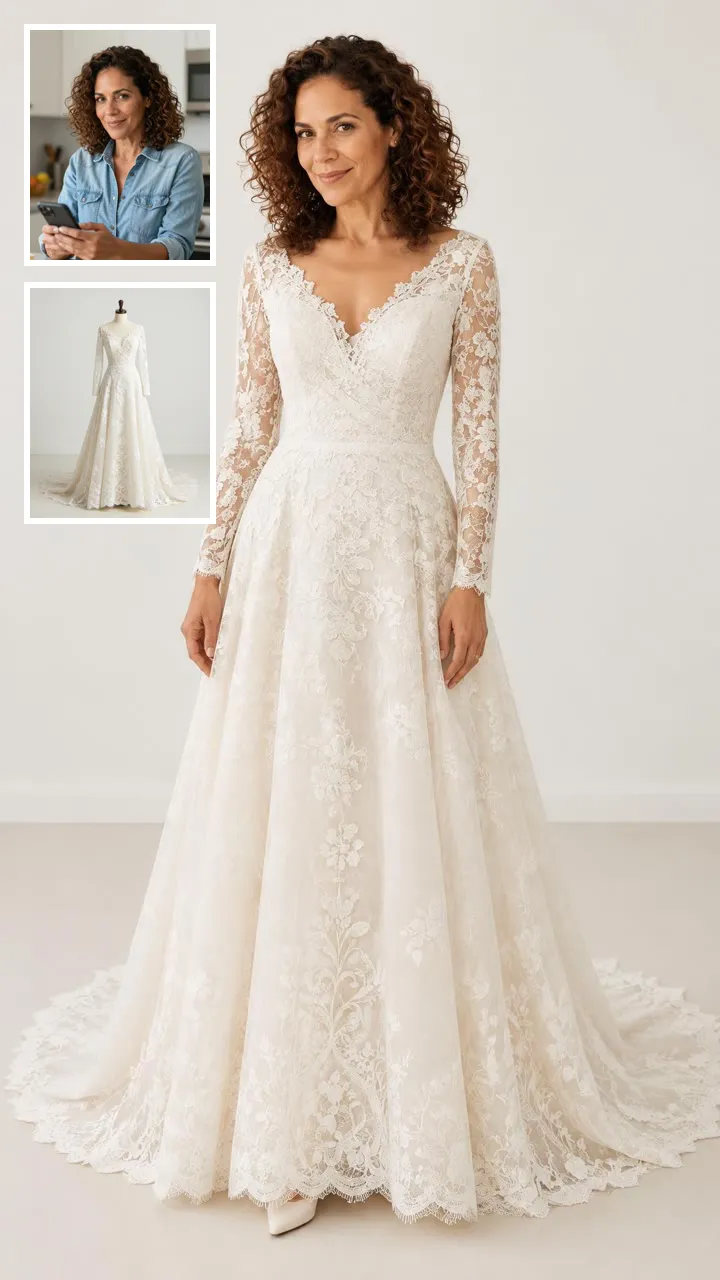
Five Scene Chips Set the Look

Party Reveal is selected by default. The other options are Glam Transformation, Rooftop Confidence, Style Carousel, and Fan Sweep. Each chip describes a particular backdrop, outfit, or camera framing, so choose by the visual setup you want for your photo to outfit change video.

Fixed Length and Built-In Audio

Each result is a 15-second vertical 9:16 video. MiniMax H3 generates the clip with ambient sound and instrumental music; there are no human vocals. You cannot upload a song, so add any permitted platform audio separately when you post your AI outfit transition.

More to try with your photo

Casa Tupka AI Video FAQ

Answers about the photo, scene choices, duration, audio, and sharing.

Make My Video
How can I turn a photo of myself into a Casa Tupka AI video?

Upload one clear photo, choose a scene chip, and press Make My Video. The generator creates a 15-second vertical 9:16 clip with ambient sound and instrumental music. You do not need to film the scene yourself.

What photo works for a Casa Tupka AI video?

Use one clear photo of yourself or an adult who has agreed to appear in the generated clip. A face toward the camera and even lighting make the person easier to see. This page accepts one photo per video, so choose the image you want to use before generating.

Which scenes can I choose for the outfit transformation?

There are five scene chips: Party Reveal, Glam Transformation, Rooftop Confidence, Style Carousel, and Fan Sweep. Party Reveal is the default. The other four give you a mauve-curtain close-up, an orange-wall portrait, a warmly lit party frame, or a low-angle indoor setup beneath a ceiling fan.

How long is the generated video?

Every result is 15 seconds long and uses a vertical 9:16 frame. You cannot change the duration on this page. The fixed length gives you a short clip to review and share without recording a separate sequence of scenes.

Does the video include a song or spoken voice?

The generated audio includes ambient sound and instrumental music, but no human vocals. You cannot upload your own song through this page. If you want a particular track in a social post, add it separately through the platform’s audio tools and follow that platform’s rules.

Can I enter my own prompt or choose a custom outfit?

No. Choose from the five provided scene chips, each of which sets a particular opening setup. You cannot type a custom scene, upload outfit references, or add extra photos here. The chips describe the visual direction; the generated result may vary from the description.

Can I make a Casa Tupka AI video with a friend?

This page is designed for one person reference photo per clip, not a group photo or multiple people. You may use a photo of another adult only when they have agreed to appear. Choose a clear image with one visible subject for the intended scene.

Can I make this video free?

Check the displayed generation options and current account terms before you start, because availability can depend on your account. One 15-second clip costs 60 credits. You can also review current plans and one-time options on the [pricing page](/pricing).

What happens to my photo and generated video?

The uploaded photo is used to generate the clip. Videos made without a subscription can appear in Ricebowl AI’s public Explore feed, as stated for this page’s generation flow. Avoid uploading an image you would not want shown publicly, and use only your own photo or an adult’s photo with their agreement.

How do I share a Casa Tupka-style clip responsibly?

Review the finished video and audio before posting, and make clear that the scene was AI-generated when that context matters. Use only a photo you have permission to submit, and add separate music only through a service that allows it. For more practical guidance, read the [AI trend how-to guide](/hub/how-to-do-the-ai-trend).

Explore More

More One-Photo Video Ideas

Turn One Photo Into a

Casa Tupka AI Video

Choose one of five scene chips and make a 15-second vertical clip with built-in instrumental music and ambient sound.

Make My Video

One photo • 15 seconds • 9:16 vertical

Turn One Photo Into a

Make My Video