AI Mecha Transformation: Your Photo Suits Up in 15 Seconds

Make an AI mecha transformation video from one photo: choose a scene, and MiniMax H3 turns your photo into a 15-second vertical clip with environmental sound and instrumental music, without vocals.

1បន្ថែមរូបថតរបស់អ្នក

Choose a Mecha Scene

2គុណភាព និងរយៈពេល768p · 15s · 9:1660 credits

គ្មានការជាវប្រចាំ · រួចរាល់ក្នុងរយៈពេលប្រហែល 3 នាទី · មិនគិតថ្លៃប្រសិនបើបរាជ័យ

Upload a photo of yourself or another adult who has agreed to its use. Do not upload a child’s photo.

From the Feed

Six AI Mecha Transformation Scenes to Choose From

Each chip sets one scene for the person in your uploaded photo. Start with Market Armor, the default market stall scene, or choose Canine Mecha, Motorcycle Suit, Skyfall Armor, Winged Mecha, or Robot Guardian. These are the six fixed options on this page, in the same order shown in the selector. Every result is a 15-second 9:16 video with environmental sound and instrumental music, without vocals.

Make My Mecha Video

Three Steps

How to Make an AI Mecha Transformation Video

  1. 1

    Choose a Scene Chip

    Start with Market Armor, the default, or select Canine Mecha, Motorcycle Suit, Skyfall Armor, Winged Mecha, or Robot Guardian. Each choice uses its own described setting, and the page does not accept a custom scene prompt.

  2. 2

    Upload One Consenting Adult Photo

    Add one clear photo of yourself or another adult who has agreed to its use. The video uses that person as its reference. You cannot add a second photo, so choose an image that shows the person you want in the scene.

  3. 3

    Generate and Review the Clip

    Press Make My Mecha Video. MiniMax H3 creates a 15-second 9:16 one photo robot video with environmental sound and instrumental music, without vocals. This one photo robot video uses the scene chip you selected. Review the result before sharing; you cannot upload your own song to the generation.

Scene 01 · Canine Mecha

Canine Mecha in a Sunny Park

A golden retriever shares the frame.

Choose Canine Mecha to place the person from your photo on green grass beside a golden retriever in a sunny park. The scene keeps open space around both subjects, giving the transformation room in the vertical frame. This is a fixed scene choice: upload one person photo, select the chip, and let the video generator build the moment. The clip lasts 15 seconds and includes environmental sound and instrumental music, without vocals.

  • Sunny park setting
  • Golden retriever beside the person
  • One person photo starts the scene

Scene 02 · Motorcycle Suit

Motorcycle Suit in the Garage

A black motorcycle beside the person.

Choose Motorcycle Suit for a clean parking garage lit by cool overhead lights. The person from your photo and a black motorcycle appear together, both fully visible. The chip sets the setting for this mecha transformation video; it does not let you upload a motorcycle photo or type a different prompt. Use a clear photo of an adult, then review the finished 15-second vertical clip to see how the generated scene interpreted the pose and framing.

  • Clean parking garage
  • Black motorcycle beside the person
  • Cool overhead lighting

Scene 03 · Skyfall Armor

Skyfall Armor Above the Clouds

A controlled fall through sunset light.

Choose Skyfall Armor for an open sky above glowing clouds at sunset. The person from your reference photo appears upright in a controlled fall, clearly visible against the sky. The scene asks for a suspended midair look, so a single photo is the starting reference rather than footage of an actual fall. MiniMax H3 creates a 15-second, 9:16 video with environmental sound and instrumental music; no human voice or uploaded song is included.

  • Glowing clouds at sunset
  • Upright suspended fall
  • Person remains visible against the sky

Scene 04 · Winged Mecha

Winged Mecha in a Ruined City

Moonlight, broken stone, white and gold lights.

Choose Winged Mecha to place the person at the center of a moonlit ruined city. Broken stone and softly glowing white and gold lights define the scene around them. The chip supplies this setting, while your single uploaded person photo supplies the visual reference. The resulting video is vertical 9:16 and 15 seconds long, with environmental sound and instrumental music but no vocals. The generated result can interpret details differently from the scene description, so check the clip before sharing.

  • Moonlit ruined city
  • Broken stone around the subject
  • Soft white and gold lights

Scene 05 · Robot Guardian

Robot Guardian on a Rainy Street

A blue device and a silhouette in the mist.

Choose Robot Guardian for a rain-slick city street at night. The person from your photo holds a small glowing blue device, while a towering silhouette appears through the mist behind them. This scene is composed from the chip and one uploaded photo; you cannot add another image to define the robot. Its 15-second vertical format gives the setting a short, focused beat, with environmental sound and instrumental music. The sound has no vocals, and you cannot upload your own song.

  • Rain-slick street at night
  • Small glowing blue device
  • Towering silhouette visible through mist during an ai mecha transformation

Straight Answers

What This Mecha Video Maker Does and Its Limits

You can check the inputs and output before you start: one person photo, a scene chip, and a fixed 15-second vertical video. Here is what the page offers and where its controls stop.

What You Get

  • One uploaded person photo is enough to start; you do not need to film a transformation or assemble a sequence of images.
  • Six named scene chips give you concrete starting points, from Market Armor to Robot Guardian, with Market Armor selected first by default.
  • MiniMax H3 generates a 15-second 9:16 video with environmental sound and instrumental music, so the clip includes audio without a separate track upload.
  • The workflow is explicit about its boundaries: you choose from the listed chips, and the result uses one photo rather than a custom scene prompt.

Known Limits

  • The clip has no human voice. It includes environmental sound and instrumental music, and you cannot upload your own song.
  • Each generation uses one person photo. You cannot combine multiple people or add a second reference image on this page.
  • Scene choice is limited to six chips: Market Armor, Canine Mecha, Motorcycle Suit, Skyfall Armor, Winged Mecha, and Robot Guardian.
  • Every video is 15 seconds in 9:16 format. You cannot change the duration or aspect ratio here.
Make My Mecha Video

The Trend Explained

What Is an AI Mecha Transformation Video?

An AI mecha transformation video turns a person photo into a short scene built around mechanical armor or a robot setting. On this page, you upload one photo of a consenting adult and select one of six chips; MiniMax H3 generates a 15-second vertical 9:16 clip. The selection controls the scene, from a market stall with carrots to a rainy street with a robot silhouette. The video includes environmental sound and instrumental music, with no vocals. You cannot upload your own song or enter a custom scene, so the chip names show exactly which starting settings are available.

One Photo Starts the Clip

Upload one photo showing the adult who will appear in the scene. A clear, well-lit image makes the subject easier to identify for a selfie to robot video. The tool generates a video, so it may not preserve every detail exactly. You do not need to submit a second image or record a transformation yourself.
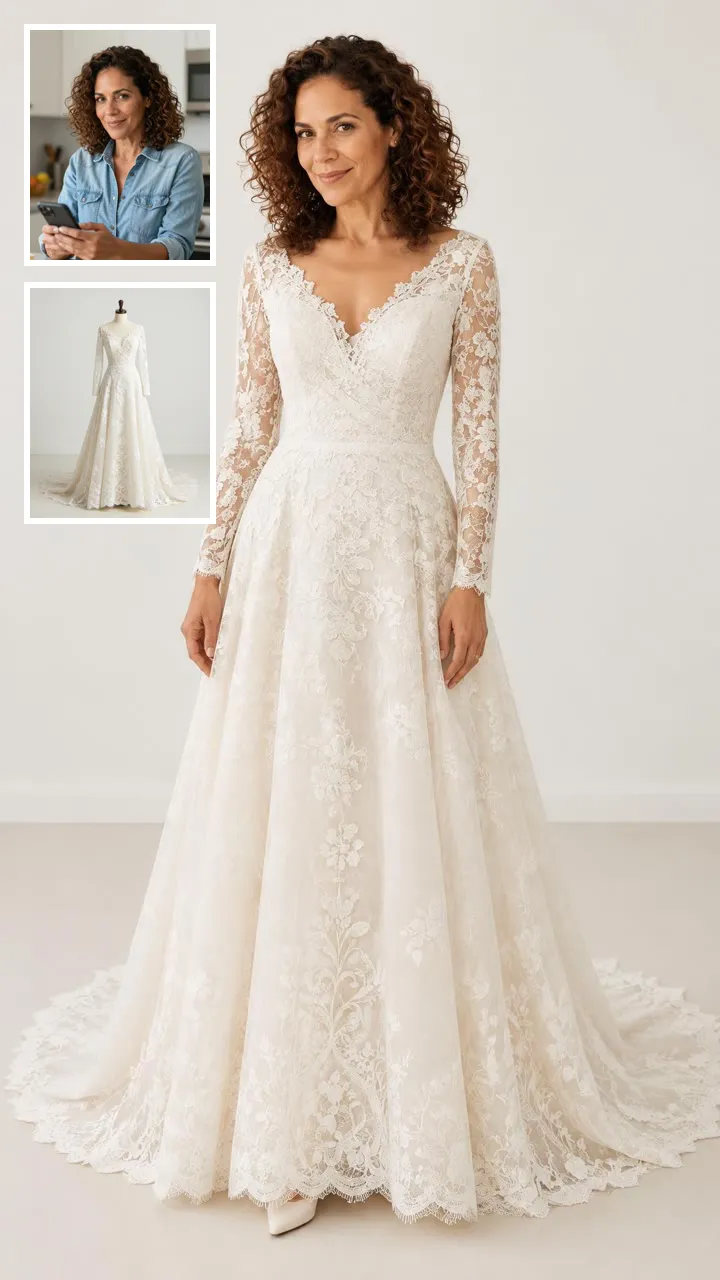
Six Scene Chips Set the Prompt

The selector offers six scene chips: Market Armor, Canine Mecha, Motorcycle Suit, Skyfall Armor, Winged Mecha, and Robot Guardian. Market Armor appears first in the selector. Each chip corresponds to a specific setting for a photo to mecha clip, so pick the scene that matches the mood you want before generating.

Fixed Length, Frame, and Sound

MiniMax H3 makes a 15-second video in 9:16 vertical format. The soundtrack has environmental sound and instrumental music, but no vocals; you cannot provide a song file. The fixed scene and audio define this robot armor transformation, which you can review before sharing.

More to try with your photo

AI Mecha Transformation FAQ

Answers about the photo, scene chips, video format, sound, and generation.

Make My Mecha Video
How can I turn a selfie into an AI video of me transforming into a giant robot?

Upload one photo of yourself or another consenting adult, choose a scene chip, and press Make My Mecha Video. MiniMax H3 generates a 15-second vertical clip in 9:16 format. The page offers six fixed scenes, and the result includes environmental sound and instrumental music without vocals. This selfie to robot video workflow does not accept a second photo or custom scene prompt.

What’s the easiest tool for making a mecha transformation video from my photo?

This page gives you a short workflow: upload one person photo, choose one of the six scene chips, and generate the clip. MiniMax H3 creates a 15-second 9:16 video. You do not need to record footage, add another reference image, or write a custom scene prompt.

Can I upload a selfie and have AI turn me into a transforming robot?

Yes. Upload one photo of yourself, select a scene, and the generator uses that image as the person reference for a mecha-themed video. The available scenes are Market Armor, Canine Mecha, Motorcycle Suit, Skyfall Armor, Winged Mecha, and Robot Guardian. Use only your own photo or one from an adult who agreed. The clip lasts 15 seconds and uses a vertical 9:16 format.

Which scenes can I choose for an AI mecha transformation?

There are six selectable scenes: Market Armor, Canine Mecha, Motorcycle Suit, Skyfall Armor, Winged Mecha, and Robot Guardian. Market Armor is selected by default. Each chip defines a different setting. You cannot enter a custom scene or replace a chip with your own prompt. Choose a scene before generating your photo to mecha clip.

How long is the mecha transformation video, and what format does it use?

Every generated clip is 15 seconds and uses a vertical 9:16 aspect ratio. The page does not offer other durations or aspect ratios. MiniMax H3 generates the video from one person photo and the scene chip you selected.

Does the robot transformation video have music or a voice?

The video includes environmental sound and instrumental music, but it has no human voice or vocals. You cannot upload your own song for generation. If you want a particular track in a social post, add it after downloading through the destination platform’s audio tools.

Can I use my own photo and choose any robot design?

You can upload one photo of a consenting adult and select from the six named scene chips. The chips define the available settings, so you cannot request any robot design or type a custom prompt on this page. The generated details may vary, so review the result before sharing. This robot armor transformation uses a fixed 15-second, 9:16 format.

How much does one 15-second AI mecha transformation clip cost?

One 15-second clip costs 60 credits. Check the pricing page for available packs, which cost $9.99, $19.99, or $29.99. The total price depends on the pack you choose.

Can I use a photo of someone else for this robot armor video?

Use your own photo or a photo of an adult who has agreed to appear in the generated video. This page takes one person photo per clip. Do not upload someone’s image without consent, and do not upload a child’s photo. The robot armor transformation uses one of the available scene chips.

Where can I find instructions for making this AI trend video?

Read the step-by-step guide for choosing a scene, preparing a photo, and making an AI trend video. This page uses one person photo and one of its fixed scene chips to create a 15-second vertical clip.

Explore More

Explore More One-Photo AI Videos

Turn One Photo Into an

AI Mecha Transformation

Choose one of six scene chips and make a 15-second vertical clip with environmental sound and instrumental music. Upload one photo to begin.

Make My Mecha Video

One photo • 15 seconds • 9:16 vertical

Turn One Photo Into an

Make My Mecha Video